> ## Documentation Index
> Fetch the complete documentation index at: https://docs.noxus.ai/llms.txt
> Use this file to discover all available pages before exploring further.
# Models & Providers
> Configure and manage AI model providers, LLMs, embeddings, and health monitoring
Noxus provides a unified interface to access leading AI models from multiple providers. Connect your provider credentials once and manage all your models, embeddings, and presets from a single settings page.
## Model Configuration
All model and provider management lives under **Settings** > **Models**. The page is organized into four tabs:
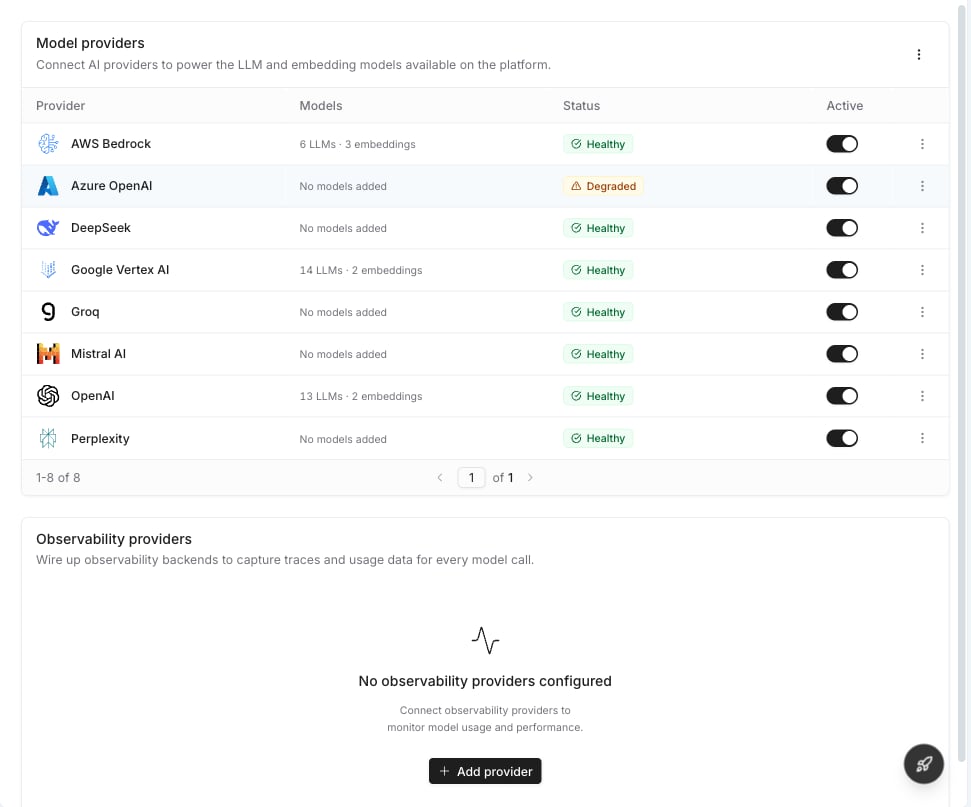
Configure and manage your AI provider connections. Each provider shows its name, how many LLMs and embeddings are linked, health status, and an active toggle.
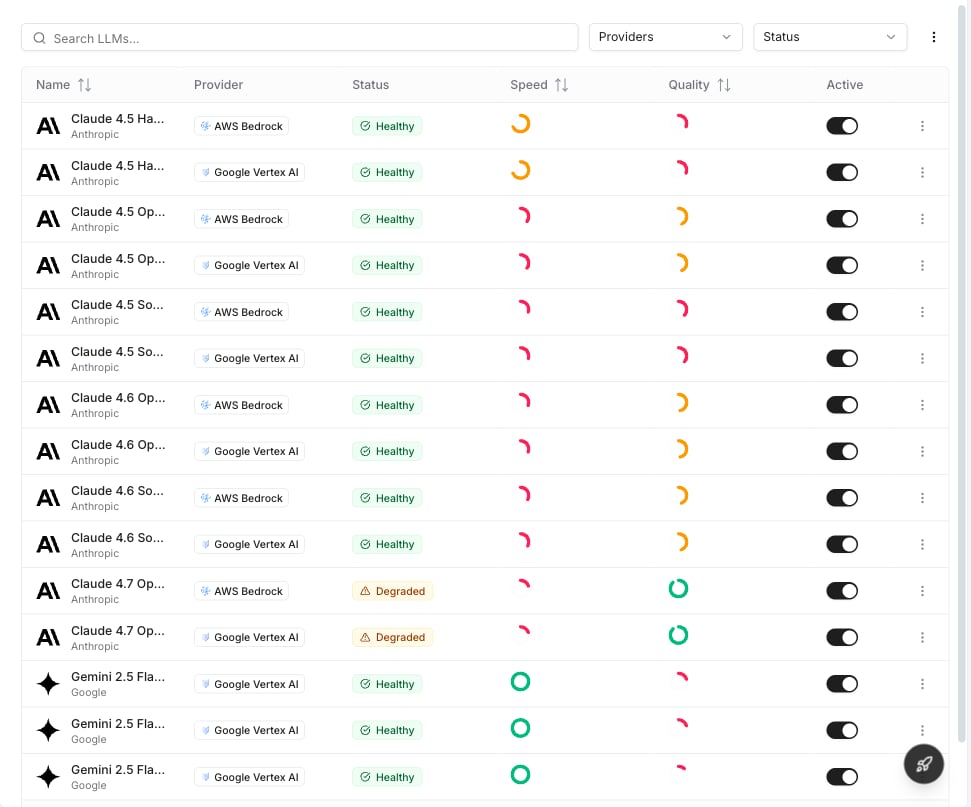
 View all LLM models linked to your providers. Each row shows one model–provider combination with speed and quality gauges, health status, and an active toggle. Filter by provider or status.
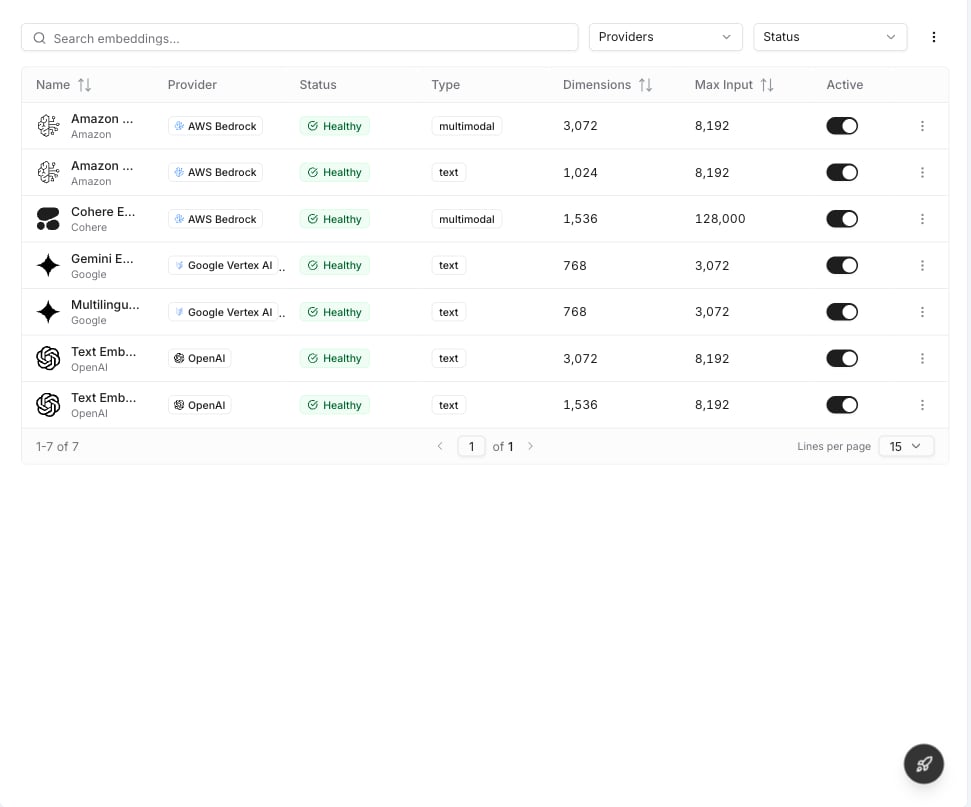
 Same layout as LLMs but for embedding models used by knowledge bases. Manage which embedding models are active across your providers.
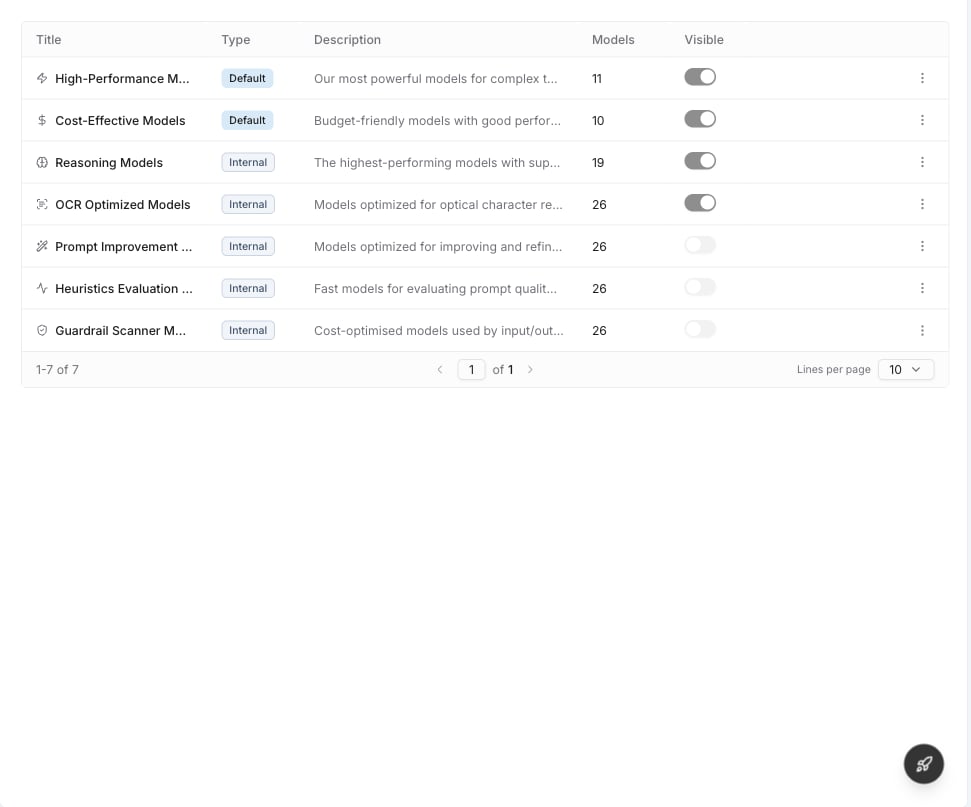
 Named model bundles that flows and agents reference by handle. See [Model Presets](/core/infrastructure/model-presets) for details.
 ***
## Supported Providers
Noxus supports a wide range of cloud AI providers. Click **Add provider** to see the full list and connect a new one.
***
## Supported Providers
Noxus supports a wide range of cloud AI providers. Click **Add provider** to see the full list and connect a new one.
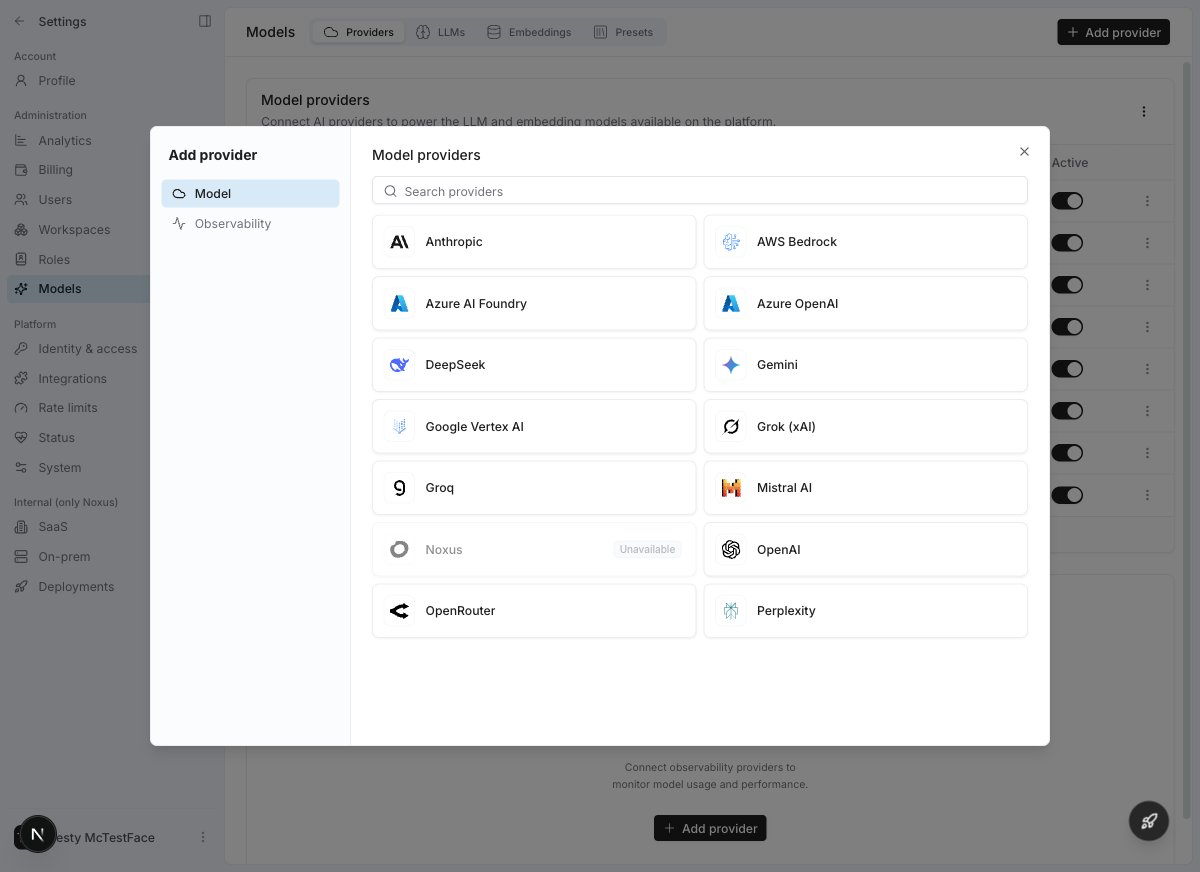 | Provider | Auth Method | Multi-Region | Models |
| :------------------- | :------------------------------------------------ | :--------------- | :-------------------------------------- |
| **OpenAI** | API key | — | GPT-4o, GPT-4.1, o-series, embeddings |
| **Anthropic** | API key | — | Claude 4.x family |
| **Google Vertex AI** | Service account, Project ID, or API key | ✅ Multi-location | Gemini family, embeddings |
| **Gemini** | API key | — | Gemini family (via Google AI Studio) |
| **AWS Bedrock** | AWS credentials or API key | ✅ Multi-region | Claude, Titan, Nova, embeddings |
| **Azure OpenAI** | API key | — | GPT-4o, embeddings |
| **Azure AI Foundry** | API key, managed identity, or default credentials | — | Claude models via Azure |
| **DeepSeek** | API key | — | DeepSeek models |
| **Grok (xAI)** | API key | — | Grok models |
| **Groq** | API key | — | Fast inference models |
| **Mistral AI** | API key | — | Mistral family |
| **OpenRouter** | API key | — | 100+ open-source and proprietary models |
| **Perplexity** | API key | — | Real-time search models |
Noxus continuously adds support for new providers. If you don't see a specific provider listed, it may still be supported via OpenRouter or our plugin system.
***
## Connecting a Provider
Navigate to **Settings** > **Models**. You'll land on the **Providers** tab.
Click **Add provider** in the top right. Select **Model** or **Observability** from the left sidebar, then choose your provider.
Fill in your API key or complete the authentication flow. For providers like Vertex AI and Bedrock, choose your auth mode and configure regions.
Noxus automatically tests your credentials. For multi-region providers (Vertex, Bedrock), each region is tested individually with a step-by-step health pipeline.
Switch to the **LLMs** or **Embeddings** tab and toggle on the models you want to make available.
### Provider Details
Click any provider row to open its details drawer. Here you can see:
* **Connection info** — name, active toggle, linked model counts
* **Health status** — last check time, current status, and a **Test connection** button
| Provider | Auth Method | Multi-Region | Models |
| :------------------- | :------------------------------------------------ | :--------------- | :-------------------------------------- |
| **OpenAI** | API key | — | GPT-4o, GPT-4.1, o-series, embeddings |
| **Anthropic** | API key | — | Claude 4.x family |
| **Google Vertex AI** | Service account, Project ID, or API key | ✅ Multi-location | Gemini family, embeddings |
| **Gemini** | API key | — | Gemini family (via Google AI Studio) |
| **AWS Bedrock** | AWS credentials or API key | ✅ Multi-region | Claude, Titan, Nova, embeddings |
| **Azure OpenAI** | API key | — | GPT-4o, embeddings |
| **Azure AI Foundry** | API key, managed identity, or default credentials | — | Claude models via Azure |
| **DeepSeek** | API key | — | DeepSeek models |
| **Grok (xAI)** | API key | — | Grok models |
| **Groq** | API key | — | Fast inference models |
| **Mistral AI** | API key | — | Mistral family |
| **OpenRouter** | API key | — | 100+ open-source and proprietary models |
| **Perplexity** | API key | — | Real-time search models |
Noxus continuously adds support for new providers. If you don't see a specific provider listed, it may still be supported via OpenRouter or our plugin system.
***
## Connecting a Provider
Navigate to **Settings** > **Models**. You'll land on the **Providers** tab.
Click **Add provider** in the top right. Select **Model** or **Observability** from the left sidebar, then choose your provider.
Fill in your API key or complete the authentication flow. For providers like Vertex AI and Bedrock, choose your auth mode and configure regions.
Noxus automatically tests your credentials. For multi-region providers (Vertex, Bedrock), each region is tested individually with a step-by-step health pipeline.
Switch to the **LLMs** or **Embeddings** tab and toggle on the models you want to make available.
### Provider Details
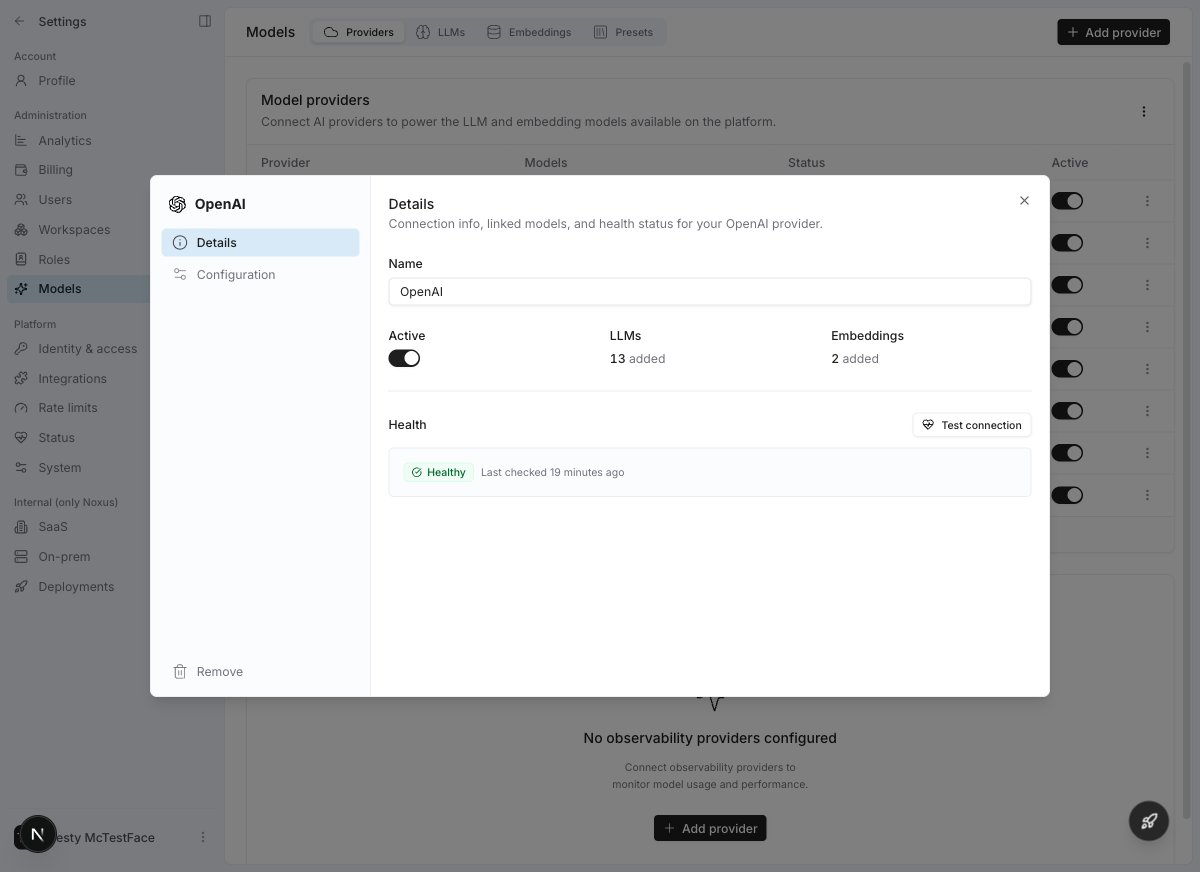
Click any provider row to open its details drawer. Here you can see:
* **Connection info** — name, active toggle, linked model counts
* **Health status** — last check time, current status, and a **Test connection** button
 ***
## Health Monitoring & Model Lifecycle
Noxus continuously monitors your provider connections and model availability through automated health checks that form the **model lifecycle** system.
### Provider Health Statuses
These statuses appear on the **Providers** tab and reflect the overall health of a provider connection:
| Status | Meaning |
| :------------ | :------------------------------------------------- |
| **Healthy** | Provider is reachable and credentials are valid |
| **Degraded** | Some models or regions are failing but others work |
| **Unhealthy** | Provider is unreachable or credentials are invalid |
### Model Health Statuses
Individual model–provider links (shown on the **LLMs** and **Embeddings** tabs) have their own lifecycle:
| Status | Meaning |
| :-------------- | :--------------------------------------------------------------------------------------------------------------------------------- |
| **Healthy** | Model is available and included in routing |
| **Degraded** | Model is reachable but experiencing intermittent failures — still included in routing but may fall back to other models |
| **Suspended** | Temporarily excluded from routing after repeated consecutive failures — recovers automatically on the next successful health check |
| **Deactivated** | Removed from routing after persistent failures — recovered by periodic probes or manual reactivation |
### Connection Testing
When you test a provider connection, Noxus runs a multi-step health pipeline that validates each aspect of your configuration:
* **Authentication** — are your credentials valid?
* **Permissions** — do you have the right access level? (Vertex IAM, Bedrock invoke permissions)
* **Regional access** — for multi-region providers, each configured region is tested individually
Each step reports pass, fail, or skip, with actionable hints when something goes wrong. Results stream in real-time so you can see progress as each step completes.
### Automatic Lifecycle Management
Noxus runs periodic health checks on all provider connections and model links in the background. Based on results, models transition automatically between lifecycle states:
1. A **healthy** model starts failing → after several consecutive failures it becomes **suspended** and is excluded from routing.
2. If failures persist → the model is **deactivated** and fully removed from routing.
3. Periodic recovery probes test deactivated models → if a probe succeeds, the model is restored to **healthy**.
This means transient provider outages are handled automatically without manual intervention. You can also manually reactivate a deactivated model at any time from the LLMs or Embeddings tab.
***
## Model Selection in Flows and Agents
When configuring an AI node in a flow or an agent, you select models through the **Model** tab in the configuration drawer.
### Preset Selection
By default, nodes use a **model preset** — a named bundle of models tried in priority order. If the first model encounters an error, the next one is used automatically.
***
## Health Monitoring & Model Lifecycle
Noxus continuously monitors your provider connections and model availability through automated health checks that form the **model lifecycle** system.
### Provider Health Statuses
These statuses appear on the **Providers** tab and reflect the overall health of a provider connection:
| Status | Meaning |
| :------------ | :------------------------------------------------- |
| **Healthy** | Provider is reachable and credentials are valid |
| **Degraded** | Some models or regions are failing but others work |
| **Unhealthy** | Provider is unreachable or credentials are invalid |
### Model Health Statuses
Individual model–provider links (shown on the **LLMs** and **Embeddings** tabs) have their own lifecycle:
| Status | Meaning |
| :-------------- | :--------------------------------------------------------------------------------------------------------------------------------- |
| **Healthy** | Model is available and included in routing |
| **Degraded** | Model is reachable but experiencing intermittent failures — still included in routing but may fall back to other models |
| **Suspended** | Temporarily excluded from routing after repeated consecutive failures — recovers automatically on the next successful health check |
| **Deactivated** | Removed from routing after persistent failures — recovered by periodic probes or manual reactivation |
### Connection Testing
When you test a provider connection, Noxus runs a multi-step health pipeline that validates each aspect of your configuration:
* **Authentication** — are your credentials valid?
* **Permissions** — do you have the right access level? (Vertex IAM, Bedrock invoke permissions)
* **Regional access** — for multi-region providers, each configured region is tested individually
Each step reports pass, fail, or skip, with actionable hints when something goes wrong. Results stream in real-time so you can see progress as each step completes.
### Automatic Lifecycle Management
Noxus runs periodic health checks on all provider connections and model links in the background. Based on results, models transition automatically between lifecycle states:
1. A **healthy** model starts failing → after several consecutive failures it becomes **suspended** and is excluded from routing.
2. If failures persist → the model is **deactivated** and fully removed from routing.
3. Periodic recovery probes test deactivated models → if a probe succeeds, the model is restored to **healthy**.
This means transient provider outages are handled automatically without manual intervention. You can also manually reactivate a deactivated model at any time from the LLMs or Embeddings tab.
***
## Model Selection in Flows and Agents
When configuring an AI node in a flow or an agent, you select models through the **Model** tab in the configuration drawer.
### Preset Selection
By default, nodes use a **model preset** — a named bundle of models tried in priority order. If the first model encounters an error, the next one is used automatically.
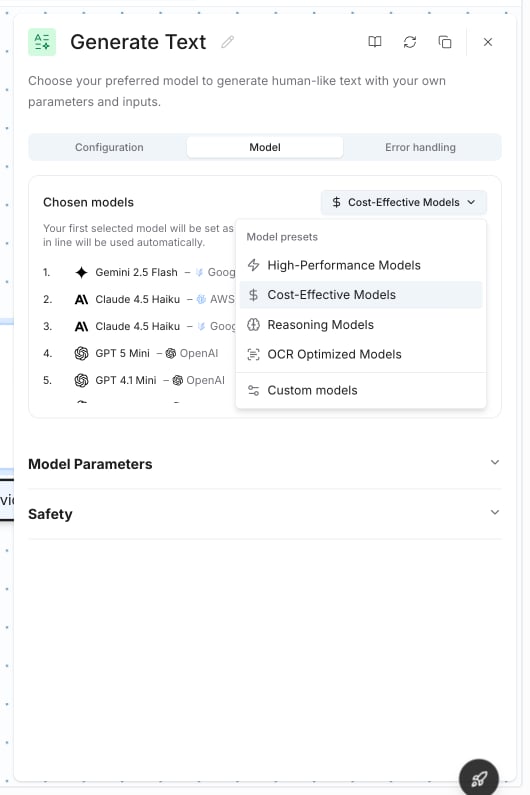
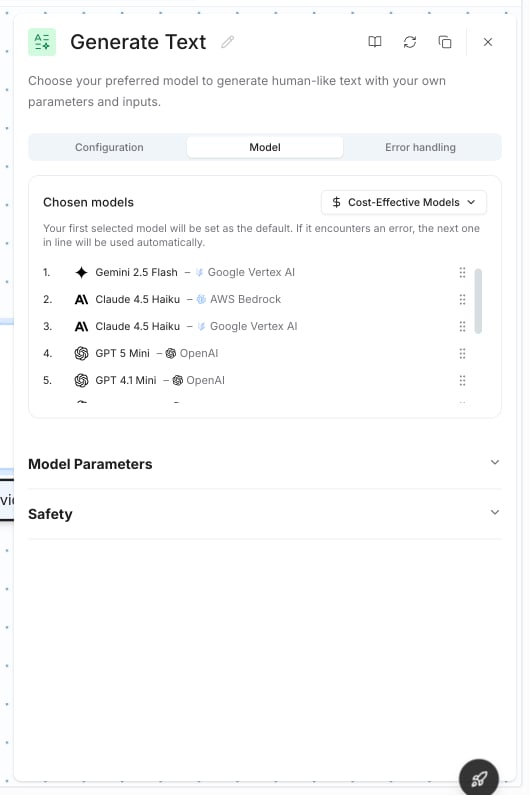 Click the preset dropdown to switch between presets or choose **Custom models** for manual selection.
 ### Custom Model Selection
When you choose **Custom models**, a model browser opens showing all available models across your connected providers. Each model appears once per provider connection, so if you've connected both OpenAI and Azure OpenAI, you'll see separate entries for each.
### Custom Model Selection
When you choose **Custom models**, a model browser opens showing all available models across your connected providers. Each model appears once per provider connection, so if you've connected both OpenAI and Azure OpenAI, you'll see separate entries for each.
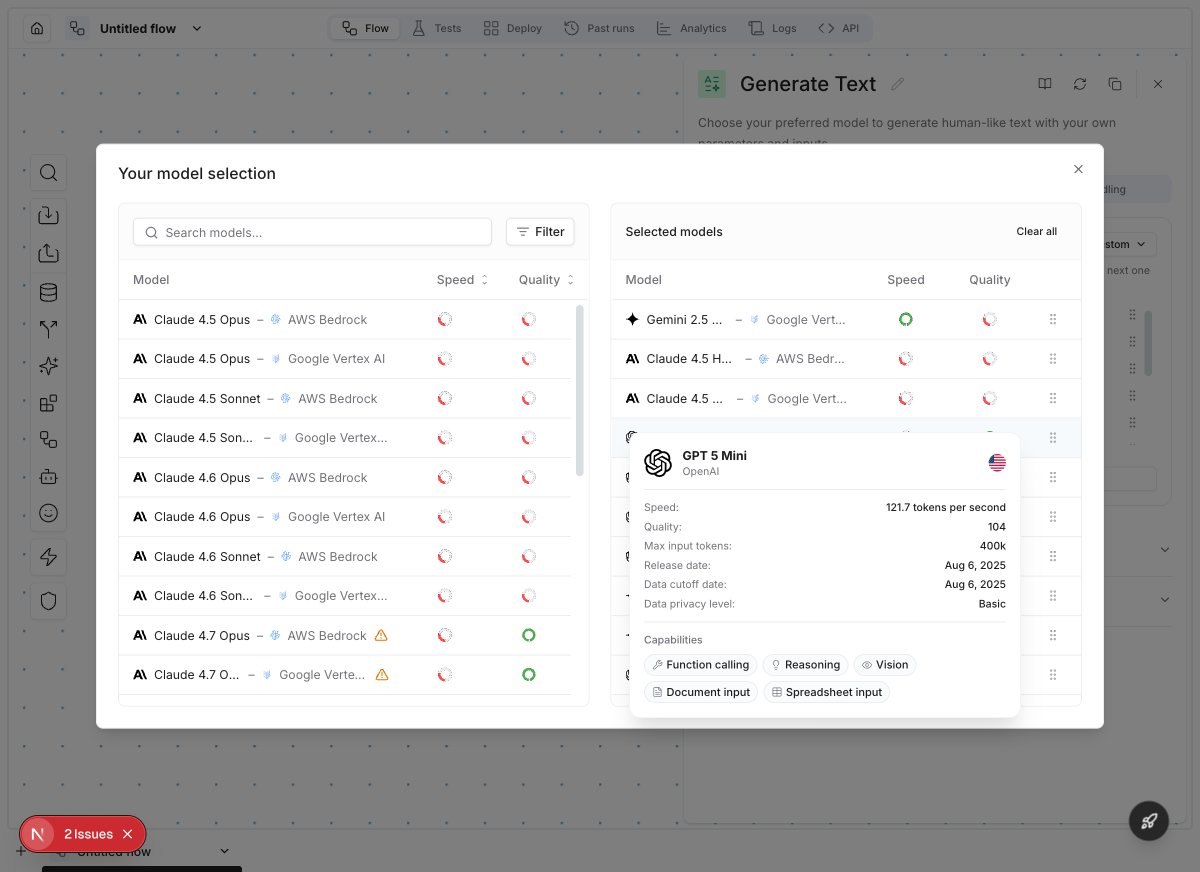 The model browser includes:
* **Search** — find models by name
* **Filters** — narrow by provider, speed, quality, location, and capabilities (vision, function calling, reasoning, etc.)
* **Speed & Quality gauges** — visual indicators to compare models at a glance
* **Model details** — hover over a model to see its full specs: speed (tokens/sec), quality score, context window, release date, and capabilities
* **Fallback chain** — selected models are ordered by priority. The first model is the default; others are fallbacks
***
## Local & Custom Models
For organizations with strict data residency requirements or proprietary models, Noxus offers deep integration for self-hosted infrastructure.
### Seamless Local Integration
* **Private Endpoints**: Connect to on-premises inference servers (e.g., vLLM, Ollama, TGI) via secure private networking using custom base URLs on OpenAI-compatible providers.
* **Unified Interface**: Local models appear alongside cloud providers, allowing for seamless switching in flows and agents.
### Custom Model Providers
You can extend the platform to support any proprietary or specialized model through our plugin system.
* **Custom Inference**: Build plugins for internal model servers or niche providers.
* **Fine-tuned Models**: Easily integrate your organization's fine-tuned models into the standard workflow.
***
## Observability Providers
In addition to model providers, you can connect observability backends to trace and monitor all AI model calls. See [Observability Providers](/core/infrastructure/observability-providers) for details.
Configure named model bundles for consistent selection across flows.
Choose the right model for your task based on quality, speed, and cost.
Connect tracing backends for full visibility into model calls.
Understand how your API keys and model data are protected.
The model browser includes:
* **Search** — find models by name
* **Filters** — narrow by provider, speed, quality, location, and capabilities (vision, function calling, reasoning, etc.)
* **Speed & Quality gauges** — visual indicators to compare models at a glance
* **Model details** — hover over a model to see its full specs: speed (tokens/sec), quality score, context window, release date, and capabilities
* **Fallback chain** — selected models are ordered by priority. The first model is the default; others are fallbacks
***
## Local & Custom Models
For organizations with strict data residency requirements or proprietary models, Noxus offers deep integration for self-hosted infrastructure.
### Seamless Local Integration
* **Private Endpoints**: Connect to on-premises inference servers (e.g., vLLM, Ollama, TGI) via secure private networking using custom base URLs on OpenAI-compatible providers.
* **Unified Interface**: Local models appear alongside cloud providers, allowing for seamless switching in flows and agents.
### Custom Model Providers
You can extend the platform to support any proprietary or specialized model through our plugin system.
* **Custom Inference**: Build plugins for internal model servers or niche providers.
* **Fine-tuned Models**: Easily integrate your organization's fine-tuned models into the standard workflow.
***
## Observability Providers
In addition to model providers, you can connect observability backends to trace and monitor all AI model calls. See [Observability Providers](/core/infrastructure/observability-providers) for details.
Configure named model bundles for consistent selection across flows.
Choose the right model for your task based on quality, speed, and cost.
Connect tracing backends for full visibility into model calls.
Understand how your API keys and model data are protected.