> ## Documentation Index
> Fetch the complete documentation index at: https://docs.noxus.ai/llms.txt
> Use this file to discover all available pages before exploring further.
# Overview
> Deploy and manage agents in production
Deploy agents through multiple channels to meet your integration needs.
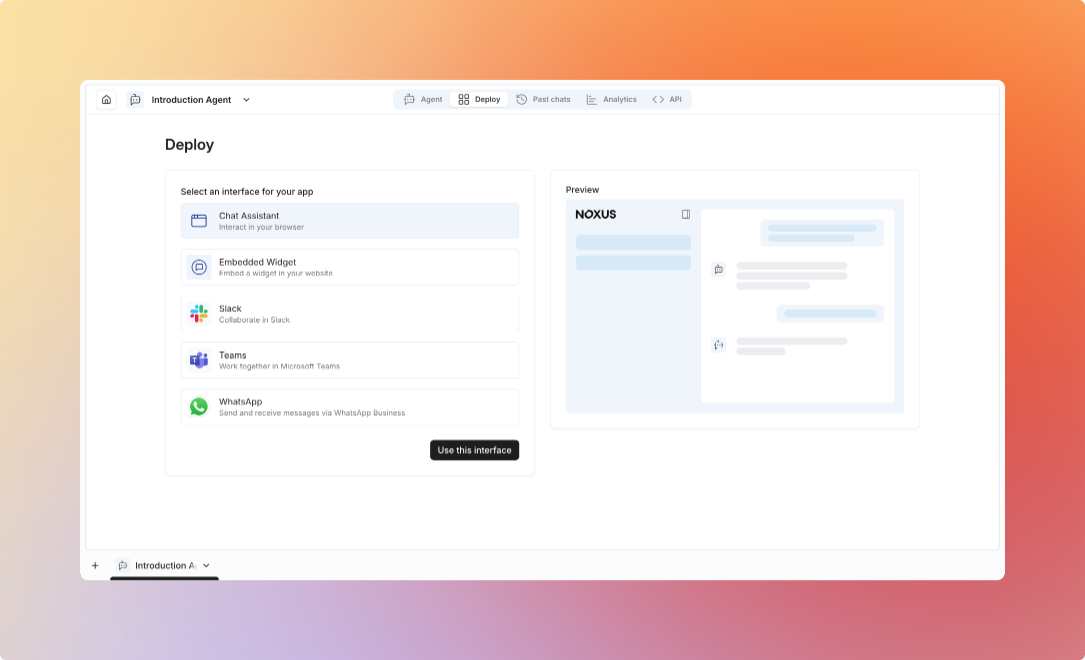 ## Deployment Options
**Deploy agents directly in the Noxus platform**
* Web-based chat interface
* Real-time conversation testing
* Performance monitoring
* Configuration management
* Internal team assistants
* Testing and development
* Admin tools
* Training and demos
**Integrate agents into your applications via REST API**
* Programmatic conversation management
* Webhook notifications
* Custom UI integration
* Multi-channel deployment
* Customer-facing chatbots
* Mobile app integration
* Custom interfaces
* Multi-platform deployment
**Example:**
```bash theme={null}
# Create conversation
curl -X POST https://api.noxus.ai/v1/conversations \
-H "Authorization: Bearer ${API_KEY}" \
-d '{"agent_id": "agent_123"}'
# Send message
curl -X POST https://api.noxus.ai/v1/conversations/conv_456/messages \
-H "Authorization: Bearer ${API_KEY}" \
-d '{"content": "Hello, I need help"}'
```
**Embed agents in Python applications**
* Type-safe Python interface
* Async/await support
* Streaming responses
* Event handling
* Python applications
* Data science workflows
* Backend services
* Automation scripts
**Example:**
```python theme={null}
from noxus_sdk.client import Client
client = Client(api_key="your_api_key")
# Create conversation
conversation = client.conversations.create(
agent_id="agent_123",
name="Support Session"
)
# Chat with agent
response = conversation.chat("How do I reset my password?")
print(response.content)
# Stream responses
for chunk in conversation.chat_stream("Tell me more"):
print(chunk.content, end="", flush=True)
```
**Add pre-built chat widget to your website**
* Drop-in JavaScript widget
* Customizable styling
* Mobile responsive
* Conversation persistence
* Website chat support
* Product assistance
* Lead qualification
* Customer engagement
**Example:**
```html theme={null}
```
**Deploy agents to messaging platforms**
Connect your agent to popular messaging and collaboration tools so users can interact with it where they already work.
Deploy your agent to Slack channels and DMs. Respond to mentions, direct messages, and participate in group conversations.
Bring your agent into Microsoft Teams channels and chats for enterprise collaboration.
Connect your agent to WhatsApp for customer communication through the world's most popular messaging app.
Deploy your agent as a Telegram bot for lightweight, fast interactions with users.
## Agent Configuration
**Choose the right model for your use case:**
| Model | Best For | Performance |
| :-------------------------------------- | :-------------------------------- | :-------------------- |
| **GPT-4 / Claude Opus / Gemini Ultra** | Complex reasoning, critical tasks | ⭐⭐⭐⭐⭐ Highest quality |
| **GPT-4o / Claude Sonnet / Gemini Pro** | Balanced performance, general use | ⭐⭐⭐⭐ Great balance |
| **GPT-3.5 / Mistral / Gemini Flash** | Simple tasks, high volume | ⭐⭐⭐ Fast & economical |
**Fine-tune agent behavior:**
| Setting | Range | Purpose |
| :-------------- | :---------- | :------------------------------------------------- |
| **Temperature** | 0.0 - 1.0 | Control creativity (0.0 = focused, 1.0 = creative) |
| **Max Tokens** | 100 - 4000+ | Set response length limits |
| **Timeout** | 10s - 300s | Maximum execution time |
| **Streaming** | On/Off | Enable real-time response streaming |
**Control usage and costs:**
**Conversation Limits:**
* Maximum messages per conversation
* Token budget per conversation
* Time-based expiration
* Concurrent conversation limits
**Rate Limits:**
* Requests per minute
* Requests per hour
* Daily request caps
* Per-user limits
## Past Chats
Track and review all conversations with your agent. Past Chats provides a searchable table of conversation history.
**Available Information:**
* **Date created**: When the conversation started
* **Conversation title**: Name or topic of the conversation
* **Version**: Agent version used for the conversation
* **Started by**: User who initiated the conversation
* **Last message**: Timestamp of the most recent message
**Filtering & Search:**
* Search conversations by content or title
* Filter by time period (All time, Last 7 days, Last 30 days, etc.)
* Sort by date created or last message timestamp
Click any conversation to view the full message history, including agent responses and tool usage.
## Best Practices
Begin with basic configuration, add complexity as needed
Test agents with various scenarios before production
Track metrics and optimize continuously
Define resource and cost limits upfront
Handle errors and edge cases gracefully
Review conversation logs and update instructions
Act on user feedback to improve agent performance
Configure tools and capabilities for your agents
## Deployment Options
**Deploy agents directly in the Noxus platform**
* Web-based chat interface
* Real-time conversation testing
* Performance monitoring
* Configuration management
* Internal team assistants
* Testing and development
* Admin tools
* Training and demos
**Integrate agents into your applications via REST API**
* Programmatic conversation management
* Webhook notifications
* Custom UI integration
* Multi-channel deployment
* Customer-facing chatbots
* Mobile app integration
* Custom interfaces
* Multi-platform deployment
**Example:**
```bash theme={null}
# Create conversation
curl -X POST https://api.noxus.ai/v1/conversations \
-H "Authorization: Bearer ${API_KEY}" \
-d '{"agent_id": "agent_123"}'
# Send message
curl -X POST https://api.noxus.ai/v1/conversations/conv_456/messages \
-H "Authorization: Bearer ${API_KEY}" \
-d '{"content": "Hello, I need help"}'
```
**Embed agents in Python applications**
* Type-safe Python interface
* Async/await support
* Streaming responses
* Event handling
* Python applications
* Data science workflows
* Backend services
* Automation scripts
**Example:**
```python theme={null}
from noxus_sdk.client import Client
client = Client(api_key="your_api_key")
# Create conversation
conversation = client.conversations.create(
agent_id="agent_123",
name="Support Session"
)
# Chat with agent
response = conversation.chat("How do I reset my password?")
print(response.content)
# Stream responses
for chunk in conversation.chat_stream("Tell me more"):
print(chunk.content, end="", flush=True)
```
**Add pre-built chat widget to your website**
* Drop-in JavaScript widget
* Customizable styling
* Mobile responsive
* Conversation persistence
* Website chat support
* Product assistance
* Lead qualification
* Customer engagement
**Example:**
```html theme={null}
```
**Deploy agents to messaging platforms**
Connect your agent to popular messaging and collaboration tools so users can interact with it where they already work.
Deploy your agent to Slack channels and DMs. Respond to mentions, direct messages, and participate in group conversations.
Bring your agent into Microsoft Teams channels and chats for enterprise collaboration.
Connect your agent to WhatsApp for customer communication through the world's most popular messaging app.
Deploy your agent as a Telegram bot for lightweight, fast interactions with users.
## Agent Configuration
**Choose the right model for your use case:**
| Model | Best For | Performance |
| :-------------------------------------- | :-------------------------------- | :-------------------- |
| **GPT-4 / Claude Opus / Gemini Ultra** | Complex reasoning, critical tasks | ⭐⭐⭐⭐⭐ Highest quality |
| **GPT-4o / Claude Sonnet / Gemini Pro** | Balanced performance, general use | ⭐⭐⭐⭐ Great balance |
| **GPT-3.5 / Mistral / Gemini Flash** | Simple tasks, high volume | ⭐⭐⭐ Fast & economical |
**Fine-tune agent behavior:**
| Setting | Range | Purpose |
| :-------------- | :---------- | :------------------------------------------------- |
| **Temperature** | 0.0 - 1.0 | Control creativity (0.0 = focused, 1.0 = creative) |
| **Max Tokens** | 100 - 4000+ | Set response length limits |
| **Timeout** | 10s - 300s | Maximum execution time |
| **Streaming** | On/Off | Enable real-time response streaming |
**Control usage and costs:**
**Conversation Limits:**
* Maximum messages per conversation
* Token budget per conversation
* Time-based expiration
* Concurrent conversation limits
**Rate Limits:**
* Requests per minute
* Requests per hour
* Daily request caps
* Per-user limits
## Past Chats
Track and review all conversations with your agent. Past Chats provides a searchable table of conversation history.
**Available Information:**
* **Date created**: When the conversation started
* **Conversation title**: Name or topic of the conversation
* **Version**: Agent version used for the conversation
* **Started by**: User who initiated the conversation
* **Last message**: Timestamp of the most recent message
**Filtering & Search:**
* Search conversations by content or title
* Filter by time period (All time, Last 7 days, Last 30 days, etc.)
* Sort by date created or last message timestamp
Click any conversation to view the full message history, including agent responses and tool usage.
## Best Practices
Begin with basic configuration, add complexity as needed
Test agents with various scenarios before production
Track metrics and optimize continuously
Define resource and cost limits upfront
Handle errors and edge cases gracefully
Review conversation logs and update instructions
Act on user feedback to improve agent performance
Configure tools and capabilities for your agents