> ## Documentation Index
> Fetch the complete documentation index at: https://docs.noxus.ai/llms.txt
> Use this file to discover all available pages before exploring further.
# Chat & Widget
> Deploy your agent as an authenticated in-platform chat or as an embeddable widget on your website
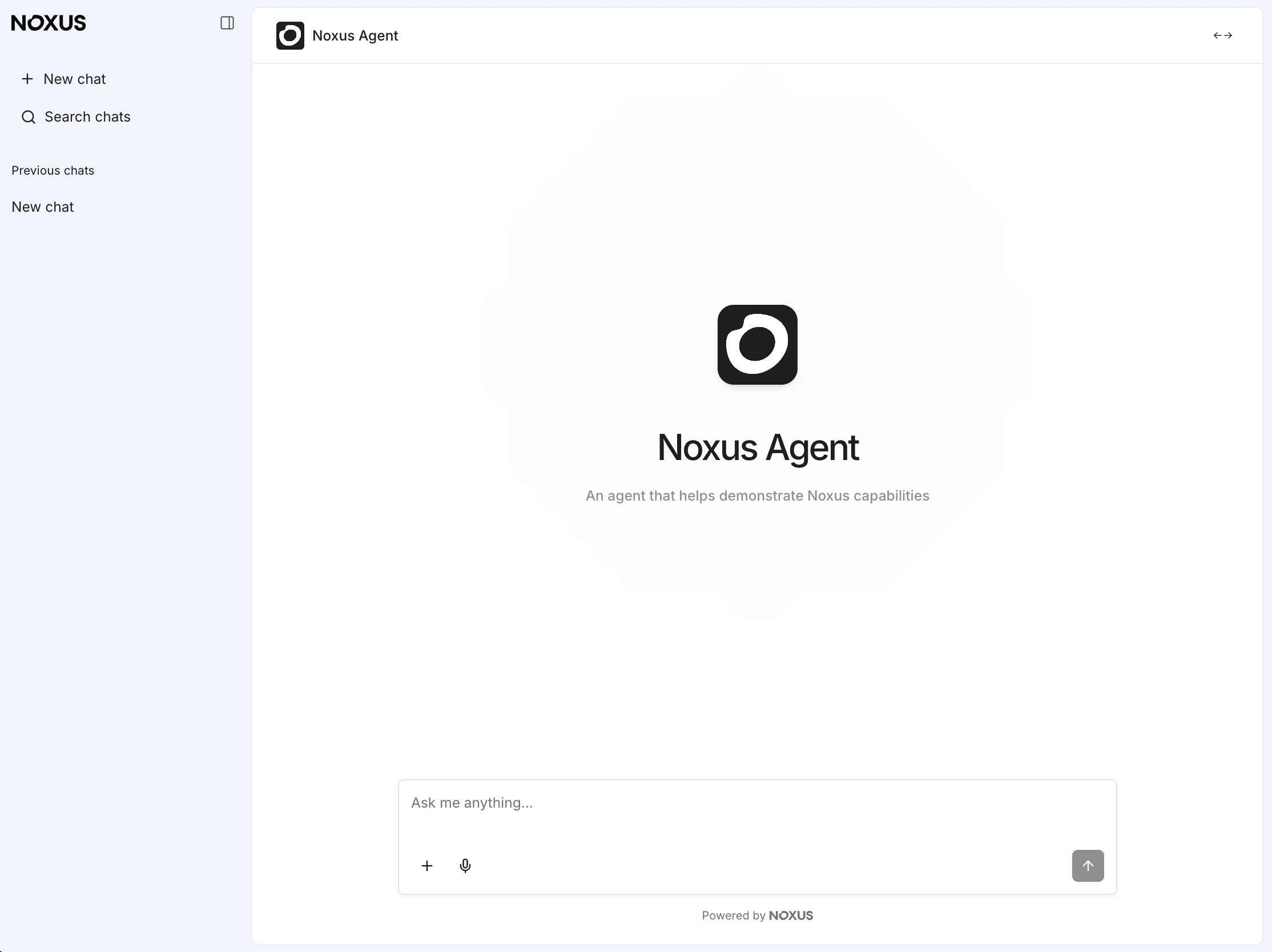
The **Chat** and **Widget** deployments are Noxus-hosted interfaces — they need no third-party credentials and ship with a built-in conversation UI.
* **Chat** — an authenticated web chat available inside the Noxus platform (or at a deployment URL) for users in your workspace.
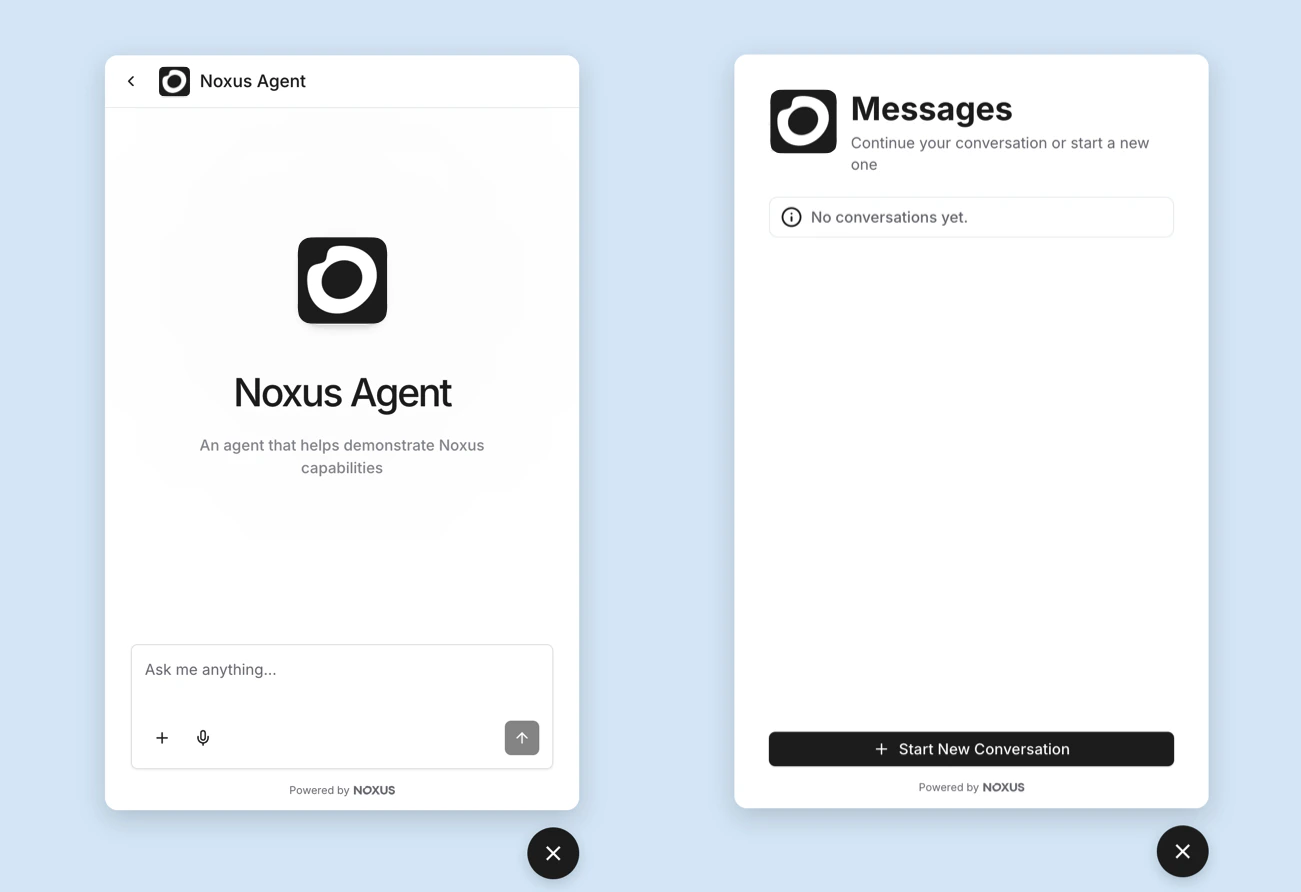
* **Widget** — an embeddable chat widget you can drop onto any website, letting external visitors talk to the agent.
Both deployments share the same rendering layer, so the agent can send markdown, images, file attachments, buttons, and adaptive cards. They differ mainly in **who can access them** and in **how they're branded**.
Both the Chat and the Widget include a built-in **conversation history** panel — users can pick up any of their previous conversations where they left off or start a brand-new one at any time.
## Chat Deployment
Chat is the quickest way to put an agent in front of a user. No setup is needed beyond publishing the agent and choosing who is allowed to use it.
 ### Deployment
| Field | Description |
| :---------- | :---------------------------------------------------------------------------------------------------- |
| **Status** | Toggle the deployment **Online** or **Offline**. A published version is required before going online. |
| **Version** | The published agent version this deployment uses. |
A published **version** is required before you can set a deployment to Online. Switch the deployment to **Offline** before editing its configuration.
### Access
Control who in your workspace can open the chat.
| Field | Description |
| :-------------------------------------- | :------------------------------------------------------------------------------------------------------ |
| **Custom Instructions** | Per-deployment instructions appended to the agent's system prompt (e.g. `"Always respond in Spanish"`). |
| **Allow all app users to use this app** | When enabled, every **App user** in the workspace can open the chat. |
| **Allowed users** | When the toggle above is off, pick a specific list of users who can access this deployment. |
### Branding
Override the default Noxus look and feel to match your brand.
| Field | Description |
| :---------------------- | :----------------------------------------------------------------------------------------- |
| **Use custom branding** | Master toggle — when off, the chat uses the default theme and the fields below are hidden. |
| **Agent logo** | Image shown next to the agent name in the chat header. |
| **Sidebar logo** | Image shown at the top of the sidebar. Falls back to your tenant logo when empty. |
| **Main color** | Primary / accent color set. Pick from presets or provide a custom color. |
Pick **fairly light** colors — chat text is rendered in black, so dark backgrounds make messages hard to read. When you edit the **main color**, the system automatically derives a matching **accent color**; you can override it afterwards if you'd prefer a different pairing.
***
## Widget Deployment
The Widget is an embeddable chat that can live on any public website. It shares the agent's configuration with the rest of the platform, but exposes a public front-end that anonymous visitors can use.
### Deployment
| Field | Description |
| :---------- | :---------------------------------------------------------------------------------------------------- |
| **Status** | Toggle the deployment **Online** or **Offline**. A published version is required before going online. |
| **Version** | The published agent version this deployment uses. |
A published **version** is required before you can set a deployment to Online. Switch the deployment to **Offline** before editing its configuration.
### Access
Control who in your workspace can open the chat.
| Field | Description |
| :-------------------------------------- | :------------------------------------------------------------------------------------------------------ |
| **Custom Instructions** | Per-deployment instructions appended to the agent's system prompt (e.g. `"Always respond in Spanish"`). |
| **Allow all app users to use this app** | When enabled, every **App user** in the workspace can open the chat. |
| **Allowed users** | When the toggle above is off, pick a specific list of users who can access this deployment. |
### Branding
Override the default Noxus look and feel to match your brand.
| Field | Description |
| :---------------------- | :----------------------------------------------------------------------------------------- |
| **Use custom branding** | Master toggle — when off, the chat uses the default theme and the fields below are hidden. |
| **Agent logo** | Image shown next to the agent name in the chat header. |
| **Sidebar logo** | Image shown at the top of the sidebar. Falls back to your tenant logo when empty. |
| **Main color** | Primary / accent color set. Pick from presets or provide a custom color. |
Pick **fairly light** colors — chat text is rendered in black, so dark backgrounds make messages hard to read. When you edit the **main color**, the system automatically derives a matching **accent color**; you can override it afterwards if you'd prefer a different pairing.
***
## Widget Deployment
The Widget is an embeddable chat that can live on any public website. It shares the agent's configuration with the rest of the platform, but exposes a public front-end that anonymous visitors can use.
 ### Setting Up the Widget
On the agent's **Deployments** page, create a new **Widget** deployment and publish a version.
Once the deployment is Online, Noxus generates an embed snippet you can paste into your website's HTML.
### Setting Up the Widget
On the agent's **Deployments** page, create a new **Widget** deployment and publish a version.
Once the deployment is Online, Noxus generates an embed snippet you can paste into your website's HTML.
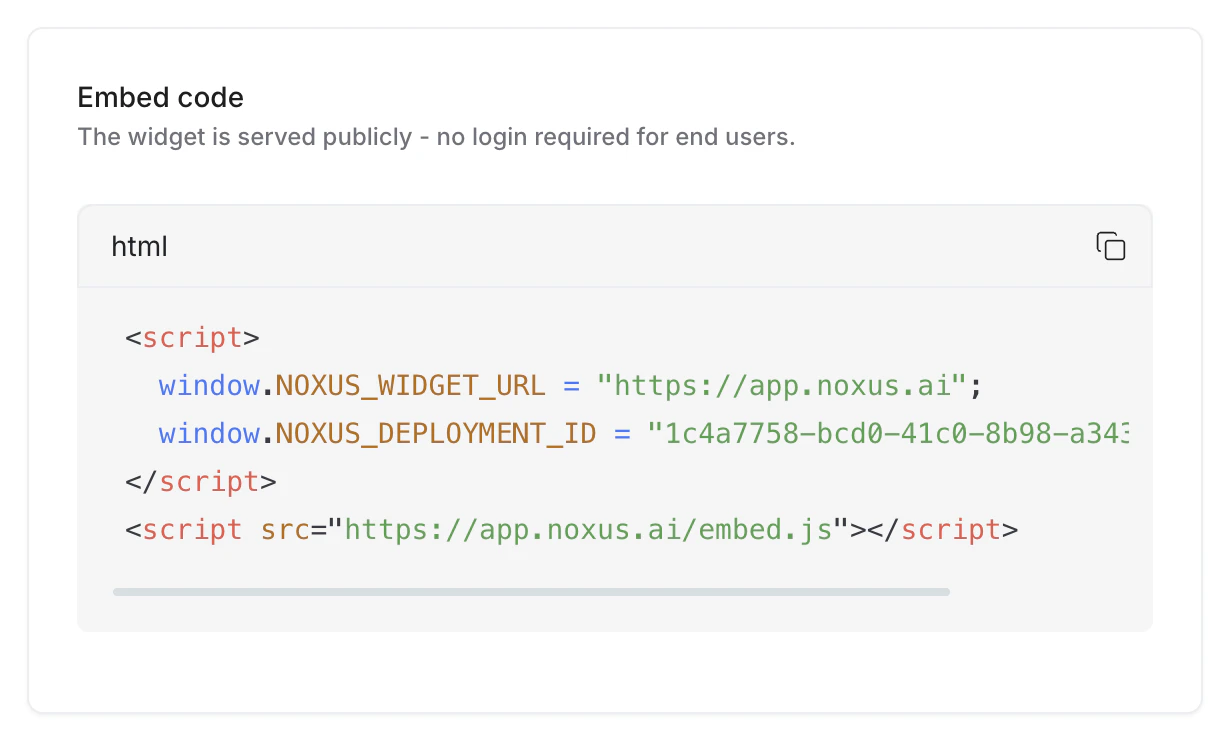 Add the snippet to any page where the widget should appear. Visitors will see the chat bubble in the corner and can start a conversation without signing in.
### Deployment
| Field | Description |
| :---------- | :------------------------------------------------ |
| **Status** | Toggle the deployment **Online** or **Offline**. |
| **Version** | The published agent version this deployment uses. |
### Widget content
Copy shown to visitors in the widget UI. Every field is optional — leave blank to use the defaults.
| Field | Description |
| :---------------------------------- | :----------------------------------------------------------------- |
| **Widget title** | Shown at the top of the widget panel. |
| **Widget description** | Short subtitle shown under the title. |
| **Custom Instructions** | Per-deployment instructions appended to the agent's system prompt. |
| **Title** | Title shown on the **conversations history** page. |
| **Subtitle** | Subtitle shown on the conversations history page. |
| **New conversation button** | Label used for the "start a new conversation" CTA. |
| **No conversations message** | Placeholder text shown when the visitor has no conversations yet. |
| **Title logo** | Optional square image shown next to the widget title. |
| **Show "Powered by Noxus" message** | Toggle the Noxus credit line in the widget footer. |
### Branding
| Field | Description |
| :---------------------- | :----------------------------------------------------------------------------------------------------------------------------------------------------- |
| **Use custom branding** | Master toggle for the branding fields below. |
| **Bubble logo** | SVG code for the icon shown inside the chat bubble on your site. We recommend a 24×24px icon — the SVG is rendered with the theme's colors and sizing. |
| **Main color** | Primary / accent color set used throughout the widget. Pick from presets or provide a custom color. |
Because the widget is **public**, keep Custom Instructions focused on behavior (tone, scope, fallback responses). Avoid putting secrets or internal URLs there — anything in the agent's prompt can be surfaced to visitors through conversation.
### Access & security
By default the widget is fully public: it can be embedded on any site and anyone who loads it can chat. Two independent, opt-in controls let you lock that down.
#### Domain locking
Restrict which websites are allowed to embed the widget. When enabled, Noxus emits a `Content-Security-Policy: frame-ancestors` header so browsers refuse to render the widget anywhere else.
| Field | Description |
| :---------------------------------------- | :--------------------------------------------------------------------------------------------------------------------------------- |
| **Restrict embedding to allowed domains** | When on, only the domains you list can embed the widget. When off, it can be embedded anywhere. |
| **Allowed domains** | Origins permitted to embed the widget, e.g. `https://example.com` or `https://*.example.com` (wildcard subdomains). One per entry. |
#### Authentication
| Field | Description |
| :---------------------------------------------------- | :----------------------------------------------------------------------------------------------------------------------------------------------------------------------------------------------------------------------------------------------------------------------------------------------- |
| **Authentication** | **Public** — anyone who can load the widget can chat. **Signed token** — your site's backend mints a signed token for each user; calls without a valid token are rejected. **Noxus user** — the agent runs as the visitor's real Noxus account, authenticated by a Noxus-issued JWT (see below). |
| **Token signing algorithm** | **HS256** — a shared secret your backend signs with (stored encrypted by Noxus). **RS256** — your backend signs with a private key; Noxus verifies with your public key / JWKS, so no secret is stored. |
| **Signing secret** *(HS256)* | The shared secret used to verify tokens. Leave blank when editing to keep the current value. |
| **JWKS URL** / **Public key (PEM)** *(RS256)* | Where Noxus fetches your verification key. |
| **Token audience (`aud`)** / **Token issuer (`iss`)** | Optional expected claims. Setting `aud` is strongly recommended in production to isolate this widget's tokens from other services that share the signing key. |
In **Signed token** mode the visitor's chat is bound to the token's `sub` claim, so users can only see their own conversations. Always set the **Allowed domains** so a token can't be replayed from an unapproved site.
#### Host page integration (signed token)
When **Signed token** mode is on, your embedding page supplies a token that Noxus validates on every request. Define a provider function before loading the embed snippet:
```html theme={null}
```
A static `window.NOXUS_EMBED_TOKEN = ""` is also supported, but a provider function is preferred because it can return a fresh token when the previous one expires.
Your backend mints the JWT after authenticating the user. Required and optional claims:
| Claim | Required | Description |
| :------------ | :------------------------ | :-------------------------------------------------------------------------------------- |
| `exp` | Yes | Expiry. Keep it short-lived. |
| `sub` | Yes | Stable per-user id — conversations are keyed to it. |
| `origin` | When domain locking is on | The embedding page's origin (e.g. `https://example.com`); must match an allowed domain. |
| `aud` / `iss` | Optional | Must match the configured audience / issuer when set. |
The token is delivered to the widget over `postMessage` and sent to Noxus in an `x-embed-token` header — it never appears in the page URL.
#### Authenticate as a Noxus user (`noxus_user`)
Choose **Noxus user** when the agent should run as the visitor's *real Noxus account* — it can read and act on everything that user can in Noxus. Authentication is a **Noxus-issued JWT** your integration obtains and relays as a bearer token; it does **not** rely on browser cookies (third-party cookies are blocked inside cross-origin iframes, so cookie-based sessions aren't reliable here).
Noxus is the authorizer: the user consents, Noxus mints an **ES256** access token (≈1h) signed with a platform keypair, and your page relays the access token to the widget. Each authorized client is revocable from **Settings → Authorized clients**.
##### Recommended: the Noxus consent popup (no backend, no CORS)
For a website with no backend, open the Noxus-hosted consent popup and wait for the token — the whole flow runs on the Noxus origin, so your page never makes a cross-origin call:
```html theme={null}
```
Noxus validates the requesting `origin` against the deployment's **Allowed domains** and delivers the token via `postMessage` scoped to that origin, so it can only reach the page you authorized. When the token expires, the provider is called again and re-opens the popup — silent if the Noxus session is still valid.
##### Alternative: server-side PKCE (browser extensions, host backends)
If you have a backend (or you're a browser extension), run the PKCE flow and exchange the code server-side, then relay the access token the same way. This is the flow the Noxus Copilot extension uses.
With the user signed in to Noxus, send them to the consent page with a PKCE `code_challenge` and your `redirect_uri`. On consent, Noxus registers a device and redirects back with a one-time `code`.
```http theme={null}
POST /api/public/clients/token
Content-Type: application/json
{ "grant_type": "authorization_code", "code": "
Add the snippet to any page where the widget should appear. Visitors will see the chat bubble in the corner and can start a conversation without signing in.
### Deployment
| Field | Description |
| :---------- | :------------------------------------------------ |
| **Status** | Toggle the deployment **Online** or **Offline**. |
| **Version** | The published agent version this deployment uses. |
### Widget content
Copy shown to visitors in the widget UI. Every field is optional — leave blank to use the defaults.
| Field | Description |
| :---------------------------------- | :----------------------------------------------------------------- |
| **Widget title** | Shown at the top of the widget panel. |
| **Widget description** | Short subtitle shown under the title. |
| **Custom Instructions** | Per-deployment instructions appended to the agent's system prompt. |
| **Title** | Title shown on the **conversations history** page. |
| **Subtitle** | Subtitle shown on the conversations history page. |
| **New conversation button** | Label used for the "start a new conversation" CTA. |
| **No conversations message** | Placeholder text shown when the visitor has no conversations yet. |
| **Title logo** | Optional square image shown next to the widget title. |
| **Show "Powered by Noxus" message** | Toggle the Noxus credit line in the widget footer. |
### Branding
| Field | Description |
| :---------------------- | :----------------------------------------------------------------------------------------------------------------------------------------------------- |
| **Use custom branding** | Master toggle for the branding fields below. |
| **Bubble logo** | SVG code for the icon shown inside the chat bubble on your site. We recommend a 24×24px icon — the SVG is rendered with the theme's colors and sizing. |
| **Main color** | Primary / accent color set used throughout the widget. Pick from presets or provide a custom color. |
Because the widget is **public**, keep Custom Instructions focused on behavior (tone, scope, fallback responses). Avoid putting secrets or internal URLs there — anything in the agent's prompt can be surfaced to visitors through conversation.
### Access & security
By default the widget is fully public: it can be embedded on any site and anyone who loads it can chat. Two independent, opt-in controls let you lock that down.
#### Domain locking
Restrict which websites are allowed to embed the widget. When enabled, Noxus emits a `Content-Security-Policy: frame-ancestors` header so browsers refuse to render the widget anywhere else.
| Field | Description |
| :---------------------------------------- | :--------------------------------------------------------------------------------------------------------------------------------- |
| **Restrict embedding to allowed domains** | When on, only the domains you list can embed the widget. When off, it can be embedded anywhere. |
| **Allowed domains** | Origins permitted to embed the widget, e.g. `https://example.com` or `https://*.example.com` (wildcard subdomains). One per entry. |
#### Authentication
| Field | Description |
| :---------------------------------------------------- | :----------------------------------------------------------------------------------------------------------------------------------------------------------------------------------------------------------------------------------------------------------------------------------------------- |
| **Authentication** | **Public** — anyone who can load the widget can chat. **Signed token** — your site's backend mints a signed token for each user; calls without a valid token are rejected. **Noxus user** — the agent runs as the visitor's real Noxus account, authenticated by a Noxus-issued JWT (see below). |
| **Token signing algorithm** | **HS256** — a shared secret your backend signs with (stored encrypted by Noxus). **RS256** — your backend signs with a private key; Noxus verifies with your public key / JWKS, so no secret is stored. |
| **Signing secret** *(HS256)* | The shared secret used to verify tokens. Leave blank when editing to keep the current value. |
| **JWKS URL** / **Public key (PEM)** *(RS256)* | Where Noxus fetches your verification key. |
| **Token audience (`aud`)** / **Token issuer (`iss`)** | Optional expected claims. Setting `aud` is strongly recommended in production to isolate this widget's tokens from other services that share the signing key. |
In **Signed token** mode the visitor's chat is bound to the token's `sub` claim, so users can only see their own conversations. Always set the **Allowed domains** so a token can't be replayed from an unapproved site.
#### Host page integration (signed token)
When **Signed token** mode is on, your embedding page supplies a token that Noxus validates on every request. Define a provider function before loading the embed snippet:
```html theme={null}
```
A static `window.NOXUS_EMBED_TOKEN = ""` is also supported, but a provider function is preferred because it can return a fresh token when the previous one expires.
Your backend mints the JWT after authenticating the user. Required and optional claims:
| Claim | Required | Description |
| :------------ | :------------------------ | :-------------------------------------------------------------------------------------- |
| `exp` | Yes | Expiry. Keep it short-lived. |
| `sub` | Yes | Stable per-user id — conversations are keyed to it. |
| `origin` | When domain locking is on | The embedding page's origin (e.g. `https://example.com`); must match an allowed domain. |
| `aud` / `iss` | Optional | Must match the configured audience / issuer when set. |
The token is delivered to the widget over `postMessage` and sent to Noxus in an `x-embed-token` header — it never appears in the page URL.
#### Authenticate as a Noxus user (`noxus_user`)
Choose **Noxus user** when the agent should run as the visitor's *real Noxus account* — it can read and act on everything that user can in Noxus. Authentication is a **Noxus-issued JWT** your integration obtains and relays as a bearer token; it does **not** rely on browser cookies (third-party cookies are blocked inside cross-origin iframes, so cookie-based sessions aren't reliable here).
Noxus is the authorizer: the user consents, Noxus mints an **ES256** access token (≈1h) signed with a platform keypair, and your page relays the access token to the widget. Each authorized client is revocable from **Settings → Authorized clients**.
##### Recommended: the Noxus consent popup (no backend, no CORS)
For a website with no backend, open the Noxus-hosted consent popup and wait for the token — the whole flow runs on the Noxus origin, so your page never makes a cross-origin call:
```html theme={null}
```
Noxus validates the requesting `origin` against the deployment's **Allowed domains** and delivers the token via `postMessage` scoped to that origin, so it can only reach the page you authorized. When the token expires, the provider is called again and re-opens the popup — silent if the Noxus session is still valid.
##### Alternative: server-side PKCE (browser extensions, host backends)
If you have a backend (or you're a browser extension), run the PKCE flow and exchange the code server-side, then relay the access token the same way. This is the flow the Noxus Copilot extension uses.
With the user signed in to Noxus, send them to the consent page with a PKCE `code_challenge` and your `redirect_uri`. On consent, Noxus registers a device and redirects back with a one-time `code`.
```http theme={null}
POST /api/public/clients/token
Content-Type: application/json
{ "grant_type": "authorization_code", "code": "", "code_verifier": "" }
```
Returns `access_token`, `refresh_token`, and `expires_in`.
```html theme={null}
```
The widget sends it as `Authorization: Bearer`; Noxus verifies the signature, checks the device is still active, and runs the conversation as that user.
```http theme={null}
POST /api/public/clients/token
Content-Type: application/json
{ "grant_type": "refresh_token", "refresh_token": "" }
```
Because the provider is called on demand, returning a refreshed token from it keeps the session alive with no reload.
Revoke a device at any time — this invalidates its access and refresh tokens immediately:
```http theme={null}
POST /api/backend/clients/{client_id}/revoke
POST /api/backend/clients/revoke-all
```
Domain locking is **recommended** for `noxus_user` but not required: a forged token fails signature verification server-side no matter where the widget is framed, so the JWT — not the frame origin — is the security boundary.
### Page context
A host page (e.g. a browser extension or your own app) can feed the agent **what the user is currently looking at**, so it can answer with that context in mind — the record open in your CRM, the article being read, the cart contents, etc.
1. Enable **Accept page context from the embedding page** in the widget deployment's **Access & security** settings. It's off by default; only turn it on for embeds you trust, since the context is client-supplied.
2. From the host page, push context whenever it changes:
```js theme={null}
// Using the embed.js script:
window.SpotChatWidget.setContext({ objectType: "Case", recordId: "500X", title: "Login fails on SSO" });
// Pass null to clear it:
window.SpotChatWidget.setContext(null);
// Or, if you embed the iframe yourself, post the message directly:
iframe.contentWindow.postMessage(
{ type: "SPOT_WIDGET_CONTEXT", context: { /* any JSON or string */ } },
"*"
);
```
The context is attached to each message the user sends and injected into that turn only — it is **never** stored in conversation history. It is treated as untrusted reference data (not instructions) and is capped at 8,000 characters. A string is used verbatim; any other value is JSON-encoded.