> ## Documentation Index
> Fetch the complete documentation index at: https://docs.noxus.ai/llms.txt
> Use this file to discover all available pages before exploring further.
# Slack
> Deploy your agent to Slack and let users interact with it directly in channels and DMs
Deploy your agent to Slack and let users interact with it directly from any Slack channel or direct message. Once deployed, users can mention the bot or message it directly to start conversations powered by your agent.
## Setting Up the Slack Deployment
There are two ways to connect your agent to Slack: using the **Noxus-managed Slack bot** or connecting your **own custom Slack app**.
### Option A: Use the Noxus-Managed Bot
The quickest way to get started is to install the Noxus bot directly into your Slack workspace.
In the Noxus platform, navigate to your agent's **Deployments** page and create a new Slack deployment.
You will see a notice to invite the Noxus Bot to your workspace:
 Click **[Add it to your Slack here](https://noxusai.slack.com/oauth?client_id=4411224265729.6929759701985\&scope=app_mentions%3Aread%2Cchannels%3Ahistory%2Cchannels%3Aread%2Cchat%3Awrite%2Ccommands%2Cfiles%3Aread%2Cfiles%3Awrite%2Cgroups%3Ahistory%2Cgroups%3Aread%2Cim%3Ahistory%2Cim%3Aread%2Cim%3Awrite%2Clinks%3Aread%2Cmpim%3Ahistory%2Cusers%3Aread\&user_scope=\&redirect_uri=\&state=\&granular_bot_scope=1\&single_channel=0\&install_redirect=\&tracked=1\&user_default=0\&team=)** to authorize the bot in your Slack workspace.
Once authorized, invite the bot to any channel where you want it to respond by typing `/invite @Noxus Bot` in that channel.
Invite the Noxus Bot to every Slack channel where you want it to respond. The bot will only see messages in channels it has been added to.
### Option B: Connect Your Own Slack App
If you need more control over permissions or branding, you can connect your own Slack app instead.
Here we are connecting an app named "Bug Reporter".
Go to [api.slack.com/apps](https://api.slack.com/apps) and either create a new app or select an existing one.
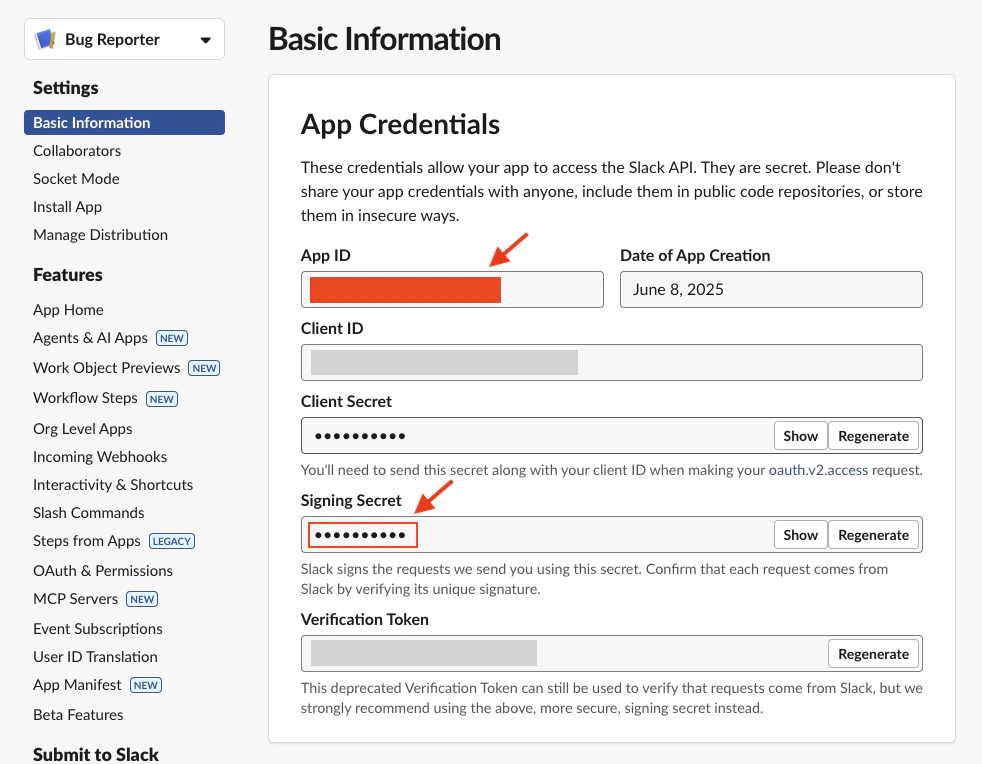
In your Slack app's settings, go to **Basic Information** to find your **App ID** and **Signing Secret**:
Click **[Add it to your Slack here](https://noxusai.slack.com/oauth?client_id=4411224265729.6929759701985\&scope=app_mentions%3Aread%2Cchannels%3Ahistory%2Cchannels%3Aread%2Cchat%3Awrite%2Ccommands%2Cfiles%3Aread%2Cfiles%3Awrite%2Cgroups%3Ahistory%2Cgroups%3Aread%2Cim%3Ahistory%2Cim%3Aread%2Cim%3Awrite%2Clinks%3Aread%2Cmpim%3Ahistory%2Cusers%3Aread\&user_scope=\&redirect_uri=\&state=\&granular_bot_scope=1\&single_channel=0\&install_redirect=\&tracked=1\&user_default=0\&team=)** to authorize the bot in your Slack workspace.
Once authorized, invite the bot to any channel where you want it to respond by typing `/invite @Noxus Bot` in that channel.
Invite the Noxus Bot to every Slack channel where you want it to respond. The bot will only see messages in channels it has been added to.
### Option B: Connect Your Own Slack App
If you need more control over permissions or branding, you can connect your own Slack app instead.
Here we are connecting an app named "Bug Reporter".
Go to [api.slack.com/apps](https://api.slack.com/apps) and either create a new app or select an existing one.
In your Slack app's settings, go to **Basic Information** to find your **App ID** and **Signing Secret**:
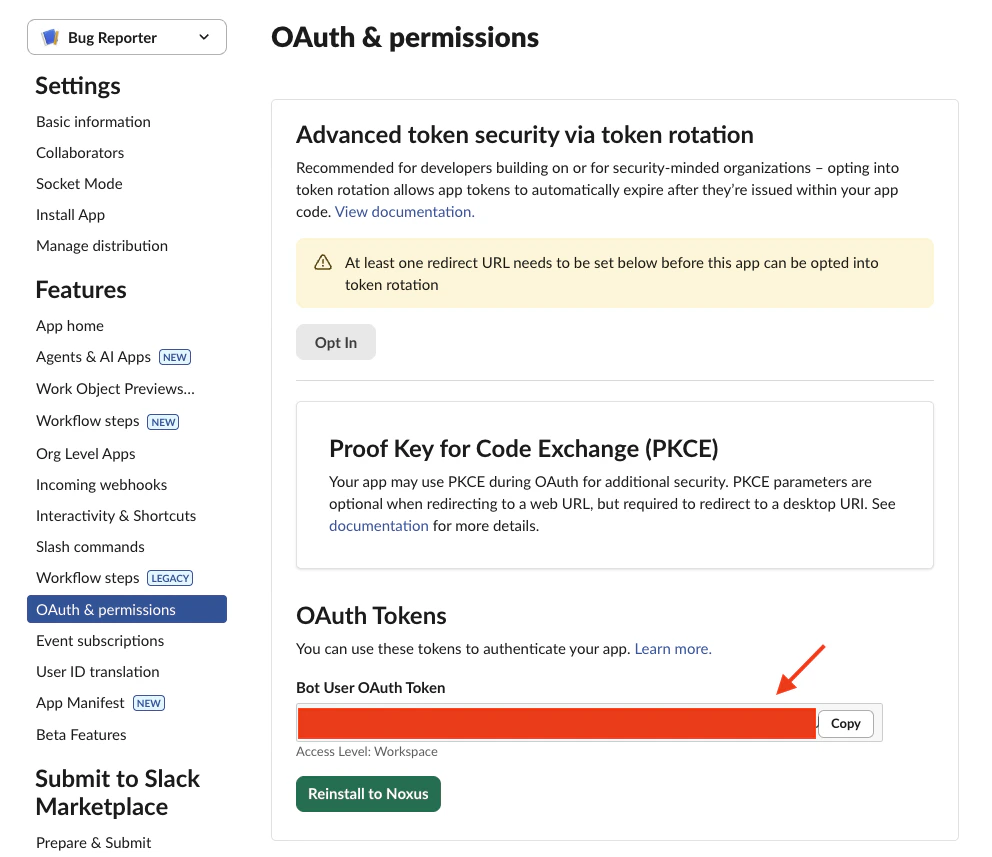
 Go to **OAuth & Permissions** in the sidebar and copy the **Bot User OAuth Token** (starts with `xoxb-`):
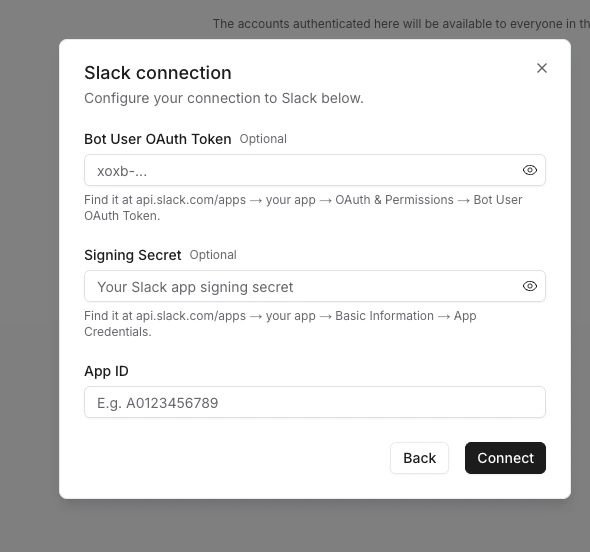
 Back in Noxus, open the Slack connection dialog and fill in the three fields:
* **Bot User OAuth Token** — the `xoxb-...` token from OAuth & Permissions
* **Signing Secret** — from Basic Information → App Credentials
* **App ID** — from Basic Information → App Credentials
Back in Noxus, open the Slack connection dialog and fill in the three fields:
* **Bot User OAuth Token** — the `xoxb-...` token from OAuth & Permissions
* **Signing Secret** — from Basic Information → App Credentials
* **App ID** — from Basic Information → App Credentials
 Click **Connect** to save the connection.
After creating your Slack deployment, Noxus will generate a **Webhook URL**. Copy it:
Click **Connect** to save the connection.
After creating your Slack deployment, Noxus will generate a **Webhook URL**. Copy it:
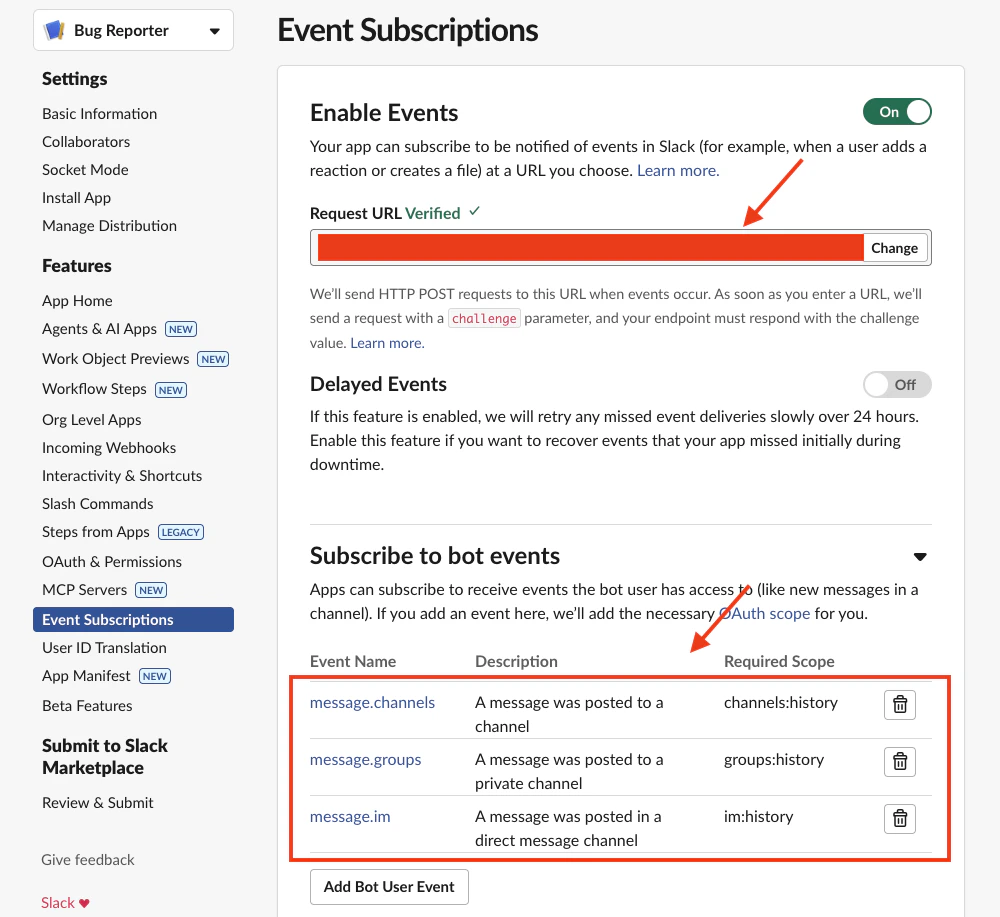
 Go to your Slack app's **Event Subscriptions** page, enable events, and paste the URL into the **Request URL** field.
Still on the Event Subscriptions page, scroll down to **Subscribe to bot events** and add the following events:
* `message.channels` — messages in public channels
* `message.groups` — messages in private channels
* `message.im` — direct messages
* `message.mpim` — group direct messages
Go to your Slack app's **Event Subscriptions** page, enable events, and paste the URL into the **Request URL** field.
Still on the Event Subscriptions page, scroll down to **Subscribe to bot events** and add the following events:
* `message.channels` — messages in public channels
* `message.groups` — messages in private channels
* `message.im` — direct messages
* `message.mpim` — group direct messages
 Click **Save Changes** at the bottom of the page.
After updating event subscriptions, make sure Slack verifies your Request URL successfully (you should see a green checkmark). If verification fails, double-check that the Webhook URL was copied correctly.
## Deployment Settings
Once your Slack connection is established, configure how the agent behaves in Slack. Settings are organized into the sections below.
Click **Save Changes** at the bottom of the page.
After updating event subscriptions, make sure Slack verifies your Request URL successfully (you should see a green checkmark). If verification fails, double-check that the Webhook URL was copied correctly.
## Deployment Settings
Once your Slack connection is established, configure how the agent behaves in Slack. Settings are organized into the sections below.
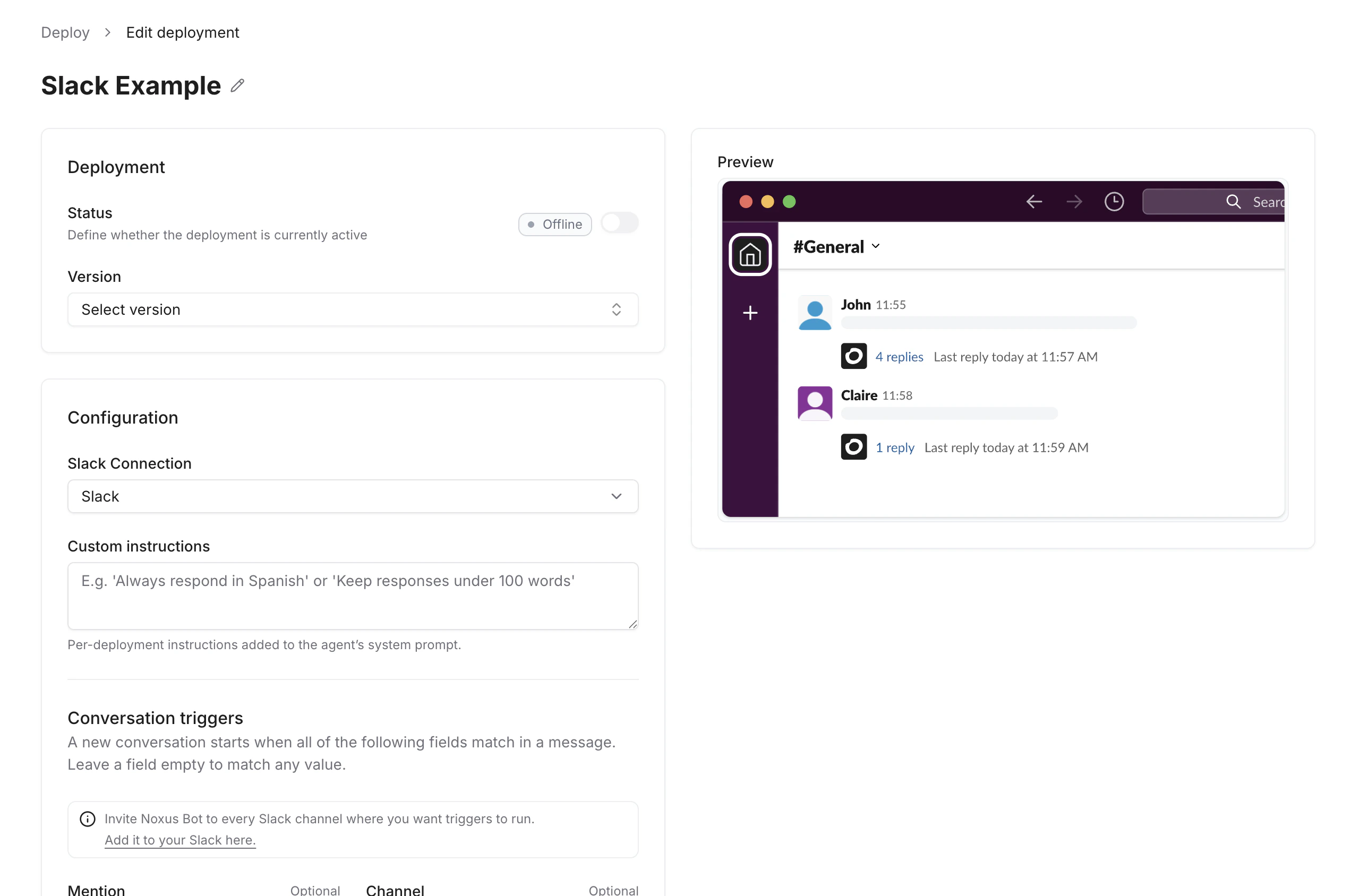 ### Deployment
| Field | Description |
| :---------- | :---------------------------------------------------------------------------------------------------------------------------- |
| **Status** | Toggle the deployment **Online** or **Offline**. When online, the agent listens and responds to Slack messages automatically. |
| **Version** | The published agent version this deployment uses. Each version is a snapshot of prompts, tools, and model settings. |
A published **version** is required before you can set a deployment to Online. You cannot edit the configuration while the deployment is active — switch it to **Offline** first, then make your changes.
### Configuration
| Field | Description |
| :---------------------- | :------------------------------------------------------------------------------------------------------ |
| **Slack Connection** | The Slack workspace connection to use. Manage connections in your workspace's connections settings. |
| **Custom Instructions** | Per-deployment instructions appended to the agent's system prompt (e.g. `"Always respond in Spanish"`). |
### Conversation Triggers
A new conversation starts when **all** specified fields match an incoming message. The fields use AND logic — every non-empty field must match for the trigger to fire.
| Field | Description |
| :---------- | :---------------------------------------------------- |
| **Mention** | Slack user the bot must be mentioned by or as. |
| **Channel** | Restrict triggers to a specific channel. |
| **Keyword** | One or more keywords that must appear in the message. |
Leave a field empty to match any value. For example, setting only **Channel** will trigger on every message in that channel regardless of mention or keyword.
### Reply Behavior
| Field | Description |
| :--------------------------------- | :----------------------------------------------------------------------------------------------------------------------------------------------- |
| **Reply mode** | `Auto` — reply in the same context. `Thread` — always reply in a thread. `Tool-based` — agent decides when and where to send messages via tools. |
| **Batch messages before replying** | When enabled, the agent waits for a pause before responding, batching multiple incoming messages together. |
| **Quiet period (seconds)** | How long to wait after the last message before replying. New messages reset the timer. Default: `5`. |
### Channel Tools
Toggle which Slack-specific tools the agent can use during conversations.
| Tool | Description |
| :------------------------- | :------------------------------------------------------ |
| **Send Message** | Send messages to the Slack channel. |
| **React To Message** | Add emoji reactions to messages. |
| **Reply In Thread** | Reply to messages in a thread. |
| **Get User Profile** | Look up a Slack user's profile information. |
| **Send Ephemeral Message** | Send a private message visible only to a specific user. |
### Rate Limits
| Field | Description |
| :--------------------------------- | :------------------------------------------------------------------------------------------------------- |
| **Max messages per minute** | Limit how many messages the agent sends per minute. `0` for unlimited. |
| **Max new conversations per hour** | Limit how many new conversations can be started per hour. `0` for unlimited. |
| **Conversation timeout (minutes)** | After this many minutes of inactivity, the next message starts a fresh conversation. `0` for no timeout. |
### Display
| Field | Description |
| :------------------ | :--------------------------------------------------------------------- |
| **Show thinking** | Display the agent's reasoning steps in Slack messages. Off by default. |
| **Show tool calls** | Display tool call status in Slack messages. Off by default. |
| **Show sources** | Display source citations in Slack messages. On by default. |
## Troubleshooting
Make sure the **Signing Secret** entered in the Slack connection matches the one in **Basic Information → App Credentials** on api.slack.com. Noxus uses the signing secret to verify every incoming event; if it's wrong or stale, Slack requests fail signature verification and no events reach the deployment.
The bot is missing the `chat:write` scope. The conversation runs successfully on the Noxus side, but posting back to Slack fails silently. Add `chat:write` under **OAuth & Permissions → Bot Token Scopes** in api.slack.com, reinstall the app to your workspace, and update the Bot User OAuth Token in the Noxus Slack connection.
### Deployment
| Field | Description |
| :---------- | :---------------------------------------------------------------------------------------------------------------------------- |
| **Status** | Toggle the deployment **Online** or **Offline**. When online, the agent listens and responds to Slack messages automatically. |
| **Version** | The published agent version this deployment uses. Each version is a snapshot of prompts, tools, and model settings. |
A published **version** is required before you can set a deployment to Online. You cannot edit the configuration while the deployment is active — switch it to **Offline** first, then make your changes.
### Configuration
| Field | Description |
| :---------------------- | :------------------------------------------------------------------------------------------------------ |
| **Slack Connection** | The Slack workspace connection to use. Manage connections in your workspace's connections settings. |
| **Custom Instructions** | Per-deployment instructions appended to the agent's system prompt (e.g. `"Always respond in Spanish"`). |
### Conversation Triggers
A new conversation starts when **all** specified fields match an incoming message. The fields use AND logic — every non-empty field must match for the trigger to fire.
| Field | Description |
| :---------- | :---------------------------------------------------- |
| **Mention** | Slack user the bot must be mentioned by or as. |
| **Channel** | Restrict triggers to a specific channel. |
| **Keyword** | One or more keywords that must appear in the message. |
Leave a field empty to match any value. For example, setting only **Channel** will trigger on every message in that channel regardless of mention or keyword.
### Reply Behavior
| Field | Description |
| :--------------------------------- | :----------------------------------------------------------------------------------------------------------------------------------------------- |
| **Reply mode** | `Auto` — reply in the same context. `Thread` — always reply in a thread. `Tool-based` — agent decides when and where to send messages via tools. |
| **Batch messages before replying** | When enabled, the agent waits for a pause before responding, batching multiple incoming messages together. |
| **Quiet period (seconds)** | How long to wait after the last message before replying. New messages reset the timer. Default: `5`. |
### Channel Tools
Toggle which Slack-specific tools the agent can use during conversations.
| Tool | Description |
| :------------------------- | :------------------------------------------------------ |
| **Send Message** | Send messages to the Slack channel. |
| **React To Message** | Add emoji reactions to messages. |
| **Reply In Thread** | Reply to messages in a thread. |
| **Get User Profile** | Look up a Slack user's profile information. |
| **Send Ephemeral Message** | Send a private message visible only to a specific user. |
### Rate Limits
| Field | Description |
| :--------------------------------- | :------------------------------------------------------------------------------------------------------- |
| **Max messages per minute** | Limit how many messages the agent sends per minute. `0` for unlimited. |
| **Max new conversations per hour** | Limit how many new conversations can be started per hour. `0` for unlimited. |
| **Conversation timeout (minutes)** | After this many minutes of inactivity, the next message starts a fresh conversation. `0` for no timeout. |
### Display
| Field | Description |
| :------------------ | :--------------------------------------------------------------------- |
| **Show thinking** | Display the agent's reasoning steps in Slack messages. Off by default. |
| **Show tool calls** | Display tool call status in Slack messages. Off by default. |
| **Show sources** | Display source citations in Slack messages. On by default. |
## Troubleshooting
Make sure the **Signing Secret** entered in the Slack connection matches the one in **Basic Information → App Credentials** on api.slack.com. Noxus uses the signing secret to verify every incoming event; if it's wrong or stale, Slack requests fail signature verification and no events reach the deployment.
The bot is missing the `chat:write` scope. The conversation runs successfully on the Noxus side, but posting back to Slack fails silently. Add `chat:write` under **OAuth & Permissions → Bot Token Scopes** in api.slack.com, reinstall the app to your workspace, and update the Bot User OAuth Token in the Noxus Slack connection.