> ## Documentation Index
> Fetch the complete documentation index at: https://docs.noxus.ai/llms.txt
> Use this file to discover all available pages before exploring further.
# Telegram
> Deploy your agent as a Telegram bot with a one-step bot-token setup
Deploy your agent as a Telegram bot in minutes. Once you paste the bot token, Noxus registers the webhook with Telegram automatically — no external configuration required.
## Setting Up the Telegram Deployment
Telegram deployments use the standard **Telegram Bot API**. All you need is a bot token from [@BotFather](https://t.me/BotFather).
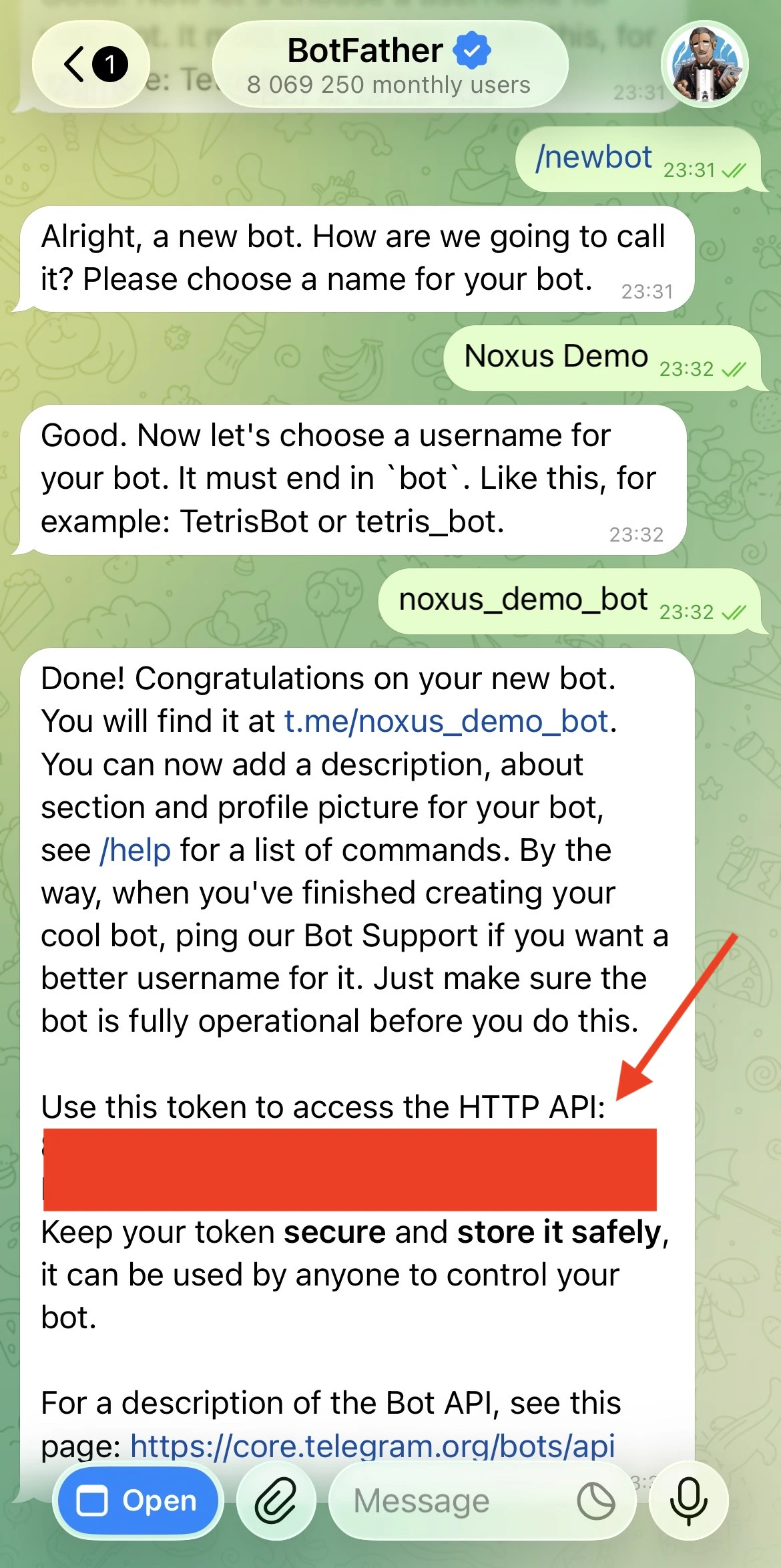
Open Telegram and start a chat with [@BotFather](https://t.me/BotFather). Send `/newbot`, follow the prompts to choose a name and a username, and copy the bot token. It looks like `123456789:ABCdefGHIjklMNOpqrsTUVwxyz`.
 In Noxus, create a new Telegram connection and paste the bot token.
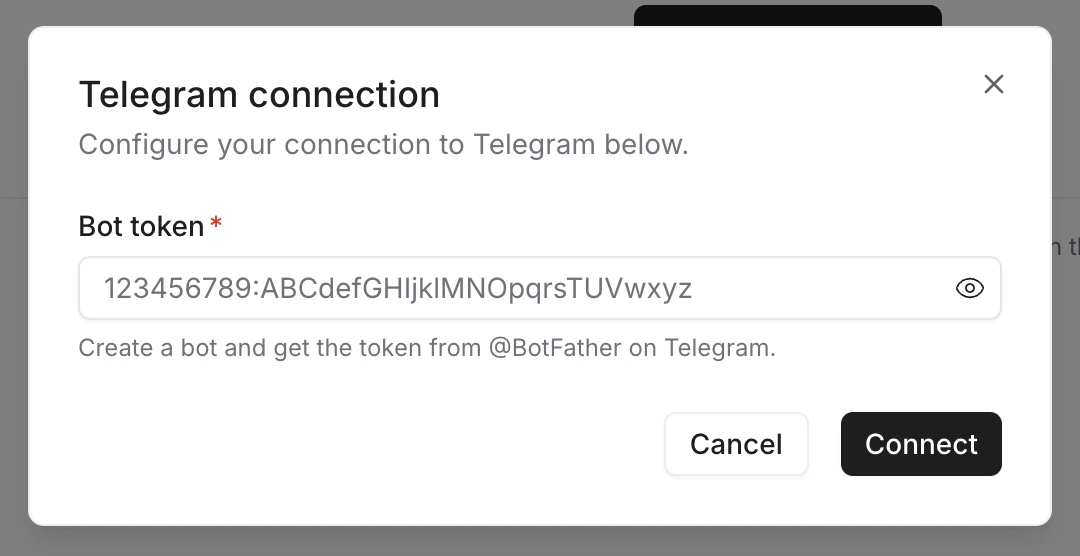 Click **Connect** — Noxus calls `getMe` on the Telegram API to verify the token and record your bot's metadata.
Create a Telegram deployment, pick this connection, and set it to **Online**. Noxus automatically registers the webhook with Telegram and secures it with a per-deployment secret token, so every incoming update is signed by Telegram.
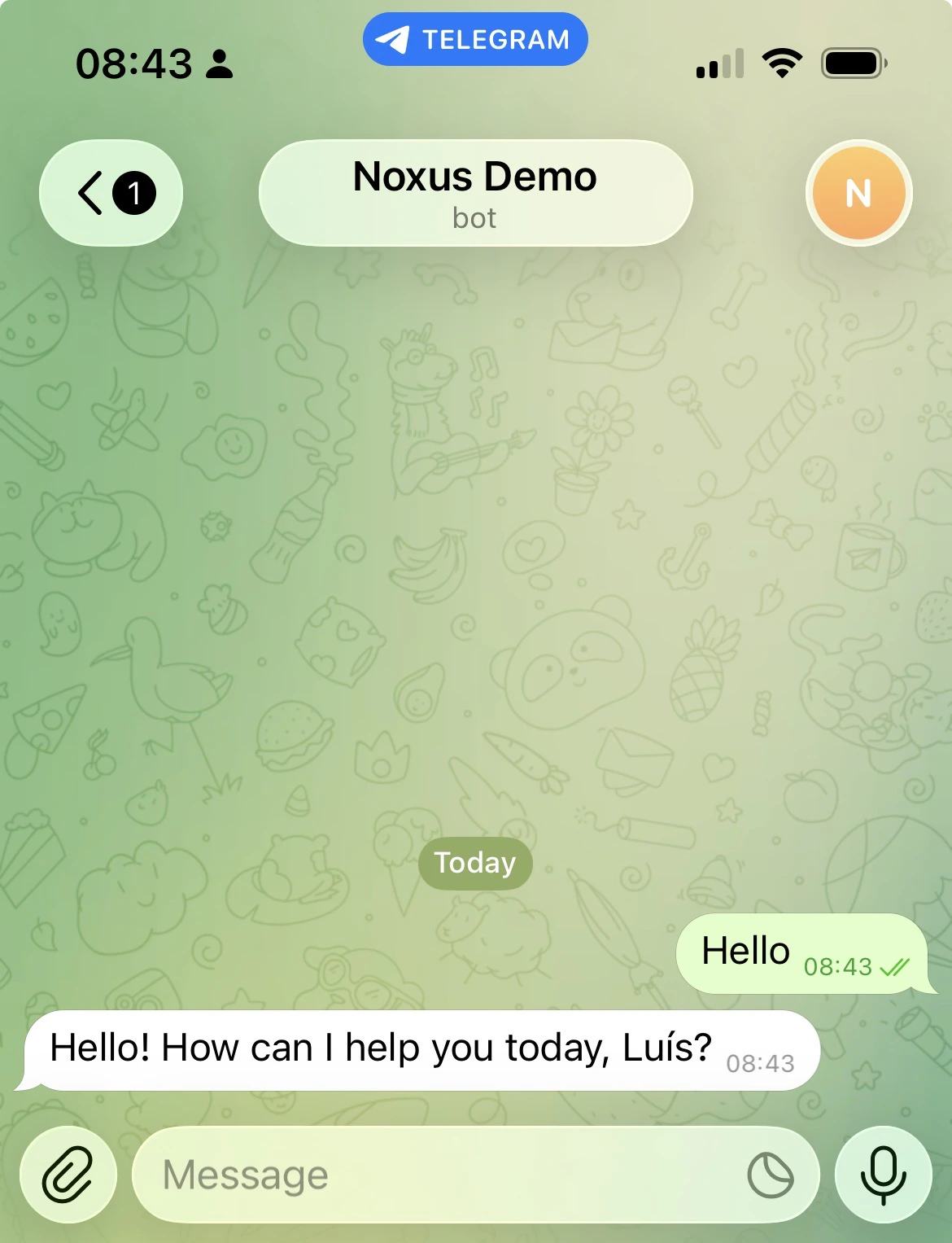
Open Telegram, search for your bot by its username, and send it a message. The agent will reply according to the deployment settings below.
Click **Connect** — Noxus calls `getMe` on the Telegram API to verify the token and record your bot's metadata.
Create a Telegram deployment, pick this connection, and set it to **Online**. Noxus automatically registers the webhook with Telegram and secures it with a per-deployment secret token, so every incoming update is signed by Telegram.
Open Telegram, search for your bot by its username, and send it a message. The agent will reply according to the deployment settings below.
 You don't need to configure a webhook URL on Telegram's side — Noxus handles registration when the deployment goes Online and removes the webhook when it goes Offline.
## Deployment Settings
Once your Telegram connection is established, configure how the agent behaves. Settings are organized into the sections below.
You don't need to configure a webhook URL on Telegram's side — Noxus handles registration when the deployment goes Online and removes the webhook when it goes Offline.
## Deployment Settings
Once your Telegram connection is established, configure how the agent behaves. Settings are organized into the sections below.
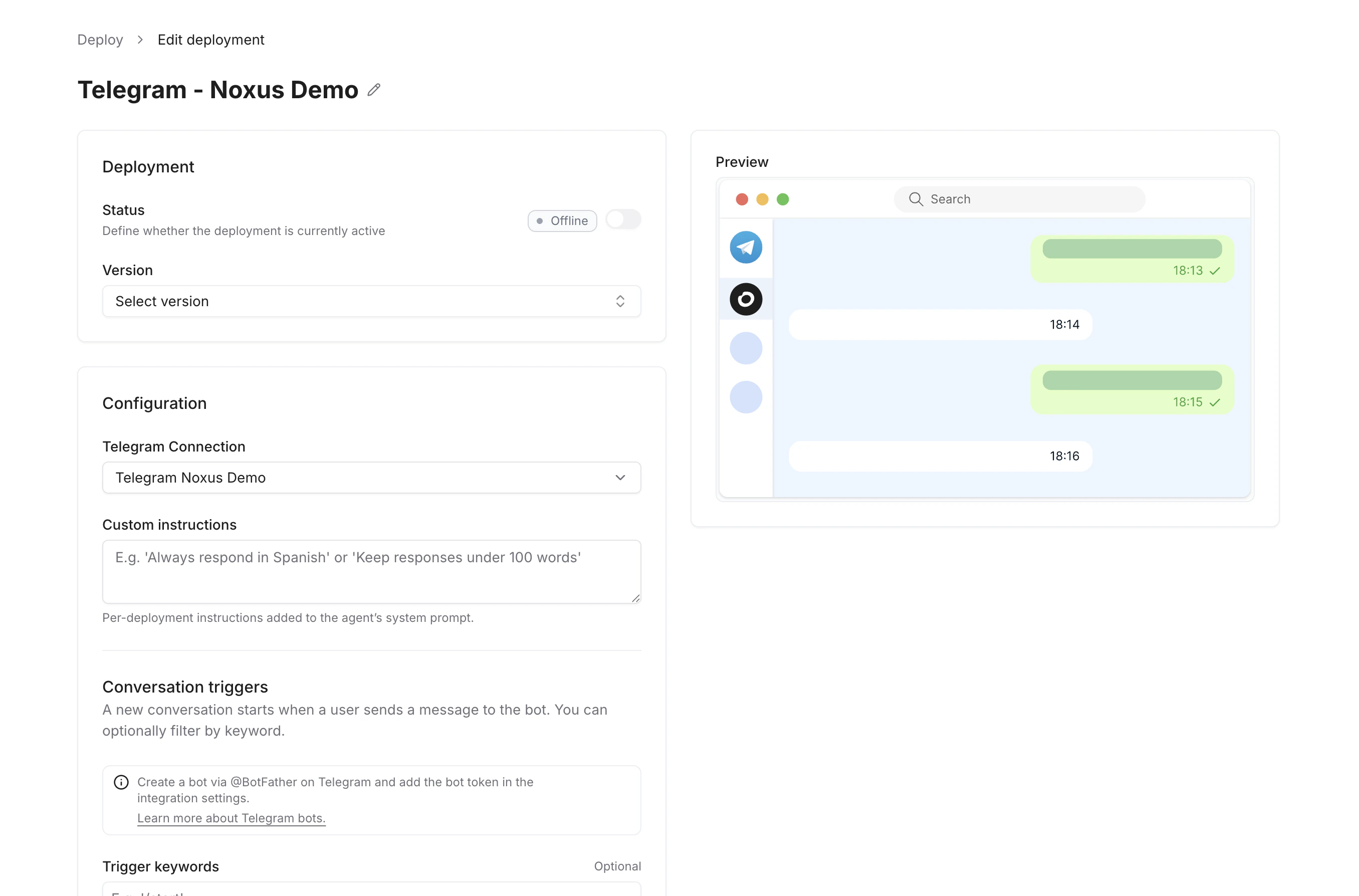 ### Deployment
| Field | Description |
| :---------- | :--------------------------------------------------------------------------------------------------------------------------- |
| **Status** | Toggle the deployment **Online** or **Offline**. Going Online registers the webhook with Telegram; going Offline deletes it. |
| **Version** | The published agent version this deployment uses. |
A published **version** is required before you can set a deployment to Online. Switch to **Offline** to edit configuration.
### Configuration
| Field | Description |
| :---------------------- | :------------------------------------------------------------------------------------------------------- |
| **Telegram Connection** | The Telegram connection (bot token) to use. Manage connections in your workspace's connections settings. |
| **Custom Instructions** | Per-deployment instructions appended to the agent's system prompt (e.g. `"Always respond in Spanish"`). |
### Conversation Triggers
A new conversation starts when a user sends a message to the bot. You can optionally restrict this to messages containing specific keywords.
| Field | Description |
| :------------------- | :-------------------------------------------------------------------------------------------------------------------------------------- |
| **Trigger keywords** | One or more keywords that must appear in the message (e.g. `/start`, `help`). Leave empty to respond to every message the bot receives. |
### Reply Behavior
| Field | Description |
| :------------- | :------------------------------------------------------------------------------------------------------------------------------------------------ |
| **Reply mode** | `Auto` — reply directly to the user's message. `Tool-based` — nothing is sent automatically; the agent must call the `send_message` tool to post. |
Telegram does not have threads, so the **Thread** reply mode and the **Batch messages** / **Quiet period** settings are not available on this channel.
### Channel Tools
Toggle which Telegram-specific tools the agent can use during conversations.
| Tool | Description |
| :------------------- | :---------------------------------------------- |
| **React To Message** | Add an emoji reaction to a message in the chat. |
### Rate Limits
| Field | Description |
| :--------------------------------- | :------------------------------------------------------------------------------------------------------- |
| **Max messages per minute** | Limit how many messages the agent sends per minute. `0` for unlimited. |
| **Max new conversations per hour** | Limit how many new conversations can be started per hour. `0` for unlimited. |
| **Conversation timeout (minutes)** | After this many minutes of inactivity, the next message starts a fresh conversation. `0` for no timeout. |
### Display
| Field | Description |
| :------------------ | :------------------------------------------------------------------------ |
| **Show thinking** | Display the agent's reasoning steps in Telegram messages. Off by default. |
| **Show tool calls** | Display tool call status in Telegram messages. Off by default. |
| **Show sources** | Display source citations in Telegram messages. On by default. |
### Deployment
| Field | Description |
| :---------- | :--------------------------------------------------------------------------------------------------------------------------- |
| **Status** | Toggle the deployment **Online** or **Offline**. Going Online registers the webhook with Telegram; going Offline deletes it. |
| **Version** | The published agent version this deployment uses. |
A published **version** is required before you can set a deployment to Online. Switch to **Offline** to edit configuration.
### Configuration
| Field | Description |
| :---------------------- | :------------------------------------------------------------------------------------------------------- |
| **Telegram Connection** | The Telegram connection (bot token) to use. Manage connections in your workspace's connections settings. |
| **Custom Instructions** | Per-deployment instructions appended to the agent's system prompt (e.g. `"Always respond in Spanish"`). |
### Conversation Triggers
A new conversation starts when a user sends a message to the bot. You can optionally restrict this to messages containing specific keywords.
| Field | Description |
| :------------------- | :-------------------------------------------------------------------------------------------------------------------------------------- |
| **Trigger keywords** | One or more keywords that must appear in the message (e.g. `/start`, `help`). Leave empty to respond to every message the bot receives. |
### Reply Behavior
| Field | Description |
| :------------- | :------------------------------------------------------------------------------------------------------------------------------------------------ |
| **Reply mode** | `Auto` — reply directly to the user's message. `Tool-based` — nothing is sent automatically; the agent must call the `send_message` tool to post. |
Telegram does not have threads, so the **Thread** reply mode and the **Batch messages** / **Quiet period** settings are not available on this channel.
### Channel Tools
Toggle which Telegram-specific tools the agent can use during conversations.
| Tool | Description |
| :------------------- | :---------------------------------------------- |
| **React To Message** | Add an emoji reaction to a message in the chat. |
### Rate Limits
| Field | Description |
| :--------------------------------- | :------------------------------------------------------------------------------------------------------- |
| **Max messages per minute** | Limit how many messages the agent sends per minute. `0` for unlimited. |
| **Max new conversations per hour** | Limit how many new conversations can be started per hour. `0` for unlimited. |
| **Conversation timeout (minutes)** | After this many minutes of inactivity, the next message starts a fresh conversation. `0` for no timeout. |
### Display
| Field | Description |
| :------------------ | :------------------------------------------------------------------------ |
| **Show thinking** | Display the agent's reasoning steps in Telegram messages. Off by default. |
| **Show tool calls** | Display tool call status in Telegram messages. Off by default. |
| **Show sources** | Display source citations in Telegram messages. On by default. |