> ## Documentation Index
> Fetch the complete documentation index at: https://docs.noxus.ai/llms.txt
> Use this file to discover all available pages before exploring further.
# How billing works
> What your plan includes, what counts as usage, and what happens when a limit is reached
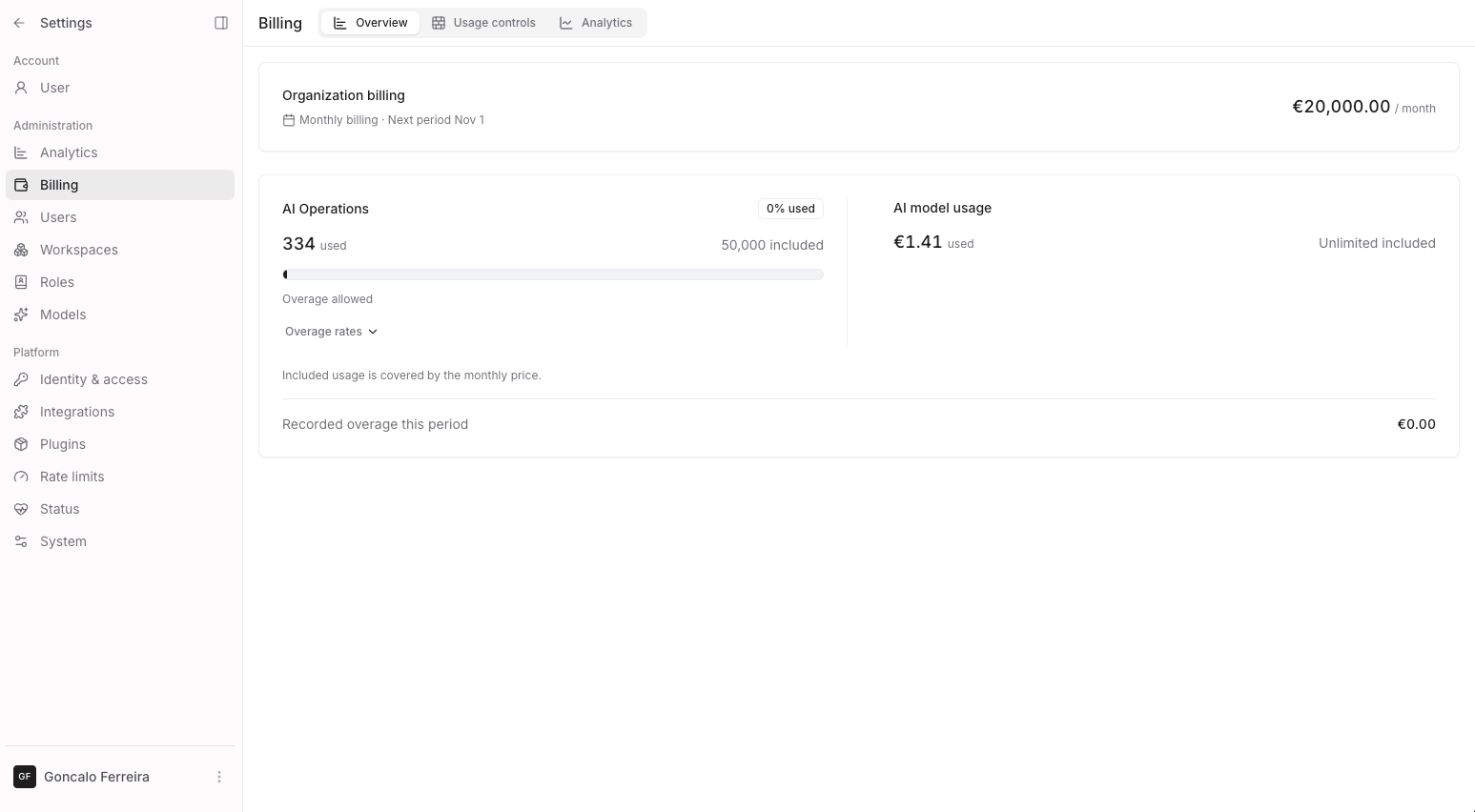
Your organization pays a fixed price each month. The price includes two allowances:
| Allowance | What it measures |
| - | - |
| **AI Operations** | How many steps your flows, agents and knowledge bases run. |
| **AI model usage** | What your calls to AI models cost. |
Usage resets on the first day of each month at 00:00 UTC. The Overview shows the date of the next period.
You see both on **Settings → Billing → Overview**. Only people with the **Manage billing** permission can open this page.
 ## What counts as an AI Operation
* Each **node run** in a flow. A node that runs for 10 items counts 10.
* Each **agent reply**, also when it fails or is stopped.
* Each **file processed** by a knowledge base, also when a file is updated or processed again.
* **Genie** replies.
* **Basic nodes**: Input, Output, Fixed Value, Combine Text, List Operations, List to Single Value and Single Value to List.
## What counts as AI model usage
* The cost of **model responses** in flows, agents and Genie.
* **Estimates** for calls that are still running or have no usage report.
* **Background calls**, such as guardrail checks and chat titles.
* **Model connection checks**.
* **Cached responses**.
* **Estimates** for interrupted calls.
Depending on your plan, AI model usage counts every model call, only the calls on **Noxus-provided models** (models Noxus serves with its own keys), or only the calls on your own provider keys.
## When you use more than your plan includes
| Overview shows | What it means |
| - | - |
| **Overage allowed** | Extra usage is charged at the displayed rates. Any overage cap still applies. |
| **Overage disabled** | New usage is blocked when the allowance is used up. |
| **Unlimited included** | This allowance has no plan cap. Your usage controls still apply. |
## Usage controls
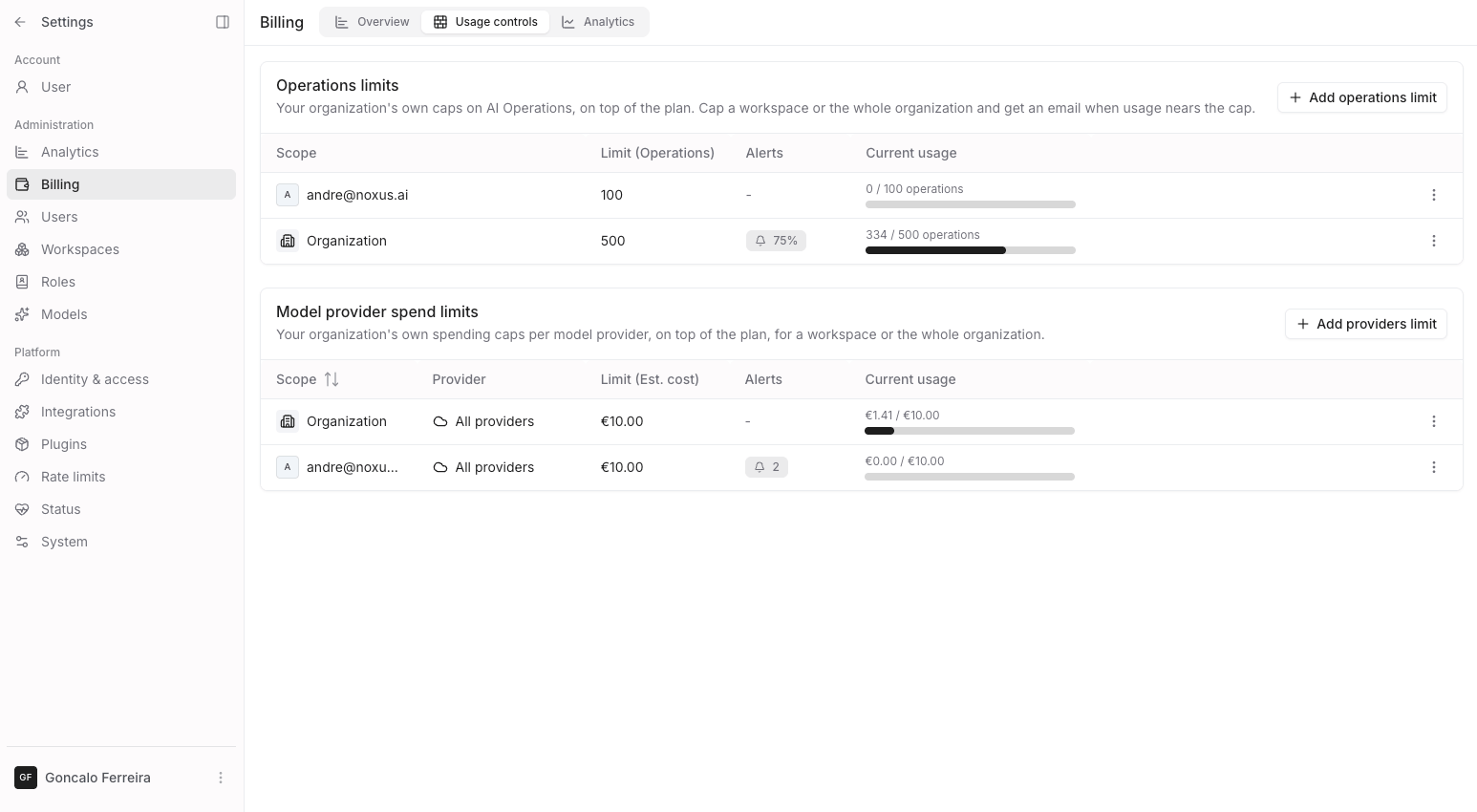
Set your own limits in **Settings → Billing → Usage controls**. Your plan limits still apply.
| Limit | What you choose |
| - | - |
| **AI Operations limit** | A monthly number of operations for the organization or one workspace. |
| **Model provider spend limit** | A monthly budget for the organization or one workspace, covering one provider or all providers. |
If your organization uses the Noxus provider, a spend limit can also cover **Noxus-provided models** (every call Noxus serves with its own keys) or **Your own provider keys** (every call on the providers you connected).
A new limit includes the usage from earlier in the month.
A model call's final cost can take spending above the limit.
You can get an email when usage reaches 50, 75, 90, 95 or 98% of a limit.
To change a limit, select **Edit** in its row menu.
## What counts as an AI Operation
* Each **node run** in a flow. A node that runs for 10 items counts 10.
* Each **agent reply**, also when it fails or is stopped.
* Each **file processed** by a knowledge base, also when a file is updated or processed again.
* **Genie** replies.
* **Basic nodes**: Input, Output, Fixed Value, Combine Text, List Operations, List to Single Value and Single Value to List.
## What counts as AI model usage
* The cost of **model responses** in flows, agents and Genie.
* **Estimates** for calls that are still running or have no usage report.
* **Background calls**, such as guardrail checks and chat titles.
* **Model connection checks**.
* **Cached responses**.
* **Estimates** for interrupted calls.
Depending on your plan, AI model usage counts every model call, only the calls on **Noxus-provided models** (models Noxus serves with its own keys), or only the calls on your own provider keys.
## When you use more than your plan includes
| Overview shows | What it means |
| - | - |
| **Overage allowed** | Extra usage is charged at the displayed rates. Any overage cap still applies. |
| **Overage disabled** | New usage is blocked when the allowance is used up. |
| **Unlimited included** | This allowance has no plan cap. Your usage controls still apply. |
## Usage controls
Set your own limits in **Settings → Billing → Usage controls**. Your plan limits still apply.
| Limit | What you choose |
| - | - |
| **AI Operations limit** | A monthly number of operations for the organization or one workspace. |
| **Model provider spend limit** | A monthly budget for the organization or one workspace, covering one provider or all providers. |
If your organization uses the Noxus provider, a spend limit can also cover **Noxus-provided models** (every call Noxus serves with its own keys) or **Your own provider keys** (every call on the providers you connected).
A new limit includes the usage from earlier in the month.
A model call's final cost can take spending above the limit.
You can get an email when usage reaches 50, 75, 90, 95 or 98% of a limit.
To change a limit, select **Edit** in its row menu.
 ## When a limit is reached
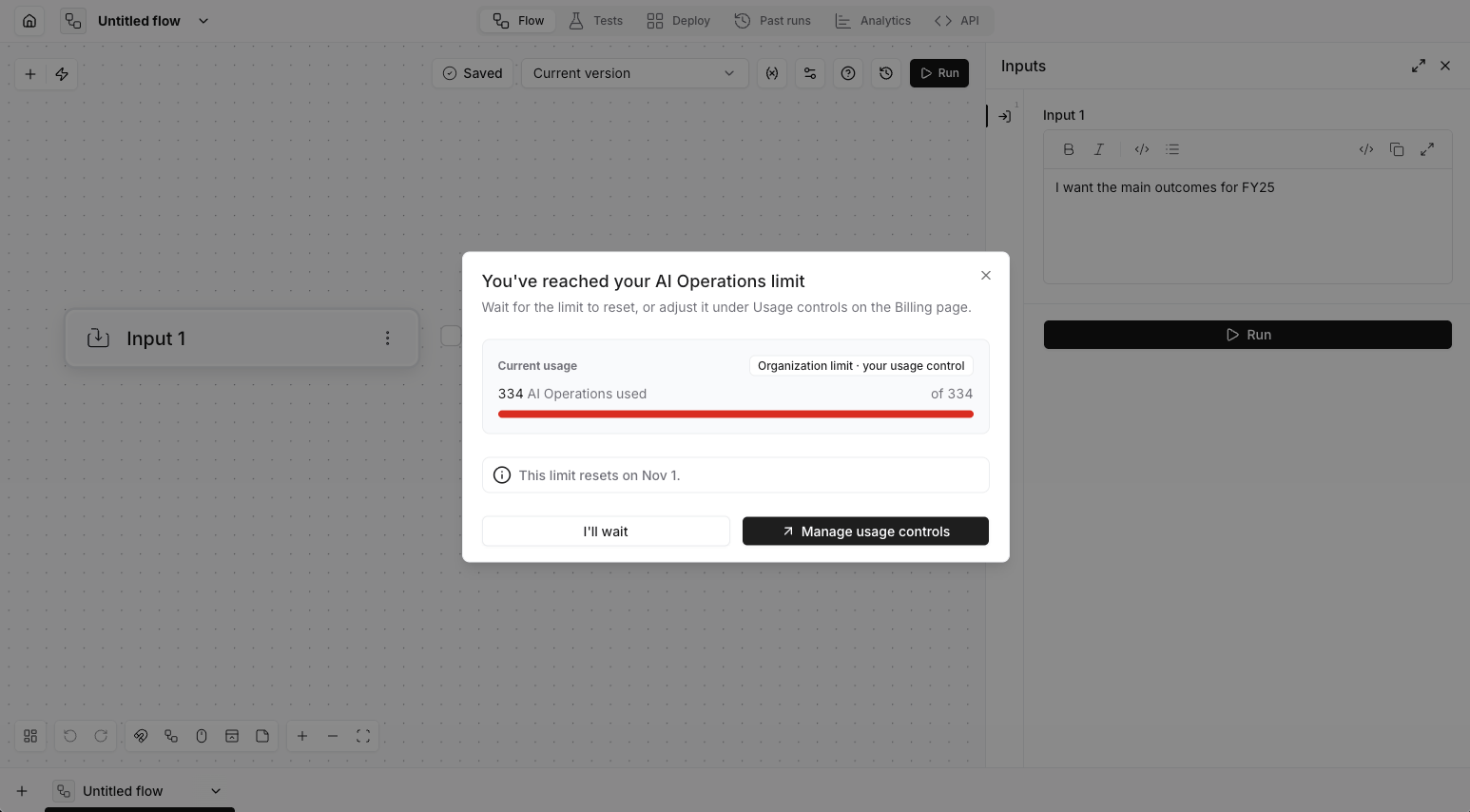
New work that counts toward the limit is blocked. A running flow stops at the next step; the steps before it still count. The run or the chat says that a usage limit was reached.
| Limit reached | What to do |
| - | - |
| **Your usage control** | Select **Manage usage controls**. Delete the limit or replace it with a higher one. |
| **Plan limit** | Select **View billing**, or **Speak with us** in a chat. Contact Noxus to request a higher limit. |
You can also wait for the limit to reset. Billing managers see the reset date in the dialog.
People without the **Manage billing** permission see only that a limit was reached. They do not see the numbers.
## When a limit is reached
New work that counts toward the limit is blocked. A running flow stops at the next step; the steps before it still count. The run or the chat says that a usage limit was reached.
| Limit reached | What to do |
| - | - |
| **Your usage control** | Select **Manage usage controls**. Delete the limit or replace it with a higher one. |
| **Plan limit** | Select **View billing**, or **Speak with us** in a chat. Contact Noxus to request a higher limit. |
You can also wait for the limit to reset. Billing managers see the reset date in the dialog.
People without the **Manage billing** permission see only that a limit was reached. They do not see the numbers.
 ## Why work can be blocked before a limit is used up
| Why work was blocked | What to do |
| - | - |
| Unfinished work holds the remaining allowance. | Try again when that work finishes. |
| A model call can never fit in the remaining budget. | Try a cheaper model or ask a billing manager to review the limit. |
Before work starts, it holds part of your allowance. Running work holds a batch of AI Operations and uses one for each step. A model call holds the most it could cost, up to USD 1. When the work ends, what it did not use goes back. Near a spend limit, a model call waits up to 60 seconds for other calls to give back their holds before it is refused.
A call that costs more than USD 1 still counts its full cost, so spending can go above a limit.
## See also
* [Billing analytics](/platform/analytics/billing): what the figures on **Settings → Billing → Analytics** mean.
This documentation is built and hosted on [Mintlify](https://mintlify.com), a developer documentation platform.
## Why work can be blocked before a limit is used up
| Why work was blocked | What to do |
| - | - |
| Unfinished work holds the remaining allowance. | Try again when that work finishes. |
| A model call can never fit in the remaining budget. | Try a cheaper model or ask a billing manager to review the limit. |
Before work starts, it holds part of your allowance. Running work holds a batch of AI Operations and uses one for each step. A model call holds the most it could cost, up to USD 1. When the work ends, what it did not use goes back. Near a spend limit, a model call waits up to 60 seconds for other calls to give back their holds before it is refused.
A call that costs more than USD 1 still counts its full cost, so spending can go above a limit.
## See also
* [Billing analytics](/platform/analytics/billing): what the figures on **Settings → Billing → Analytics** mean.
This documentation is built and hosted on [Mintlify](https://mintlify.com), a developer documentation platform.