> ## Documentation Index
> Fetch the complete documentation index at: https://docs.noxus.ai/llms.txt
> Use this file to discover all available pages before exploring further.

# Data Types

> The types of data that move through a flow, and how they pass between nodes

export const BindButton = () => <span role="img" aria-label="Bind to variable button" title="Bind to variable" className="not-prose" style={{
  display: "inline-flex",
  alignItems: "center",
  justifyContent: "center",
  width: "24px",
  height: "24px",
  margin: "0 2px",
  verticalAlign: "middle",
  borderRadius: "6px",
  border: "1px solid rgba(127,127,127,0.35)",
  boxShadow: "0 1px 2px rgba(0,0,0,0.05)",
  cursor: "default"
}}>
    <svg width="13" height="13" viewBox="0 0 24 24" fill="none" stroke="currentColor" strokeWidth="2.25" strokeLinecap="round" strokeLinejoin="round" aria-hidden="true">
      <path d="M8 3H7a2 2 0 0 0-2 2v5a2 2 0 0 1-2 2 2 2 0 0 1 2 2v5c0 1.1.9 2 2 2h1" />
      <path d="M16 21h1a2 2 0 0 0 2-2v-5c0-1.1.9-2 2-2a2 2 0 0 1-2-2V5a2 2 0 0 0-2-2h-1" />
    </svg>
  </span>;

export const FlowPreview = () => {
  const STEP_MS = 750;
  const [step, setStep] = useState(-1);
  const [hovered, setHovered] = useState(null);
  const root = useRef(null);
  const timer = useRef(null);
  const played = useRef(false);
  const C = {
    canvas: "#FAFAFB",
    dots: "#D4D4D8",
    card: "#FFFFFF",
    border: "#E4E4E7",
    divider: "#F4F4F5",
    title: "#18181B",
    text: "#27272A",
    muted: "#71717A",
    neutralHeader: "#F8F8F9",
    accentHeader: "#FEF2F2",
    accent: "#DC2626",
    running: "#38BDF8",
    done: "#16A34A"
  };
  const ICONS = {
    input: <><path d="M12 3v12" /><path d="m8 11 4 4 4-4" /><path d="M8 5H4a2 2 0 0 0-2 2v10a2 2 0 0 0 2 2h16a2 2 0 0 0 2-2V7a2 2 0 0 0-2-2h-4" /></>,
    output: <><path d="M12 15V3" /><path d="m8 7 4-4 4 4" /><path d="M8 5H4a2 2 0 0 0-2 2v10a2 2 0 0 0 2 2h16a2 2 0 0 0 2-2V7a2 2 0 0 0-2-2h-4" /></>,
    calendarClock: <><path d="M21 7.5V6a2 2 0 0 0-2-2H5a2 2 0 0 0-2 2v14a2 2 0 0 0 2 2h3.5" /><path d="M16 2v4" /><path d="M8 2v4" /><path d="M3 10h5" /><path d="M17.5 17.5 16 16.3V14" /><circle cx="16" cy="16" r="6" /></>,
    braces: <><path d="M8 3H7a2 2 0 0 0-2 2v5a2 2 0 0 1-2 2 2 2 0 0 1 2 2v5c0 1.1.9 2 2 2h1" /><path d="M16 21h1a2 2 0 0 0 2-2v-5c0-1.1.9-2 2-2a2 2 0 0 1-2-2V5a2 2 0 0 0-2-2h-1" /></>,
    calendar: <><path d="M8 2v4" /><path d="M16 2v4" /><rect width="18" height="18" x="3" y="4" rx="2" /><path d="M3 10h18" /></>,
    text: <><path d="M15 12H3" /><path d="M17 18H3" /><path d="M21 6H3" /></>,
    play: <path d="M6 3l14 9-14 9V3z" />,
    rotate: <><path d="M3 12a9 9 0 1 0 9-9 9.75 9.75 0 0 0-6.74 2.74L3 8" /><path d="M3 3v5h5" /></>,
    check: <path d="M20 6 9 17l-5-5" />
  };
  const TYPES = {
    datetime: {
      label: "Date Time",
      icon: "calendar",
      color: "#D97706"
    },
    text: {
      label: "Text",
      icon: "text",
      color: "#2563EB"
    },
    object: {
      label: "Object",
      icon: "braces",
      color: "#0891B2"
    }
  };
  const NODES = [{
    id: "input",
    title: "Input",
    icon: "input",
    rows: [{
      label: "Input type",
      type: "datetime"
    }],
    output: {
      label: "Input",
      type: "datetime",
      value: "2026-10-14 09:30:00"
    }
  }, {
    id: "date",
    title: "Date Operations",
    icon: "calendarClock",
    accent: true,
    rows: [{
      label: "Operation",
      text: "Format date"
    }, {
      label: "Date",
      chip: {
        source: "input",
        node: "Input",
        nodeIcon: "input",
        output: "Input",
        type: "datetime"
      }
    }, {
      label: "Output format",
      text: "MM-DD-YYYY"
    }],
    output: {
      label: "Formatted Date",
      type: "text",
      value: "10-14-2026"
    }
  }, {
    id: "object",
    title: "Build Structured Object",
    icon: "braces",
    accent: true,
    rows: [{
      label: "date_new_format",
      stack: true,
      chip: {
        source: "date",
        node: "Date Operations",
        nodeIcon: "calendarClock",
        output: "Formatted Date",
        type: "text"
      }
    }],
    output: {
      label: "Object",
      type: "object",
      value: '{ "date_new_format": "10-14-2026" }'
    }
  }, {
    id: "output",
    title: "Output",
    icon: "output",
    rows: [{
      label: "Value",
      stack: true,
      chip: {
        source: "object",
        node: "Build Structured Object",
        nodeIcon: "braces",
        output: "Object",
        type: "object"
      }
    }],
    output: {
      label: "Flow result",
      type: "object",
      value: '{ "date_new_format": "10-14-2026" }'
    }
  }];
  const reducedMotion = () => typeof window !== "undefined" && window.matchMedia("(prefers-reduced-motion: reduce)").matches;
  const run = () => {
    clearTimeout(timer.current);
    if (reducedMotion()) {
      setStep(NODES.length);
      return;
    }
    const advance = i => {
      setStep(i);
      if (i < NODES.length) timer.current = setTimeout(() => advance(i + 1), STEP_MS);
    };
    advance(0);
  };
  useEffect(() => {
    if (!root.current) return;
    const observer = new IntersectionObserver(entries => {
      if (entries[0].isIntersecting && !played.current) {
        played.current = true;
        run();
      }
    }, {
      threshold: 0.5
    });
    observer.observe(root.current);
    return () => {
      observer.disconnect();
      clearTimeout(timer.current);
    };
  }, []);
  const status = i => step > i ? "done" : step === i ? "running" : "idle";
  const sourceIndex = id => NODES.findIndex(n => n.id === id);
  const svg = (name, size, color, extra) => <svg width={size} height={size} viewBox="0 0 24 24" fill={name === "play" ? color : "none"} stroke={color} strokeWidth="2" strokeLinecap="round" strokeLinejoin="round" aria-hidden="true" style={{
    flexShrink: 0,
    ...extra
  }}>
      {ICONS[name]}
    </svg>;
  const typeBadge = t => <span style={{
    display: "inline-flex",
    alignItems: "center",
    gap: "4px",
    borderRadius: "6px",
    padding: "2px 6px",
    fontSize: "11px",
    fontWeight: 600,
    color: t.color,
    background: t.color + "1A",
    whiteSpace: "nowrap"
  }}>
      {svg(t.icon, 11, t.color)}
      {t.label}
    </span>;
  const chip = c => {
    const arriving = step === sourceIndex(c.source) + 1;
    const lit = arriving || hovered === c.source;
    const segment = {
      display: "flex",
      alignItems: "center",
      gap: "4px",
      padding: "2px 6px",
      minWidth: 0
    };
    return <span style={{
      display: "inline-flex",
      alignItems: "stretch",
      maxWidth: "100%",
      borderRadius: "6px",
      border: `1px solid ${lit ? C.running : C.border}`,
      boxShadow: lit ? `0 0 0 3px ${C.running}40` : "none",
      fontSize: "11.5px",
      overflow: "hidden",
      background: C.card,
      transition: "border-color 200ms ease, box-shadow 200ms ease"
    }}>
        <span style={{
      ...segment,
      color: C.text,
      borderRight: `1px solid ${C.border}`
    }}>
          {svg(c.nodeIcon, 11, C.muted)}
          <span style={{
      overflow: "hidden",
      textOverflow: "ellipsis",
      whiteSpace: "nowrap"
    }}>{c.node}</span>
        </span>
        <span style={{
      ...segment,
      color: C.muted
    }}>
          {svg(TYPES[c.type].icon, 11, C.muted)}
          <span style={{
      overflow: "hidden",
      textOverflow: "ellipsis",
      whiteSpace: "nowrap"
    }}>{c.output}</span>
        </span>
      </span>;
  };
  const row = r => <div key={r.label} style={{
    display: "flex",
    flexDirection: r.stack ? "column" : "row",
    alignItems: r.stack ? "flex-start" : "center",
    justifyContent: "space-between",
    gap: r.stack ? "5px" : "10px",
    padding: "4px 0",
    minWidth: 0
  }}>
      <span style={{
    color: C.muted,
    flexShrink: 0
  }}>{r.label}</span>
      {r.chip ? chip(r.chip) : r.type ? <span style={{
    display: "flex",
    alignItems: "center",
    gap: "4px",
    color: C.text
  }}>
          {svg(TYPES[r.type].icon, 11, C.muted)}
          {TYPES[r.type].label}
        </span> : <span style={{
    color: C.text,
    whiteSpace: "nowrap"
  }}>{r.text}</span>}
    </div>;
  const node = (n, i) => {
    const s = status(i);
    const ring = s === "running" ? C.running : s === "done" ? C.done : hovered === n.id ? "#A1A1AA" : C.border;
    return <div tabIndex={0} aria-label={`${n.title} node`} onMouseEnter={() => setHovered(n.id)} onMouseLeave={() => setHovered(null)} onFocus={() => setHovered(n.id)} onBlur={() => setHovered(null)} style={{
      position: "relative",
      width: "100%",
      borderRadius: "12px",
      border: `1px solid ${ring}`,
      boxShadow: s === "running" ? `0 0 0 4px ${C.running}33` : "0 1px 2px rgba(0,0,0,0.06)",
      background: C.card,
      outline: "none",
      transition: "border-color 250ms ease, box-shadow 250ms ease"
    }}>
        <div style={{
      display: "flex",
      alignItems: "center",
      gap: "8px",
      padding: "9px 12px",
      background: n.accent ? C.accentHeader : C.neutralHeader,
      borderRadius: "11px 11px 0 0"
    }}>
          {svg(n.icon, 16, n.accent ? C.accent : "#52525B")}
          <span style={{
      flex: 1,
      fontSize: "13px",
      fontWeight: 500,
      color: C.title
    }}>{n.title}</span>
          {s === "done" ? <span style={{
      display: "flex",
      alignItems: "center",
      justifyContent: "center",
      width: "18px",
      height: "18px",
      borderRadius: "999px",
      background: C.done
    }}>
              {svg("check", 11, "#FFFFFF", {
      strokeWidth: 3
    })}
            </span> : s === "running" ? <span className="flow-preview-spin" style={{
      width: "14px",
      height: "14px",
      borderRadius: "999px",
      border: `2px solid ${C.running}`,
      borderTopColor: "transparent"
    }} /> : <span style={{
      color: n.accent ? C.accent : C.muted,
      fontWeight: 700
    }}>⋮</span>}
        </div>
        <div style={{
      padding: "6px 12px",
      fontSize: "12px",
      borderTop: `1px solid ${C.divider}`
    }}>{n.rows.map(row)}</div>
      </div>;
  };
  const result = (n, i) => {
    const shown = status(i) === "done";
    const t = TYPES[n.output.type];
    return <div aria-hidden={!shown} style={{
      borderRadius: "10px",
      border: `1px ${shown ? "solid" : "dashed"} ${shown ? C.border : C.dots}`,
      background: shown ? C.card : "transparent",
      padding: "8px 10px",
      fontSize: "12px",
      minHeight: "58px",
      boxShadow: shown && hovered === n.id ? `0 0 0 3px ${C.running}33` : "none",
      transition: "background 250ms ease, border-color 250ms ease, box-shadow 200ms ease"
    }}>
        {shown ? <div className="flow-preview-in" style={{
      display: "flex",
      flexDirection: "column",
      gap: "6px"
    }}>
            <div style={{
      display: "flex",
      alignItems: "center",
      justifyContent: "space-between",
      gap: "8px"
    }}>
              <span style={{
      color: C.muted
    }}>{n.output.label}</span>
              {typeBadge(t)}
            </div>
            <code style={{
      display: "block",
      fontSize: "11.5px",
      color: C.title,
      background: "#F4F4F5",
      borderRadius: "6px",
      padding: "3px 6px",
      overflowWrap: "anywhere"
    }}>
              {n.output.value}
            </code>
          </div> : <span style={{
      color: "#A1A1AA"
    }}>{status(i) === "running" ? "Running…" : "Waiting to run"}</span>}
      </div>;
  };
  const link = i => {
    const flowing = step === i + 1;
    const color = step > i ? C.done : "#A1A1AA";
    return <div aria-hidden="true" className="flow-preview-link" style={{
      display: "flex",
      justifyContent: "center",
      height: "26px"
    }}>
        <svg width="10" height="26" viewBox="0 0 10 26">
          <line x1="5" y1="0" x2="5" y2="20" stroke={flowing ? C.running : color} strokeWidth="1.5" strokeDasharray="3 3" className={flowing ? "flow-preview-dash" : undefined} />
          <path d="M1.5 19 5 25l3.5-6" fill={flowing ? C.running : color} />
        </svg>
      </div>;
  };
  const finished = step >= NODES.length;
  const running = step >= 0 && !finished;
  return <div ref={root} className="not-prose flow-preview" style={{
    margin: "24px 0",
    borderRadius: "16px",
    border: `1px solid ${C.border}`,
    overflow: "hidden",
    background: C.canvas
  }}>
      <style>{`
        @keyframes flow-preview-dash { to { stroke-dashoffset: -12; } }
        @keyframes flow-preview-spin { to { transform: rotate(360deg); } }
        @keyframes flow-preview-in { from { opacity: 0; transform: translateX(-6px); } to { opacity: 1; transform: none; } }
        .flow-preview-dash { animation: flow-preview-dash 0.5s linear infinite; }
        .flow-preview-spin { animation: flow-preview-spin 0.8s linear infinite; }
        .flow-preview-in { animation: flow-preview-in 300ms ease-out; }
        .flow-preview-row { display: grid; grid-template-columns: minmax(0, 1fr) minmax(0, 0.85fr); gap: 0 16px; align-items: start; }
        .flow-preview-link { width: calc((100% - 16px) * 0.54); }
        @media (max-width: 520px) {
          .flow-preview-row { grid-template-columns: minmax(0, 1fr); gap: 8px; }
          .flow-preview-link { width: 100%; }
          .flow-preview-hide-sm { display: none; }
        }
        @media (prefers-reduced-motion: reduce) {
          .flow-preview-dash, .flow-preview-spin, .flow-preview-in { animation: none; }
        }
      `}</style>
      <div style={{
    display: "flex",
    alignItems: "center",
    justifyContent: "space-between",
    gap: "12px",
    padding: "10px 14px",
    borderBottom: `1px solid ${C.border}`,
    background: C.card
  }}>
        <button type="button" onClick={run} disabled={running} style={{
    display: "inline-flex",
    alignItems: "center",
    gap: "6px",
    padding: "6px 12px",
    borderRadius: "8px",
    border: "none",
    background: "#18181B",
    color: "#FFFFFF",
    fontSize: "12.5px",
    fontWeight: 500,
    cursor: running ? "default" : "pointer",
    opacity: running ? 0.6 : 1,
    flexShrink: 0
  }}>
          {svg(finished ? "rotate" : "play", 12, "#FFFFFF")}
          {finished ? "Run again" : "Run"}
        </button>
      </div>
      <div style={{
    padding: "18px 16px 20px",
    backgroundImage: `radial-gradient(${C.dots} 1px, transparent 1px)`,
    backgroundSize: "14px 14px"
  }}>
        <div className="flow-preview-row" style={{
    marginBottom: "8px",
    fontSize: "11px",
    fontWeight: 600,
    letterSpacing: "0.04em",
    textTransform: "uppercase",
    color: "#A1A1AA"
  }}>
          <span>Node</span>
          <span className="flow-preview-hide-sm">Output in this run</span>
        </div>
        {NODES.map((n, i) => <div key={n.id}>
            <div className="flow-preview-row">
              {node(n, i)}
              {result(n, i)}
            </div>
            {i < NODES.length - 1 && link(i)}
          </div>)}
      </div>
    </div>;
};

Every value in a flow has a type. Each node output is typed, each field expects a type, and the editor uses both to decide what you can connect, what gets converted, and whether a node runs once or once per item.

## How data moves between nodes

A flow is a chain of nodes. Each node does one job and hands its result to the nodes after it. Take the example below where a flow takes a date, rewrites it as `MM-DD-YYYY` and returns it inside an object:

<FlowPreview />

<Steps>
  <Step title="Each node produces outputs">
    When a node runs, it produces one or more **outputs**, each with a type.\
    In the example above the Input receives a **Date Time**, Date Operations then transforms that **Date Time** into **Text**, and Build Structured Object receives that Text and returns a key value **Object** with it.
  </Step>

  <Step title="The next nodes pick those outputs up">
    Depending on the node's input type, its fields can hold the outputs of previous nodes, creating an iterating chain between nodes.
  </Step>

  <Step title="Variables are filled in when the flow runs">
    Each time the flow runs, every variable is replaced by the value its node produced.
  </Step>
</Steps>

### Two ways to use a variable

| | Bind the whole field | Insert it into text |
| :- | :- | :- |
| **How** | Click <BindButton /> next to a field (or type `/` in an empty one) and pick an output. | In a prompt or text field, type `/` where you want the value and pick an output. |
| **The field gets** | The value itself, with its type: a number stays a number, a list stays a list. | Text: the value is written into the sentence around it. |
| **Example** | The **Date** field of Date Operations above. | A Generate Text prompt such as "Remind the customer of their appointment on" followed by the Formatted Date. |

The variable picker only shows outputs that fit the field, from nodes that run earlier, closest first. Your flow and workspace [variables and secrets](/platform/variables/overview) are listed there too, in a **Variables** group. Hover a variable chip to see where it comes from, its type and its last value.

## Types

The **Input** and **Output** nodes work with every type below. An Input node's **Input type** can be any of them, lists included, and an Output node takes the type of whatever you bind to it.

### <Icon icon="text-align-start" color="#3B82F6" /> Text

<div className="type-section" style={{ "--type-color": "#3B82F666" }}>
  Any text: names, messages, prompts, generated answers. It's the most common type and the easiest target, because numbers, booleans, dates and objects all convert to it.

  **Comes from:** Generate Text, Combine Text, Text Operations, etc.

  **Fits into:** Text and Object fields.

  **Good to know:**

  * Prompts and long text fields take variables inline. Code fields (JSON bodies, headers, SQL) keep exactly what you type.
  * Some single-line fields only bind whole. Text typed around a variable there is stored literally and the variable is never filled in, so build the text in **Combine Text** and bind its output.
</div>

### <Icon icon="hash" color="#8B5CF6" /> Number

<div className="type-section" style={{ "--type-color": "#8B5CF666" }}>
  Depending on the input or node, numbers can be **signed**, **integers** and/or **floats**.

  **Comes from:** Math Operations, List Operations (Count items), table columns, etc.

  **Fits into:** Number, Object and Text fields.

  **Good to know:**

  * A flow input of type Number turns text like `"5"` into `5`. Text that isn't a number becomes `0`.

  **Convert with:** Math Operations to calculate.
</div>

### <Icon icon="toggle-right" color="#10B981" /> Boolean

<div className="type-section" style={{ "--type-color": "#10B98166" }}>
  **True** or **False**.

  **Comes from:** Boolean Operations, Text Operations (Contains, Starts with), etc.

  **Fits into:** Boolean, Object and Text fields.

  **Good to know:**

  * A flow input of type Boolean treats `"true"`, `"1"` and `"yes"` as true, and anything else as false.

  **Convert with:** Boolean Operations (AND, OR, NOT and more). A Conditional node can branch on it.
</div>

### <Icon icon="calendar" color="#F59E0B" /> Date Time

<div className="type-section" style={{ "--type-color": "#F59E0B66" }}>
  A date, with or without a time, such as `2026-10-12 09:30:00`.

  **Comes from:** Date Operations.

  **Fits into:** Date Time and Object fields, and Text fields, where it's written as text.

  **Convert with:** Date Operations: get the current date, the interval between two dates, extract the year or month, or format it as text such as `DD/MM/YYYY`.
</div>

### <Icon icon="file-text" color="#F43F5E" /> File

<div className="type-section" style={{ "--type-color": "#F43F5E66" }}>
  Documents, images, audios or any other type of file that nodes can accept.

  **Comes from:** Text to File, File Converter, integrations, etc.

  **Fits into:** File fields only, and prompts that send files to the model, such as Generate Text and Agent.

  **Good to know:**

  * Other text fields don't offer File variables. One already in the text is outlined in amber.
  * A File doesn't fit Object fields: it's a record to pass along, not data to read.

  **Convert with:** File Converter (format), Base64 Operations (to and from Base64 text), Text to File (text to TXT, PDF or DOCX).
</div>

### <Icon icon="braces" color="#06B6D4" /> Object

<div className="type-section" style={{ "--type-color": "#06B6D466" }}>
  key value fields, like a JSON object: `{"name": "Ana", "total": 120}`.

  **Comes from:** Build Structured Object, Generate Text in Object mode, Extract from Structured, table rows, etc.

  **Fits into:** Object fields, and Text fields, where it's written as JSON.

  **Good to know:**

  * When the source declares its fields, the Outputs tab shows an **N fields** toggle. Otherwise the output is marked **untyped**.
  * The picker can't pick one field of an object. Use **Get Object Properties**: add a row per property (dots for nested values, like `customer.email`) and each becomes its own output. A missing property is empty.

  **Convert with:** Object Operations (Stringify to JSON, YAML or XML), Extract from Structured (text to object), Build Structured Object (values to object).
</div>

### <Icon icon="square-stack" color="#64748B" /> Lists

<div className="type-section" style={{ "--type-color": "#64748B66" }}>
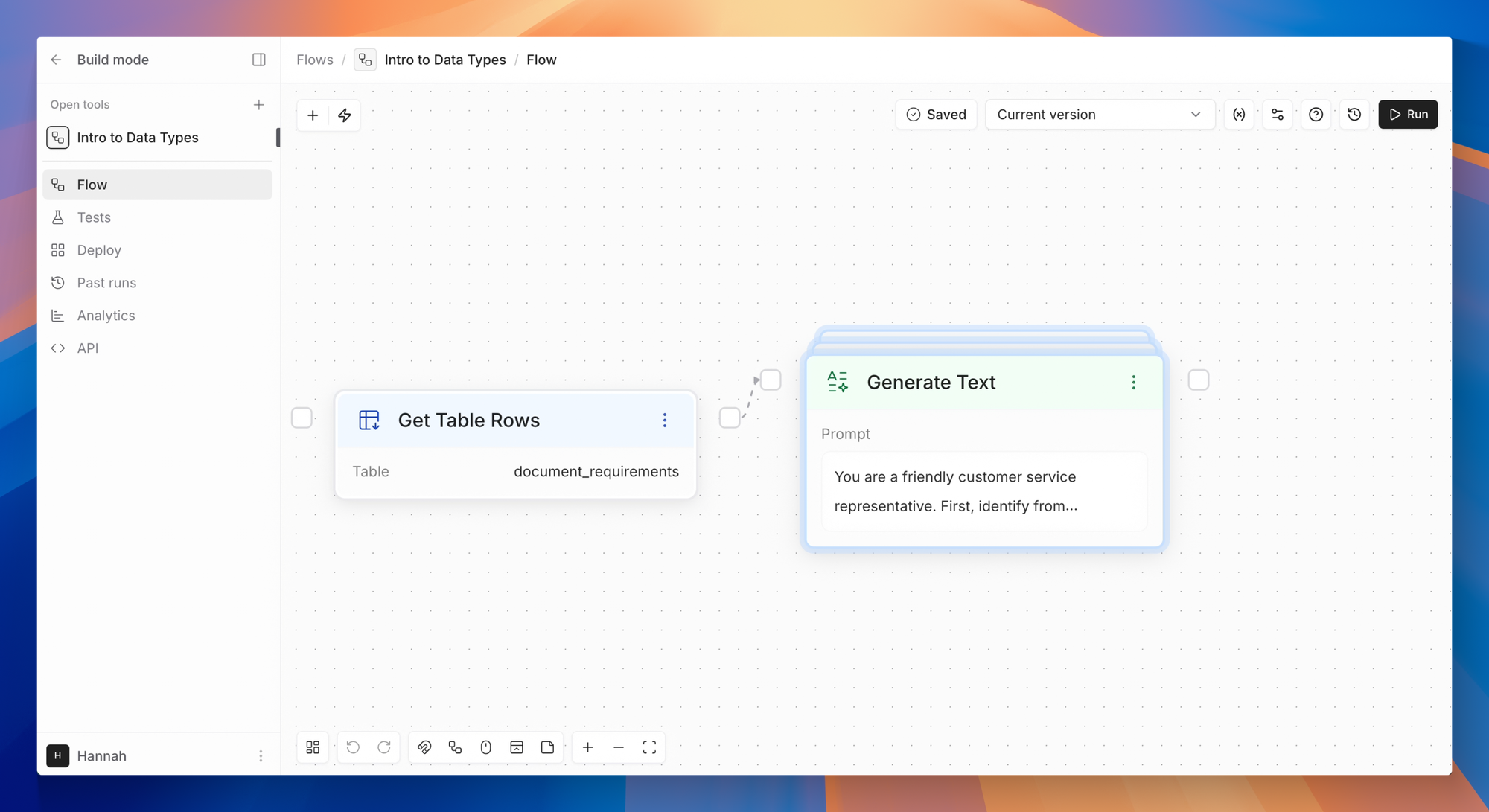
  All of the types above can be a list: **List of Text**, **List of File**, **List of Object** and so on.

  When you bind a list, the field decides what happens:

  * **A list field** gets the whole list, and the node runs once. List fields only take variables.
  * **A single-value field** gets one item at a time, and the node runs once per item. Its output becomes a list of the results.

  **Good to know:**

  * Two lists going into one node are paired item by item, so they must be the same length or the run stops. A single value, or a one-item list, is reused for every item.
  * An empty list runs the node zero times, and nodes that only depend on it are skipped.
  * A node runs for at most 100,000 items.

  **Convert with:** List Operations (count, pick, sort, join, split), List to Single Value, Single Value to List.

  <Frame caption="Get Table Rows outputs Rows as a List of Text (one JSON string per row), so Generate Text, whose Prompt is a single-value field, runs once per row.">
    <img src="https://storage.googleapis.com/image-storage-spot-manual/docs/flows/data-types-list-fan-out.png" alt="Get Table Rows feeding Generate Text, which is drawn as a stack because it runs once per row" />
  </Frame>
</div>

## Skipped values

A node on a branch that wasn't taken, or that depends on a skipped node, doesn't run. Its outputs are **skipped**: shown with a **Skipped** badge in the run, and written as nothing when inserted into text. To bring branches back together, use **Merge Paths**, which runs as long as one of its inputs ran.

## Type errors

When a bound variable stops fitting, for example after you change or delete its source node, the field shows an amber message, the node gets an amber border with the problem listed under it, and hovering **Run** lists every issue under **Resolve the following issues**. Errors block the run; warnings don't.

| Message | Fix |
| :- | :- |
| This field expects Number, but the bound variable is List of Text. | Bind a matching output, or convert the value first. |
| Bound variable points to a node that no longer exists. | Bind the field again. |
| Bound variable isn't produced upstream of this node. | Connect the source so it runs before this node. |
| Variable not found (on a chip) | Remove the chip and insert the variable again with `/`. |


This documentation is built and hosted on [Mintlify](https://mintlify.com), a developer documentation platform.