> ## Documentation Index
> Fetch the complete documentation index at: https://docs.noxus.ai/llms.txt
> Use this file to discover all available pages before exploring further.
# Cases
> Creating and managing test cases for your evaluations
Test cases define the inputs your flow receives during an evaluation run. Each case represents a specific scenario you want to verify.
## Creating Cases
A user can choose to create a case from scratch or from a previous successful run.
### From Scratch
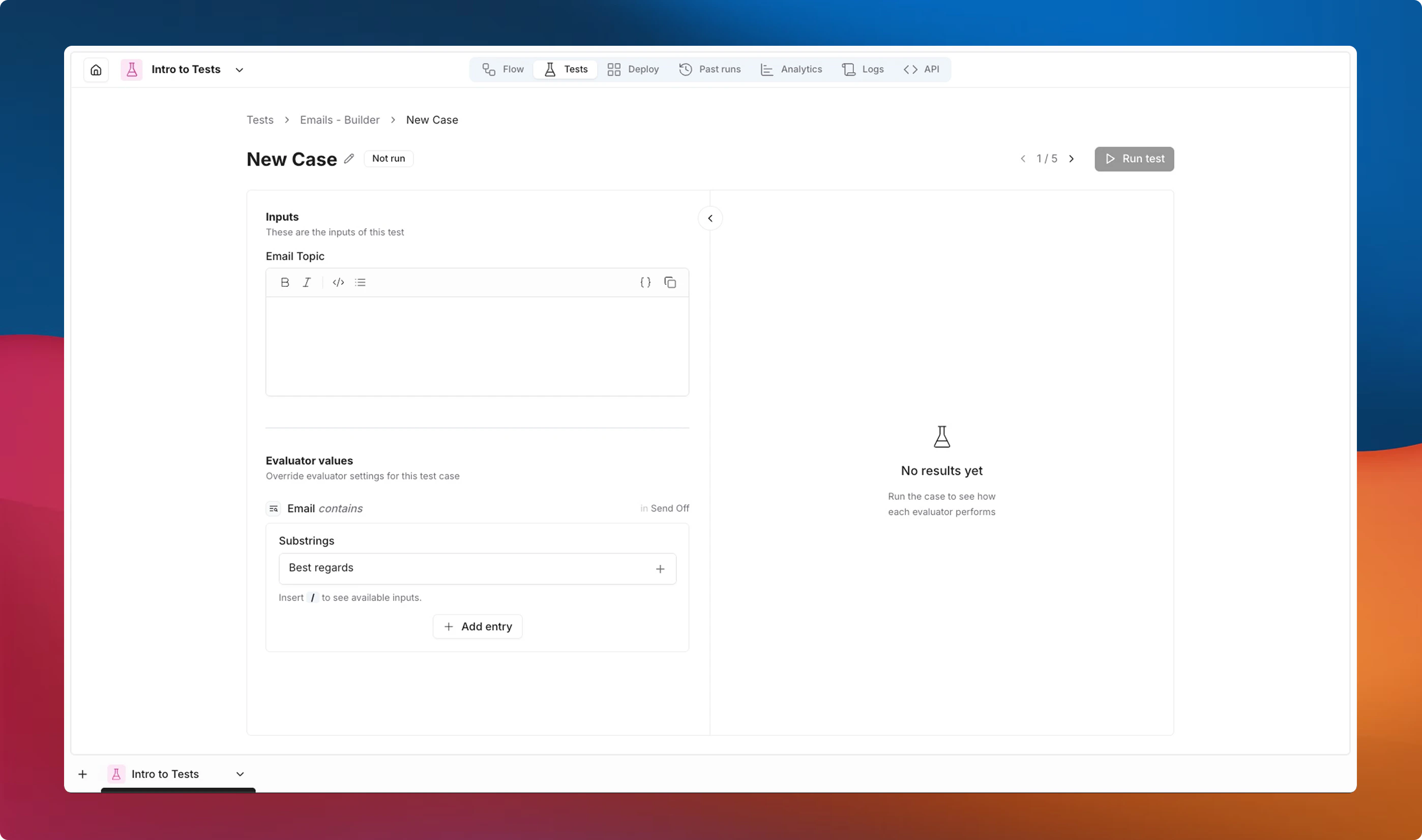
Navigate to the test where you want to add a case and click **Add case**.
Give the case a descriptive label (e.g., "Short product description", "Edge case: empty input").
Provide values for each of the flow's input connectors. The form automatically shows the input fields defined in your flow.
Provide the values needed for each evaluator to perform its check. They may come with a default set on the evaluator, but can be overridden per case to match the expected result for that specific scenario. See [Per-Case Overrides](/platform/tests/evaluators#per-case-overrides) for details.
 ### From a Previous Run
Navigate to the **Past runs** tab of your flow.
Find a completed run that represents a good test scenario and click the icon on that row. This will pre-fill the case inputs with the values used in that run.
Choose which test to add the case to, or create a new one, and save.
You can also reach the **Past runs** from inside a test — click the dropdown next to **Add case** and select **Import from runs**.
### Managing Inputs
Test case inputs map directly to your flow's input connectors. When your flow has multiple inputs (e.g., a text input and a file input), each one appears as a separate field in the case editor.
Inputs marked as **not visible when running** (fixed inputs with the "Visible when running" toggle disabled) are automatically hidden from the case editor. The flow uses their fixed value during execution -- you do not need to provide them. If a fixed input is still visible when running, its value is pre-filled but can be overridden per case.
If you modify your flow's inputs after creating cases, existing cases may become **invalid** -- the evaluation will flag them with an error status so you can update them.
### Evaluator Overrides
Some evaluators have properties that can be **overridden per case**. The value you set on the evaluator acts as the default, but you can customize it for individual cases without creating a separate evaluator.
Overridable properties appear in the **Evaluator overrides** section at the bottom of the case editor. Only properties marked as overridable on the evaluator are shown -- see the [Evaluators](/platform/tests/evaluators) page for which properties support this.
### Bulk Operations
You can select multiple cases using the checkboxes in the cases table to perform bulk actions:
* **Run selected** -- execute evaluations only for the selected cases.
* **Delete selected** -- remove multiple cases at once.
## Running Cases
You can run cases in several ways:
* **Run all** -- from the test detail view, click **Run all** to execute every case in the test at once.
* **Run from the table** -- click the button on a specific case row to run just that case.
* **Run from inside a case** -- open a case and click **Run** to execute it individually and see the results in real time.
* **Run a selection** -- select multiple cases using the checkboxes and use the **Run** bulk action.
You must have at least one evaluator configured in the test before you can run any cases. The run buttons will be disabled until an evaluator is added.
To learn more about running evaluations, interpreting results, and handling errors, see [Running Tests](/platform/tests/running-tests).
### Status Indicators
Each case in the table shows its current status:
| Status | Meaning |
| -------------------------------------------------------------------------------------------------------------------------------------------------------------------------------------------------------------------------- | -------------------------------------------------------------------------------------- |
| Passed | All evaluators passed. |
| Failed | One or more evaluators failed. |
| Error | The flow failed to execute before evaluators could run. |
| Running | Evaluation is in progress. |
| Not run | No results exist yet. |
| Cancelled | The run was cancelled. |
| — | Results are outdated -- the flow, evaluators, or case data changed since the last run. |
### From a Previous Run
Navigate to the **Past runs** tab of your flow.
Find a completed run that represents a good test scenario and click the icon on that row. This will pre-fill the case inputs with the values used in that run.
Choose which test to add the case to, or create a new one, and save.
You can also reach the **Past runs** from inside a test — click the dropdown next to **Add case** and select **Import from runs**.
### Managing Inputs
Test case inputs map directly to your flow's input connectors. When your flow has multiple inputs (e.g., a text input and a file input), each one appears as a separate field in the case editor.
Inputs marked as **not visible when running** (fixed inputs with the "Visible when running" toggle disabled) are automatically hidden from the case editor. The flow uses their fixed value during execution -- you do not need to provide them. If a fixed input is still visible when running, its value is pre-filled but can be overridden per case.
If you modify your flow's inputs after creating cases, existing cases may become **invalid** -- the evaluation will flag them with an error status so you can update them.
### Evaluator Overrides
Some evaluators have properties that can be **overridden per case**. The value you set on the evaluator acts as the default, but you can customize it for individual cases without creating a separate evaluator.
Overridable properties appear in the **Evaluator overrides** section at the bottom of the case editor. Only properties marked as overridable on the evaluator are shown -- see the [Evaluators](/platform/tests/evaluators) page for which properties support this.
### Bulk Operations
You can select multiple cases using the checkboxes in the cases table to perform bulk actions:
* **Run selected** -- execute evaluations only for the selected cases.
* **Delete selected** -- remove multiple cases at once.
## Running Cases
You can run cases in several ways:
* **Run all** -- from the test detail view, click **Run all** to execute every case in the test at once.
* **Run from the table** -- click the button on a specific case row to run just that case.
* **Run from inside a case** -- open a case and click **Run** to execute it individually and see the results in real time.
* **Run a selection** -- select multiple cases using the checkboxes and use the **Run** bulk action.
You must have at least one evaluator configured in the test before you can run any cases. The run buttons will be disabled until an evaluator is added.
To learn more about running evaluations, interpreting results, and handling errors, see [Running Tests](/platform/tests/running-tests).
### Status Indicators
Each case in the table shows its current status:
| Status | Meaning |
| -------------------------------------------------------------------------------------------------------------------------------------------------------------------------------------------------------------------------- | -------------------------------------------------------------------------------------- |
| Passed | All evaluators passed. |
| Failed | One or more evaluators failed. |
| Error | The flow failed to execute before evaluators could run. |
| Running | Evaluation is in progress. |
| Not run | No results exist yet. |
| Cancelled | The run was cancelled. |
| — | Results are outdated -- the flow, evaluators, or case data changed since the last run. |