

Navigation
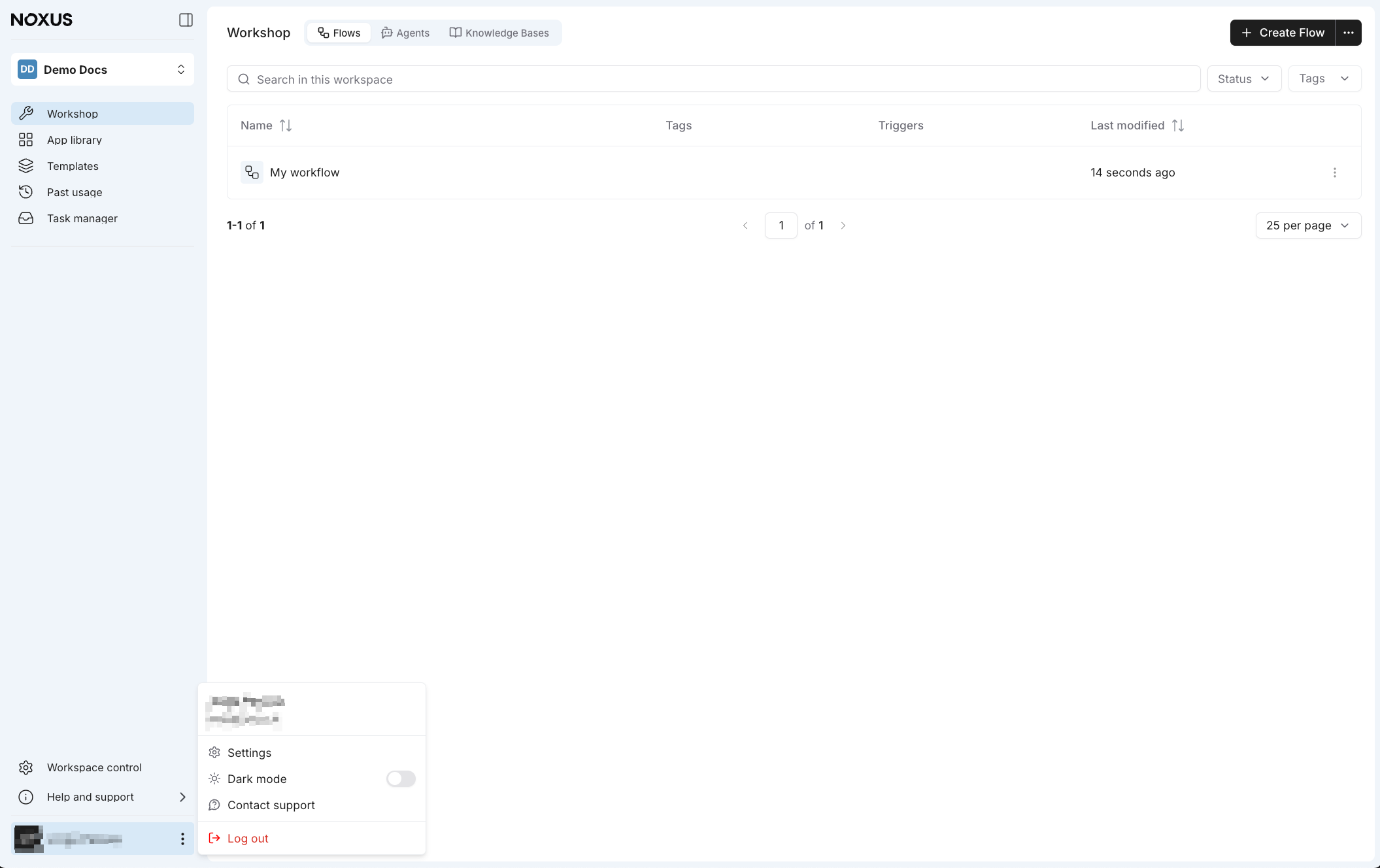
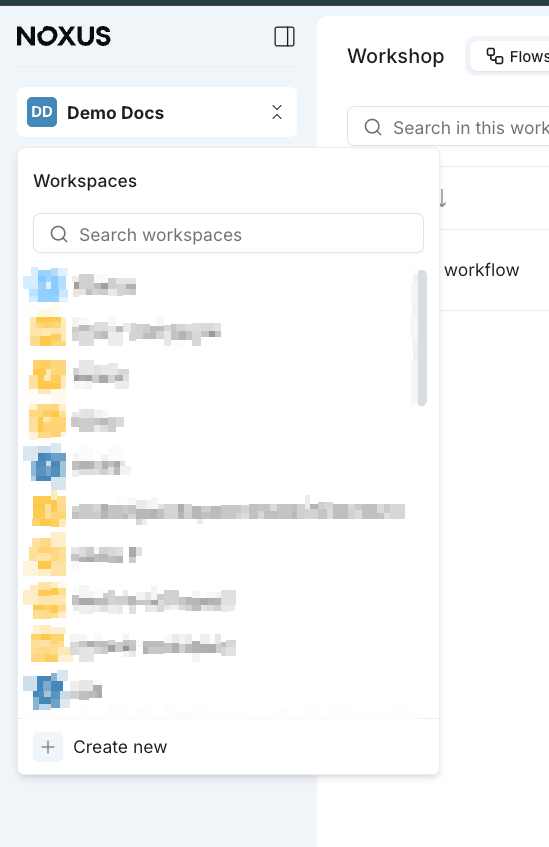
The platform is organized around workspaces, allowing you to switch between different environments and access core tools.All resources and tools visible in the sidebar—including the AI Tools, App Library, and Templates—are strictly constrained to the currently selected workspace. Switching workspaces will update these views to reflect the resources of the new environment.
Workspace Selector
Core Tools
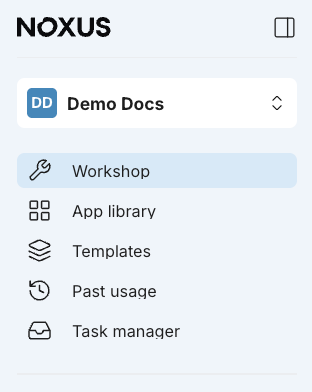
- AI Tools: Manage your flows, agents, and knowledge bases.
- App Library: Discover the deployed AI components.
- Templates: Start quickly with production-grade templates.
- Past Usage: Navigate all past usage of the platform.
- Task Manager: Track human-in-the-loop jobs.
Component Editors
Each section within the AI Tools (Flows, Agents, and Knowledge Bases) serves as an entry point to its respective visual editor. Clicking on any individual component will open a dedicated workspace where you can design, configure, and test that specific resource in detail.Organization Settings
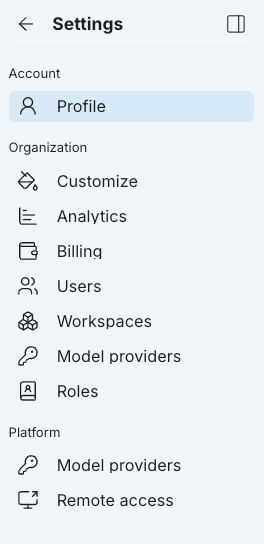
To access global configuration and tenant-level management, click the three dots menu at the bottom of the sidebar. This opens the Organization Settings panel.Tenant Settings
Management Areas
The settings panel allows you to manage the following areas:
- Profile: Manage your personal account information and preferences.
- Customize: Configure organization branding and platform appearance.
- Analytics: View platform-wide usage metrics and performance data.
- Billing: Manage subscriptions, payment methods, and invoices.
- Users: Invite team members and manage organization-level access.
- Workspaces: Create and organize isolated environments for your projects.
- Model Providers: Configure global API keys for AI models (OpenAI, Anthropic, etc.).
- Roles: Define and manage custom permission sets for your team.