

Running Evaluations
Each case runs your flow independently with its defined inputs, then applies every evaluator against the outputs. Results are surfaced both as an at-a-glance summary on the test level and as detailed breakdowns per case.How to Run
By default, evaluations run against the current version of your flow. Use the version selector to target a specific saved version instead. Once the version is selected, you can:- Run all tests at once — click Run tests from the tests list for full regression testing.
- Run all cases in a test — use the button on a test row or click Run all from the test detail view.
- Run individual cases — use the button on a case row or the Run button inside a case.
Understanding Results
Test Summary
The summary bar at the top of each test shows the pass rate, average latency, last run time, and token cost. Its background color reflects the overall state: gray (running or not all run), green (all passed), red (any failed), or yellow (any outdated).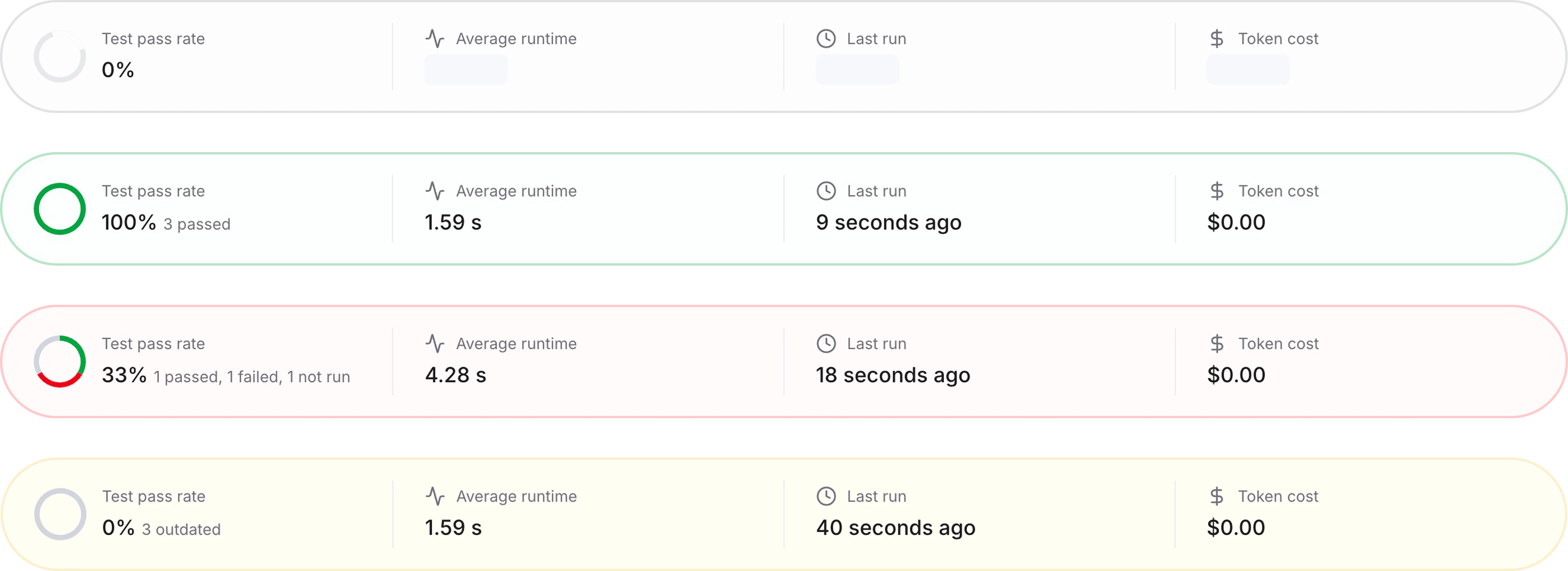
Per-Case Results
Click on a case to open a detailed view. The left panel shows the case inputs and evaluator values, while the right panel displays the run output and each evaluator’s pass/fail status with feedback. You can compare previous runs using the run history dropdown. The right panel also includes full run details for quick debugging — admins have access to execution logs as well.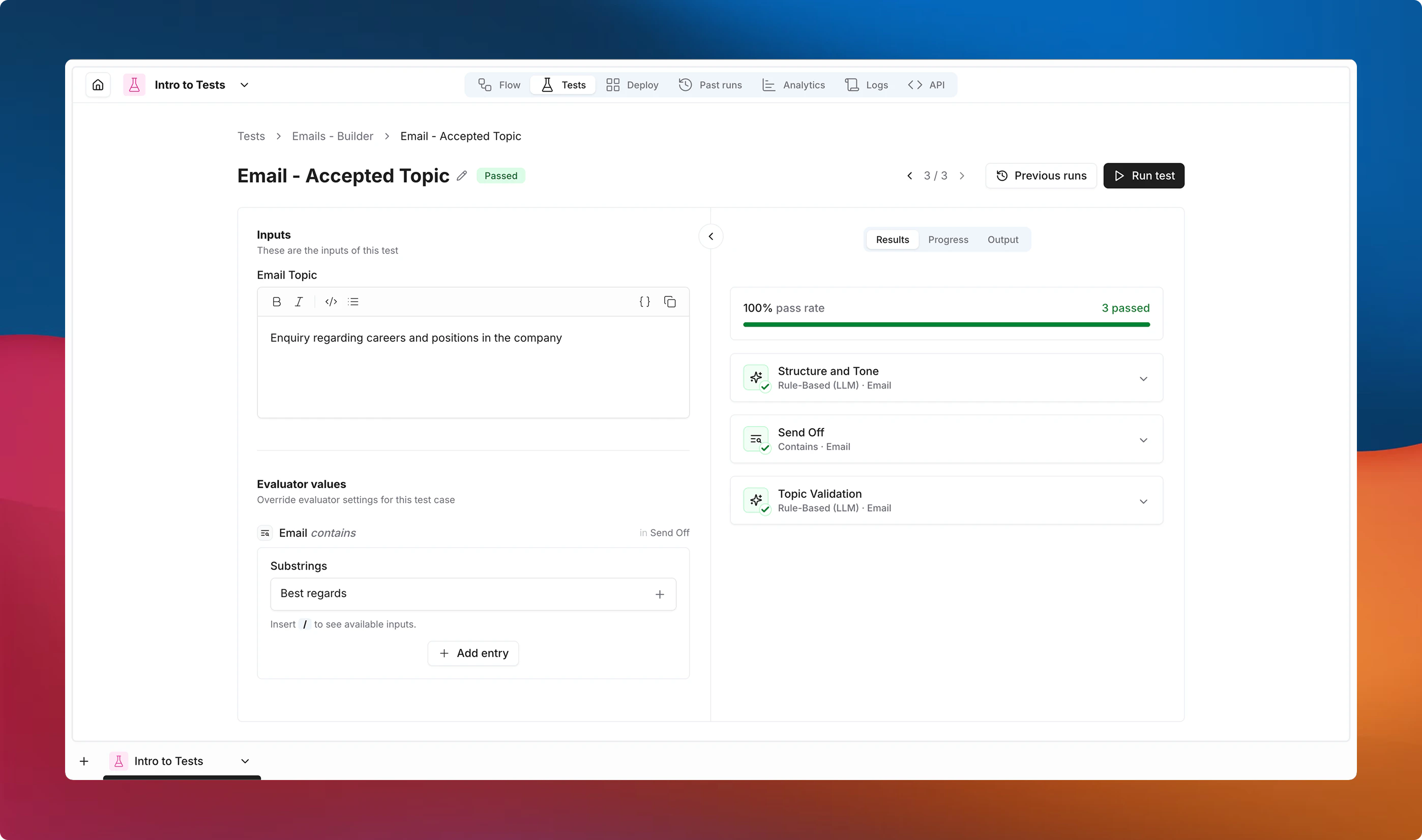
Execution Errors
When a flow fails to execute, the case is marked with Error — distinct from Failed, which means the flow completed but evaluators didn’t pass. A warning banner appears at the top of the test when execution errors are detected.Outdated Results
Noxus tracks changes using content hashes. Results are flagged as outdated when any of the following change after a run:
Outdated results display a yellow warning triangle and a banner. Click Run outdated tests to re-evaluate only the affected tests.
Testing Flows with Integrations
Each test case triggers an actual workflow run — every node in the flow executes for real. This means integration nodes that perform external actions (sending emails, posting Slack messages, creating tickets) will fire on every test run.Use Subflows to Isolate Logic
To test a flow that ends with an integration action, extract the logic you want to validate into a subflow that stops before the integration node. Run your tests against the subflow instead of the full flow. For example, if your flow generates an email body and then sends it via Gmail, create a subflow that only covers the generation step. Your evaluators can then assert on the email content without actually sending anything.Integration Nodes as Inputs
Integration nodes that read external data (Slack messages, emails) can be useful as test inputs. However, this data might change between runs and may produce inconsistent results.Prefer static test case inputs for reliable evaluations. Reserve live-data inputs for exploratory or smoke-style tests where you accept variability.
Best Practices
- Start with deterministic evaluators — fast, free, and predictable. Add AI evaluators only for subjective quality assessment.
- Use specific output fields — target individual output connectors for precise assertions.
- Name cases descriptively — “Long input with special characters” is easier to debug than “Test 1”.
- Run before deploying a version — treat evaluations like a CI pipeline.
- Combine evaluator types — layer structural checks (Is JSON, Contains) with quality checks (Rule-Based LLM).
- Keep cases focused — one behavior per case makes failures easier to pinpoint.
- Prefer subflow testing — break complex flows into testable subflows. This avoids triggering integration side effects, reduces test complexity, and makes failures easier to trace.