

Setting Up the Slack Deployment
There are two ways to connect your agent to Slack: using the Noxus-managed Slack bot or connecting your own custom Slack app.Option A: Use the Noxus-Managed Bot
The quickest way to get started is to install the Noxus bot directly into your Slack workspace.1
Create a Slack deployment
In the Noxus platform, navigate to your agent’s Deployments page and create a new Slack deployment.
2
Install the Noxus Bot
You will see a notice to invite the Noxus Bot to your workspace:
3
Invite the bot to channels
Once authorized, invite the bot to any channel where you want it to respond by typing
/invite @Noxus Bot in that channel.Option B: Connect Your Own Slack App
If you need more control over permissions or branding, you can connect your own Slack app instead. Here we are connecting an app named “Bug Reporter”.1
Create or select your Slack app
Go to api.slack.com/apps and either create a new app or select an existing one.
2
Find your App Credentials
In your Slack app’s settings, go to Basic Information to find your App ID and Signing Secret: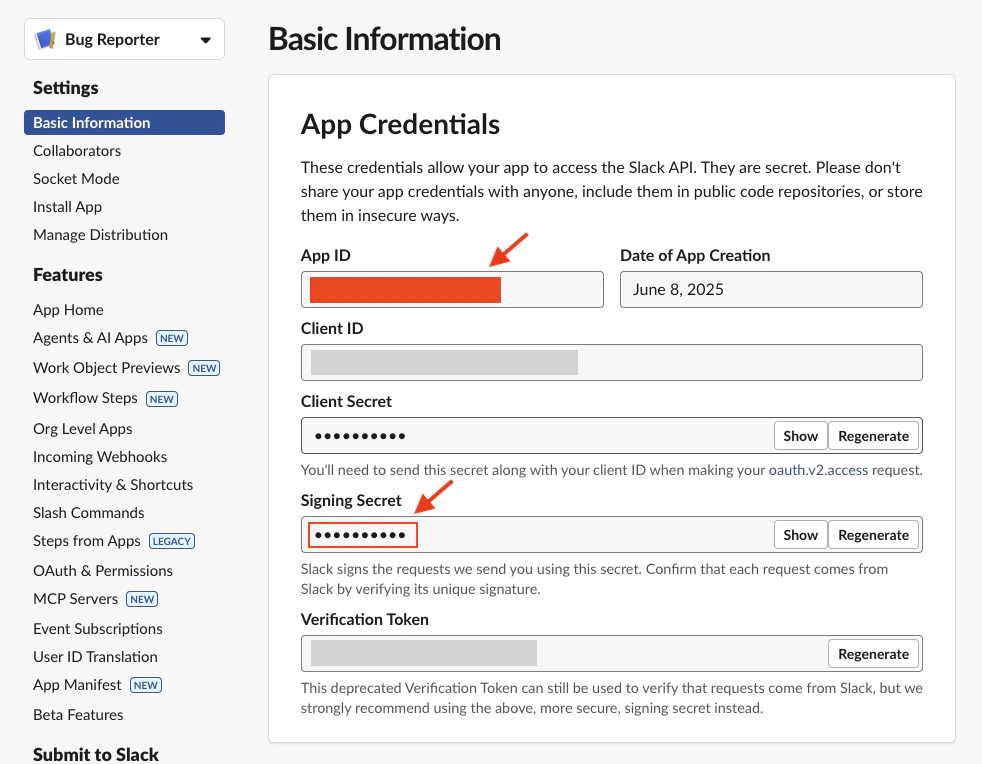
3
Get your Bot User OAuth Token
Go to OAuth & Permissions in the sidebar and copy the Bot User OAuth Token (starts with 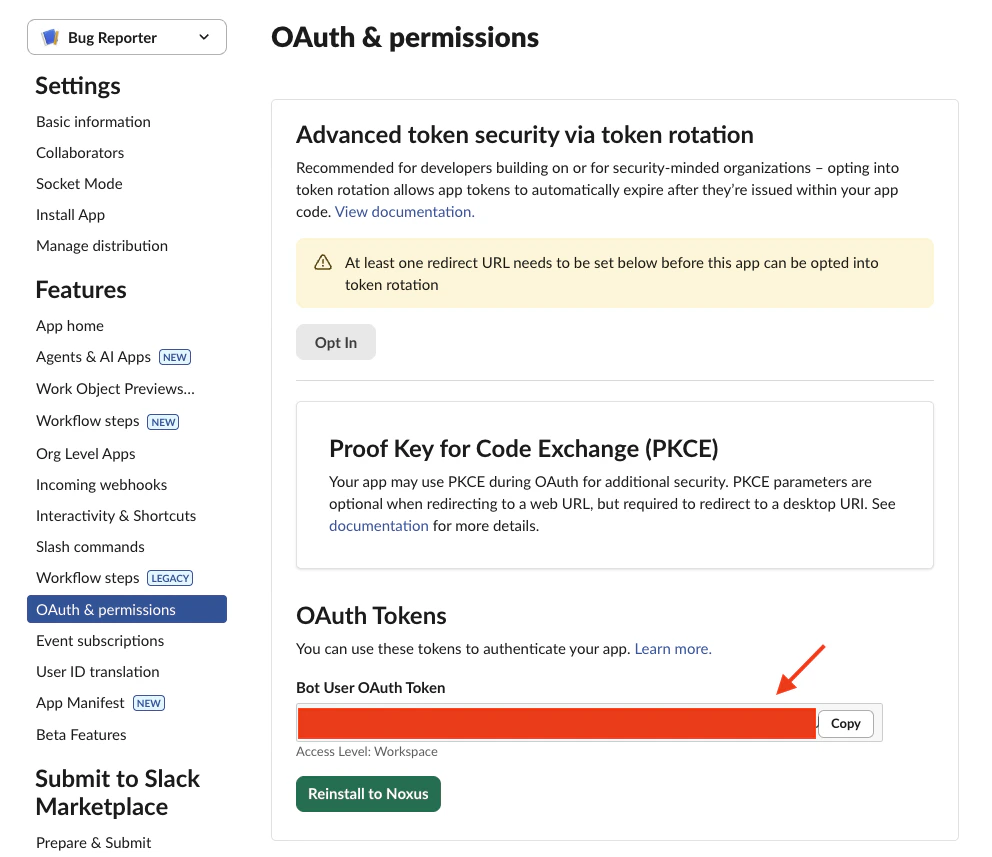
xoxb-):4
Enter credentials in Noxus
Back in Noxus, open the Slack connection dialog and fill in the three fields: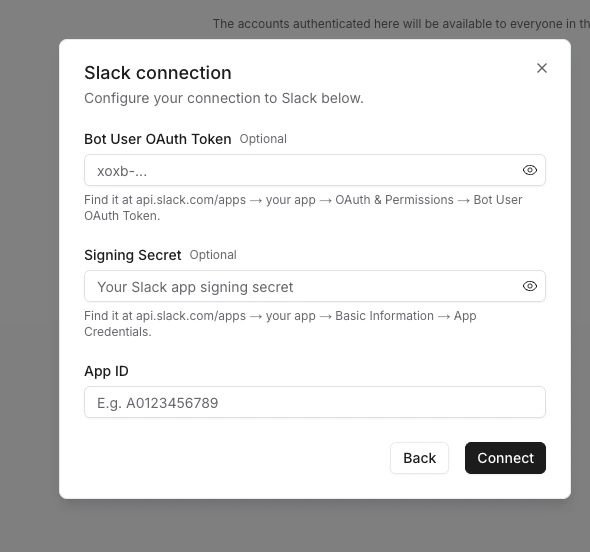
- Bot User OAuth Token — the
xoxb-...token from OAuth & Permissions - Signing Secret — from Basic Information → App Credentials
- App ID — from Basic Information → App Credentials
5
Configure the Webhook URL
After creating your Slack deployment, Noxus will generate a Webhook URL. Copy it:
6
Subscribe to bot events
Go to your Slack app’s Event Subscriptions page, enable events, and paste the URL into the Request URL field.
Still on the Event Subscriptions page, scroll down to Subscribe to bot events and add the following events: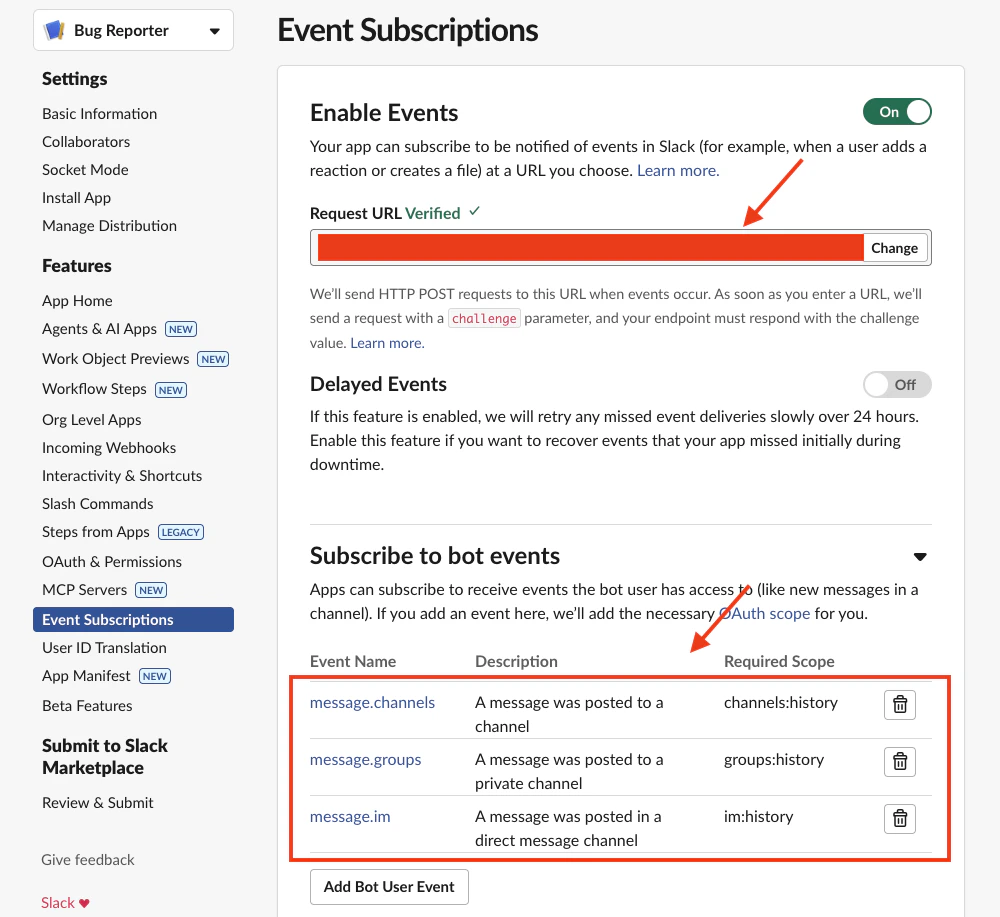
message.channels— messages in public channelsmessage.groups— messages in private channelsmessage.im— direct messagesmessage.mpim— group direct messages
Deployment Settings
Once your Slack connection is established, configure how the agent behaves in Slack. Settings are organized into the sections below.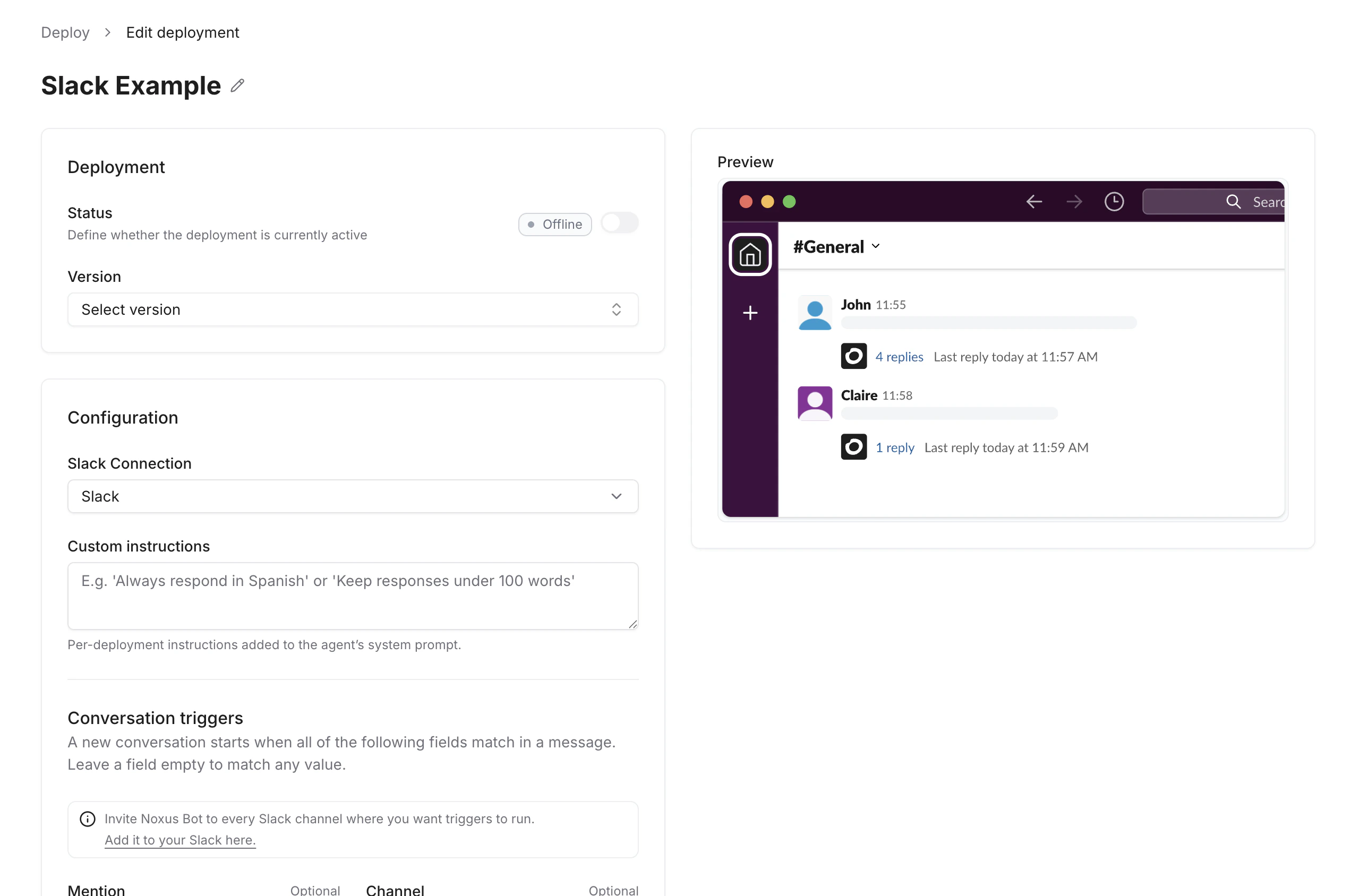
Deployment
A published version is required before you can set a deployment to Online. You cannot edit the configuration while the deployment is active — switch it to Offline first, then make your changes.
Configuration
Conversation Triggers
A new conversation starts when all specified fields match an incoming message. The fields use AND logic — every non-empty field must match for the trigger to fire.Leave a field empty to match any value. For example, setting only Channel will trigger on every message in that channel regardless of mention or keyword.
Reply Behavior
Channel Tools
Toggle which Slack-specific tools the agent can use during conversations.Rate Limits
Display
Troubleshooting
I'm not seeing any events on the deployment
I'm not seeing any events on the deployment
Make sure the Signing Secret entered in the Slack connection matches the one in Basic Information → App Credentials on api.slack.com. Noxus uses the signing secret to verify every incoming event; if it’s wrong or stale, Slack requests fail signature verification and no events reach the deployment.
The agent's reply shows in conversation history but never appears in Slack
The agent's reply shows in conversation history but never appears in Slack
The bot is missing the
chat:write scope. The conversation runs successfully on the Noxus side, but posting back to Slack fails silently. Add chat:write under OAuth & Permissions → Bot Token Scopes in api.slack.com, reinstall the app to your workspace, and update the Bot User OAuth Token in the Noxus Slack connection.