Deploy your agent as a Telegram bot in minutes. Once you paste the bot token, Noxus registers the webhook with Telegram automatically — no external configuration required.

Setting Up the Telegram Deployment

Telegram deployments use the standard Telegram Bot API. All you need is a bot token from @BotFather.
1

Create a bot with @BotFather

Open Telegram and start a chat with @BotFather. Send /newbot, follow the prompts to choose a name and a username, and copy the bot token. It looks like 123456789:ABCdefGHIjklMNOpqrsTUVwxyz.
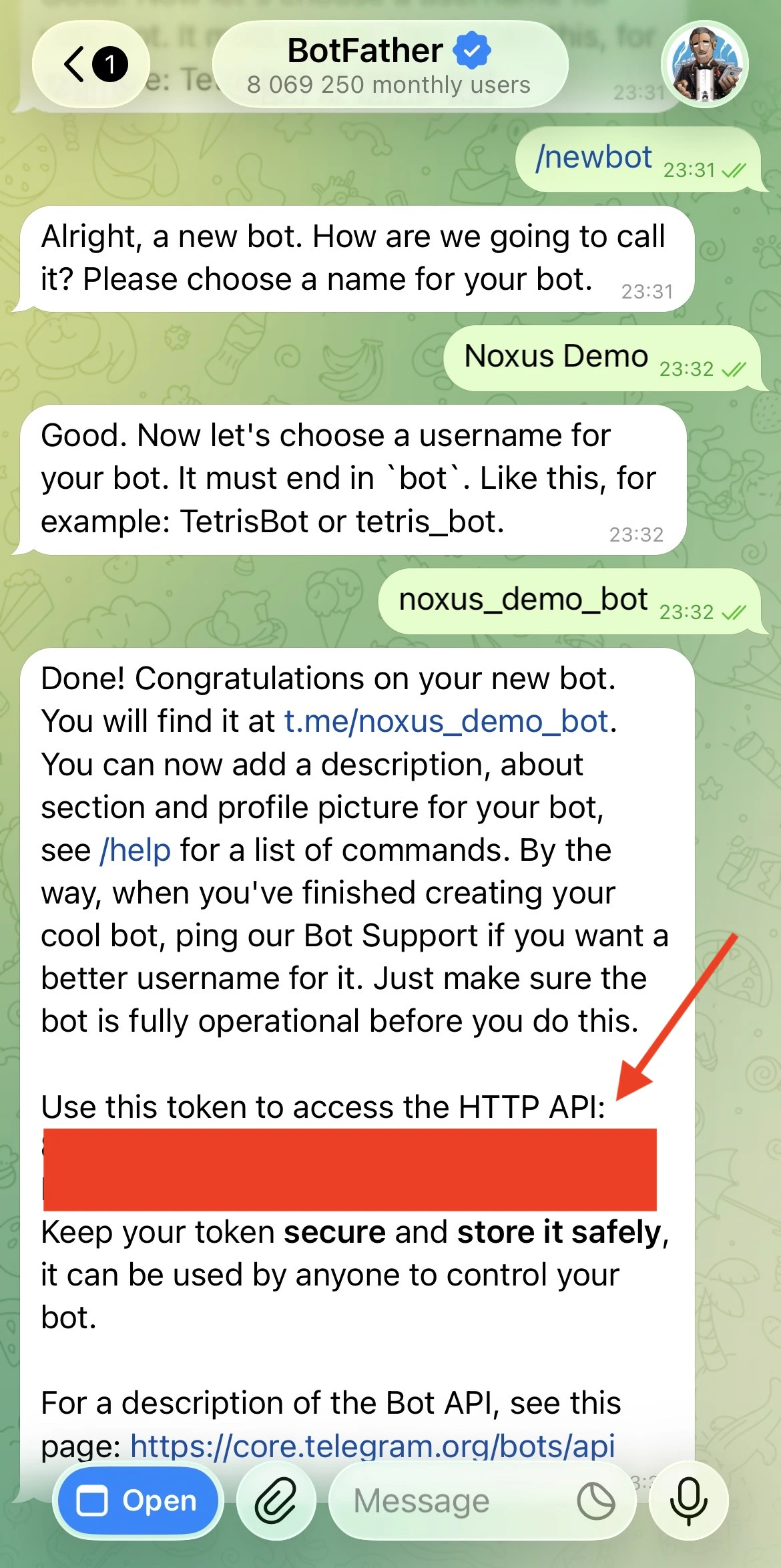
Creating a Telegram bot via BotFather
2

Enter the bot token in Noxus

In Noxus, create a new Telegram connection and paste the bot token.
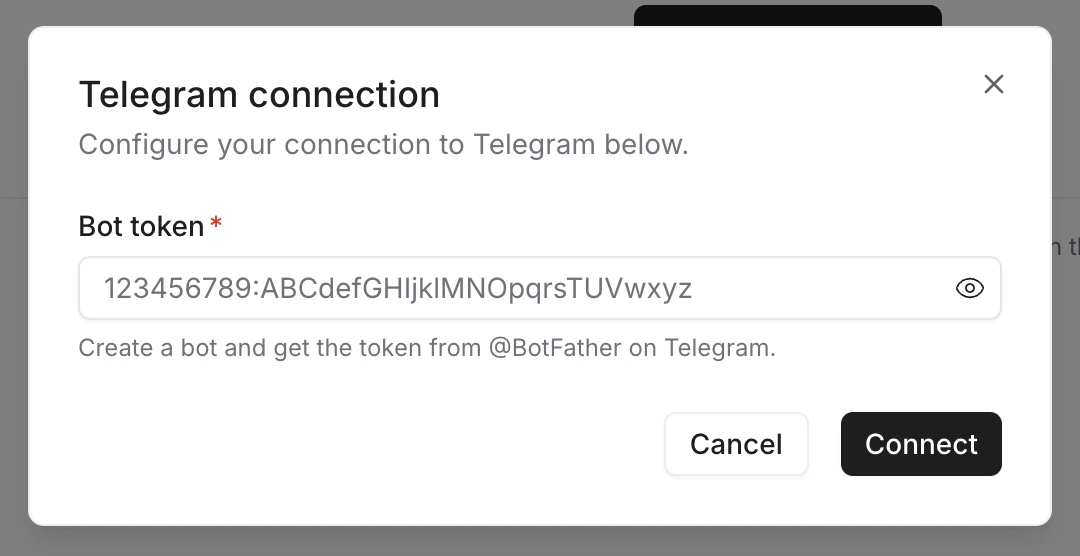
Noxus Telegram connection dialog
Click Connect — Noxus calls getMe on the Telegram API to verify the token and record your bot’s metadata.
3

Activate the deployment

Create a Telegram deployment, pick this connection, and set it to Online. Noxus automatically registers the webhook with Telegram and secures it with a per-deployment secret token, so every incoming update is signed by Telegram.
4

Talk to your bot

Open Telegram, search for your bot by its username, and send it a message. The agent will reply according to the deployment settings below.
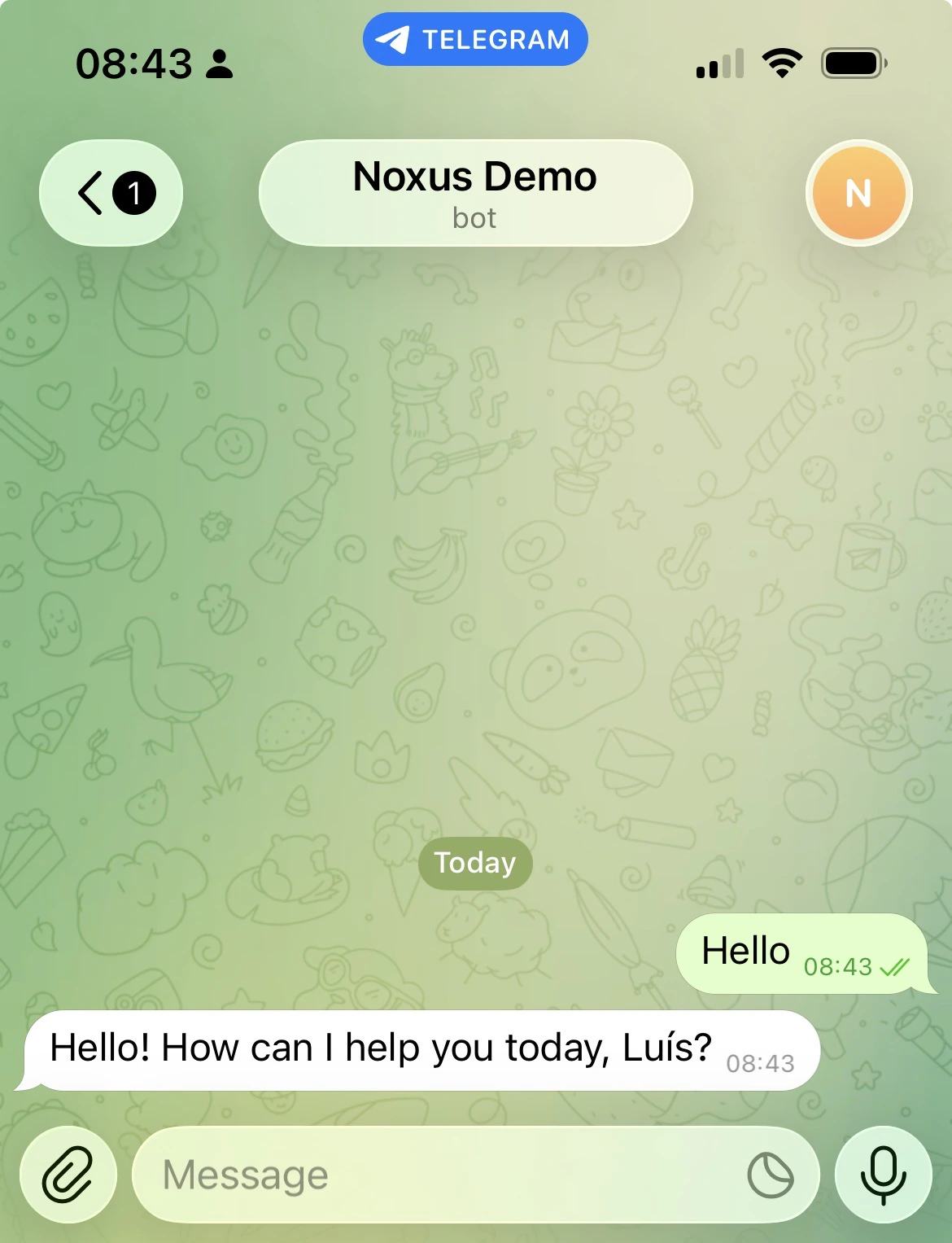
Talking to the Noxus bot on Telegram
You don’t need to configure a webhook URL on Telegram’s side — Noxus handles registration when the deployment goes Online and removes the webhook when it goes Offline.

Deployment Settings

Once your Telegram connection is established, configure how the agent behaves. Settings are organized into the sections below.
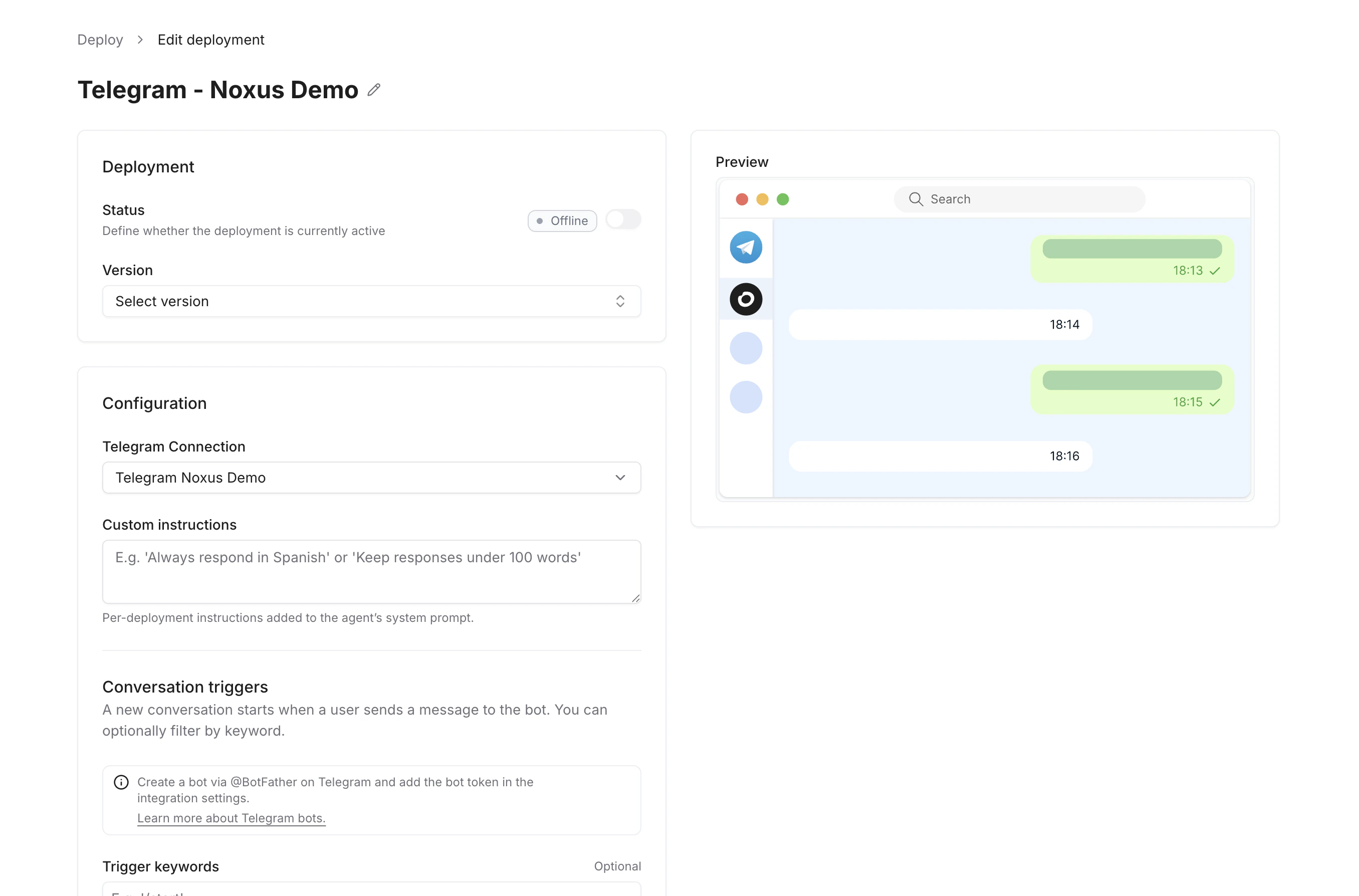
Telegram deployment settings

Deployment

FieldDescription
StatusToggle the deployment Online or Offline. Going Online registers the webhook with Telegram; going Offline deletes it.
VersionThe published agent version this deployment uses.
A published version is required before you can set a deployment to Online. Switch to Offline to edit configuration.

Configuration

FieldDescription
Telegram ConnectionThe Telegram connection (bot token) to use. Manage connections in your workspace’s connections settings.
Custom InstructionsPer-deployment instructions appended to the agent’s system prompt (e.g. "Always respond in Spanish").

Conversation Triggers

A new conversation starts when a user sends a message to the bot. You can optionally restrict this to messages containing specific keywords.
FieldDescription
Trigger keywordsOne or more keywords that must appear in the message (e.g. /start, help). Leave empty to respond to every message the bot receives.

Reply Behavior

FieldDescription
Reply modeAuto — reply directly to the user’s message. Tool-based — nothing is sent automatically; the agent must call the send_message tool to post.
Telegram does not have threads, so the Thread reply mode and the Batch messages / Quiet period settings are not available on this channel.

Channel Tools

Toggle which Telegram-specific tools the agent can use during conversations.
ToolDescription
React To MessageAdd an emoji reaction to a message in the chat.

Rate Limits

FieldDescription
Max messages per minuteLimit how many messages the agent sends per minute. 0 for unlimited.
Max new conversations per hourLimit how many new conversations can be started per hour. 0 for unlimited.
Conversation timeout (minutes)After this many minutes of inactivity, the next message starts a fresh conversation. 0 for no timeout.

Display

FieldDescription
Show thinkingDisplay the agent’s reasoning steps in Telegram messages. Off by default.
Show tool callsDisplay tool call status in Telegram messages. Off by default.
Show sourcesDisplay source citations in Telegram messages. On by default.