

Search bar
The search bar above the grid filters the rows shown. It accepts three kinds of input.- Text
- Ask AI
- SQL
Type a term and press Enter. Every column except
id is searched, and matches are highlighted in the grid.For example, Lisbon finds every row with “Lisbon” in any column.Exporting
The Export button next to the search bar downloads the rows in the current view as a CSV file: every row of the table, or only the rows that match the current search, filter or SQL query.CSV files store every value as text, so column types aren’t saved in the export. If you import the file again, types are detected from the values. File columns export as platform file links (
spot://...), not the files themselves, and come back as Text.Settings tab
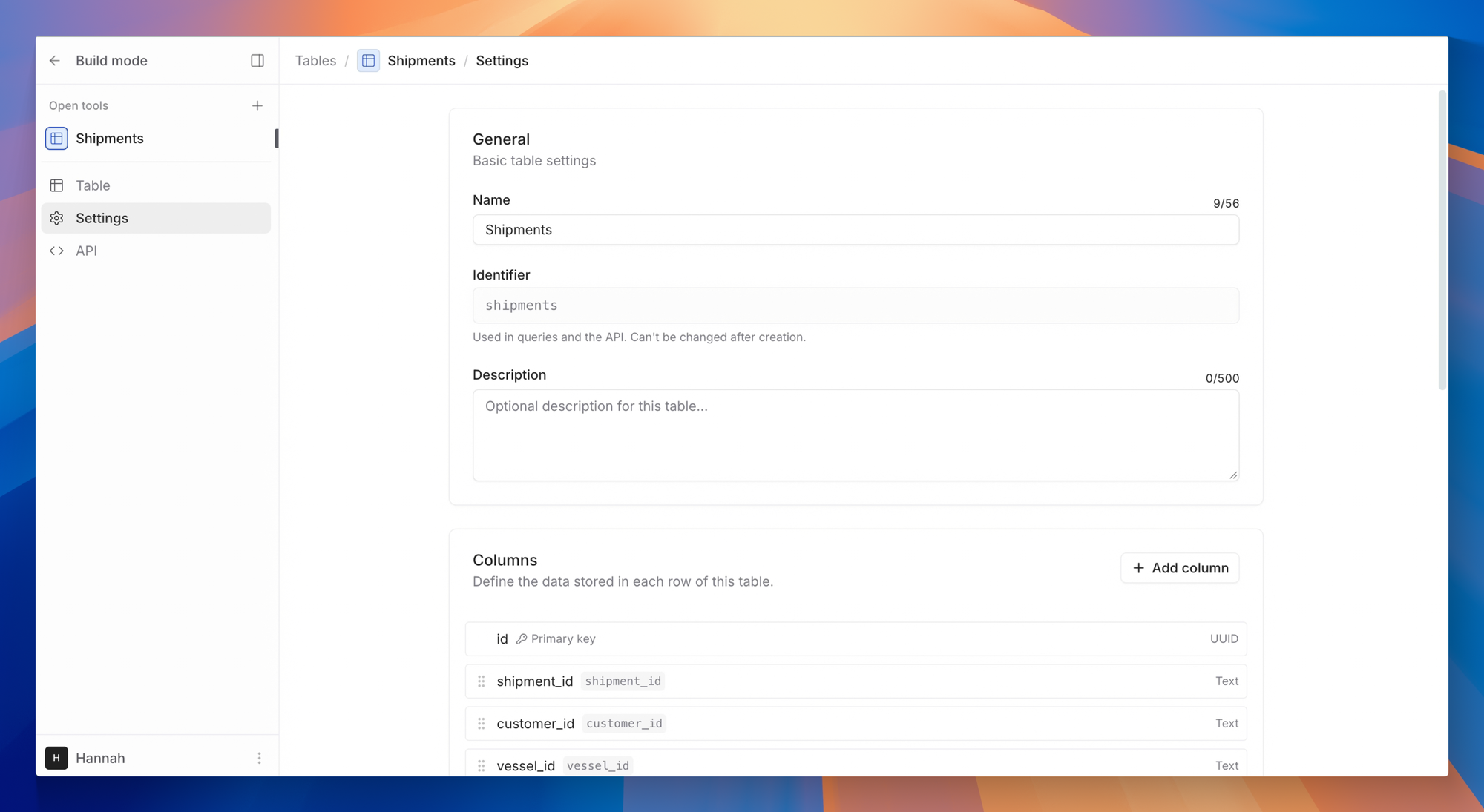
- General: edit the table’s name and description. The Identifier is shown here and can’t be changed after creation.
- Columns: add, edit, reorder and delete columns. See Column types.
- Export: download every row of the table as CSV, regardless of the current search.
- Danger Zone: clear every row from the table, or delete the table and all its data.